Creating and managing Action Flow inputs
Action Flow inputs allow you to pass data with a predefined structure to a Action Flow every time you run it. First, define the expected data structure necessary to start your Action Flow. Then, whenever you run the Action Flow with defined Action Flow inputs, Celonis platform shows a form where you enter the required data. You can use the data from your Action Flow input in all modules in the Action Flow.
You can define Action Flow inputs for your Action Flow before or after adding your modules.
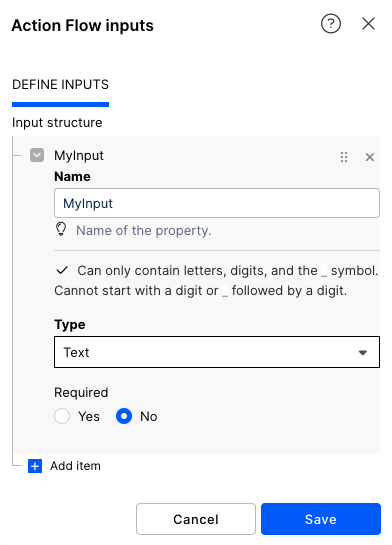
In the Action Flow editor, click the Action Flow input icon.
Click Add item.
Enter the Name. This field is mandatory.
You cannot use spaces or special characters in the name. You can use letters, numbers, and the underscore symbol (_).
You can only start with a letter or underscore.
Select one of the following input data type from the dropdown menu:
Array
Boolean
Collection
Date
Number
Text
In Required, select whether this input is required or not to start your Action Flow.
If you select Yes, your Action Flow cannot run unless you provide the required input.
Important
To use required inputs, your Action Flow scheduling type must be set to On-demand.
If you select No, the Action Flow can run without the specific input.
Optional: If you selected Text, Array, or Collection as your Specification, in Multi-line, select how you want your text to show.
Selecting Yes shows multiple lines of text to show.
Selecting No shows only one line of text.
Repeat the process if you need to add more items.
Click Save.
Click the save icon to save your Action Flow.
Tip
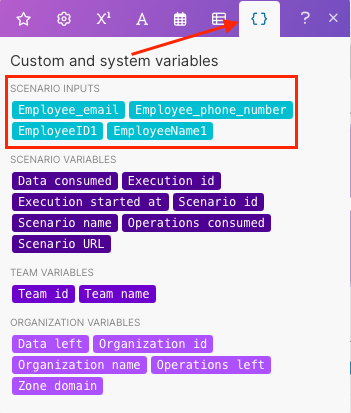
You can use the Action Flow inputs as mappable values in your Action Flows. You can find them under the Variables tab in the mapping dialog.
 |
Warning
Editing the input structure item(s) in an active Action Flow might lead to data inconsistencies and Action Flow failure.
Navigate to the Action Flow input icon in the Action Flow editor.
Click the item you want to edit.
Make your changes.
Caution
Changing the Action Flow input name will cause Action Flows to fail with errors.
If you need to change the input name, we recommend deleting the old item and adding a new one with the new name.
Caution
If you change the inputs from not required to required, you need to change your scheduling to On-demand.
Click Save.
Once you save your changes, the changes update automatically everywhere you use the specific input mappable value.
Once you define your Action Flow inputs, your defined Action Flow inputs appear as mappable values under the Variables tab in the mapping dialog. You can use Action Flow input mappable values in your Action Flows.
With defined Action Flow inputs, every time you trigger a Action Flow (via Run Once or via API), the Action Flow inputs window pops up.
The Action Flow with Action Flow inputs can run only if you fill in all the required fields with the correct data types.
Warning
Deleting the input structure item(s) in the active Action Flow might lead to data inconsistencies and Action Flow failure.
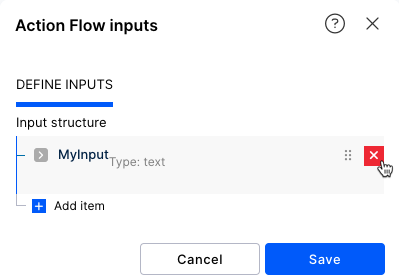 |
To delete an item from an input structure, navigate to the Action Flow input icon in the Action Flow editor.
Find an item you want to delete.
Click X to delete the item.
To delete all items, click X for all of the items.
Click Save to save your changes.