Process Copilot Start Screen settings
Use the optional Start Screen section to add a standard greeting and provide example questions that will display on the Process Copilot chat screen at the start of each new chat session. Use these example questions to provide a starting point that will help users begin to explore their data through the chat interface.
As you enter your greeting and add sample questions, the Your start screen will look like this section on the right will preview the layout of your chat interface at the beginning of each new session.
Use the following procedure to add default questions or prompts to the Start screen for this Process Copilot:
Click the Start Screen section to expand it.
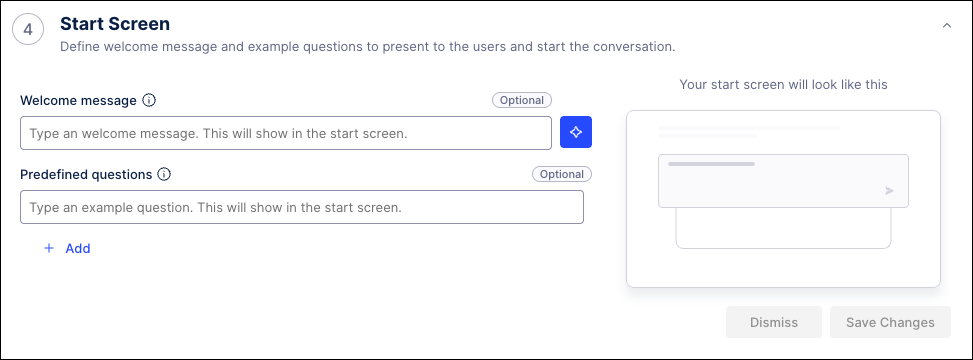
In the Welcome message field, enter the greeting you want to have displayed automatically at the start of each session or click the Generate button to have AI write a message for you.
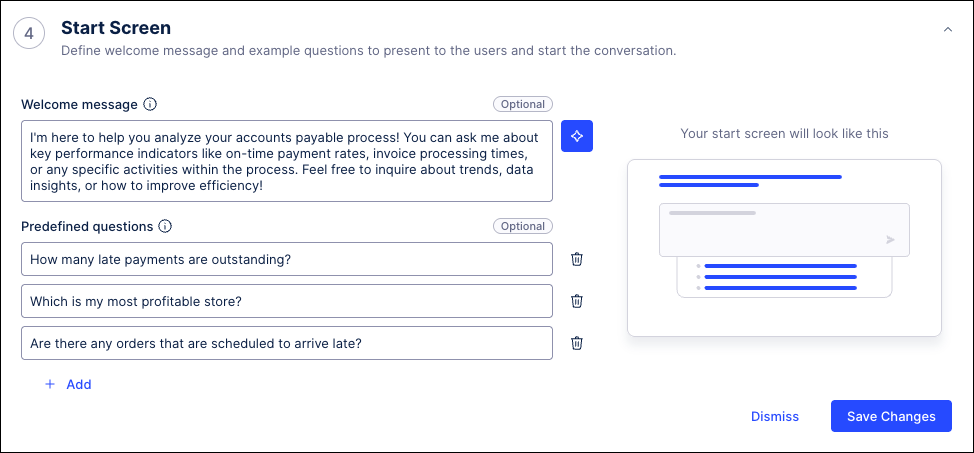
Use the Predefined question text fields to enter trigger questions that the users may want this Process Copilot to answer. Click the Add link to insert more questions.
Click the Save Changes button when finished.
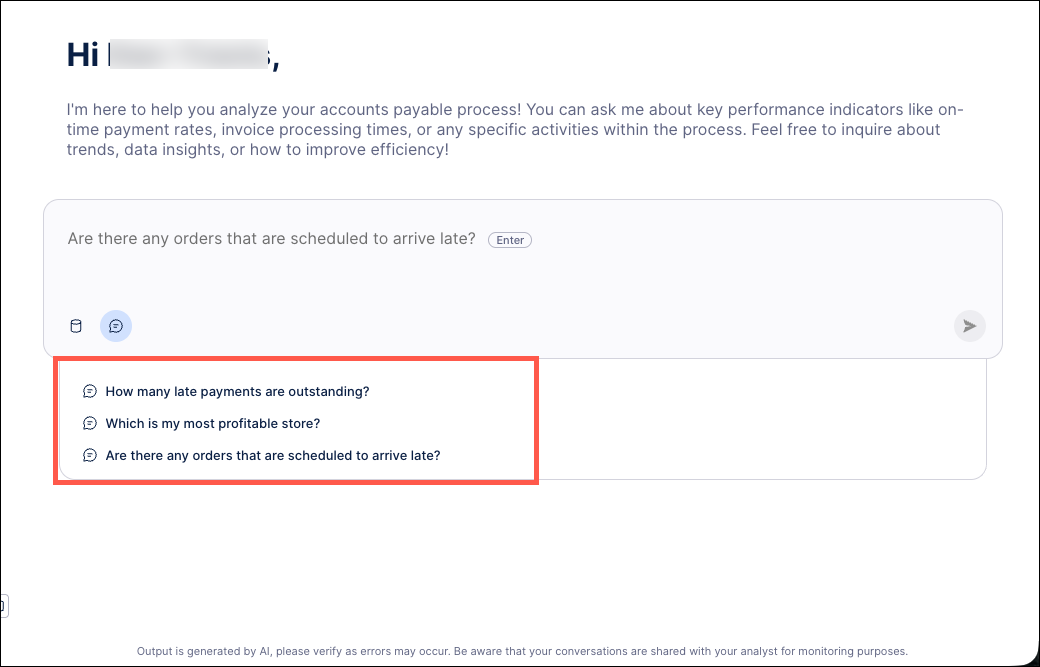
Click the Go to Process Copilot chat at the top of the screen to begin asking your Process Copilot questions. Your custom greeting and example questions will be displayed on your start screen at the beginning of each new session.
To use this Process Copilot with a third party application, click the External Use section to enable external access and retrieve the method for connecting.