Process steps
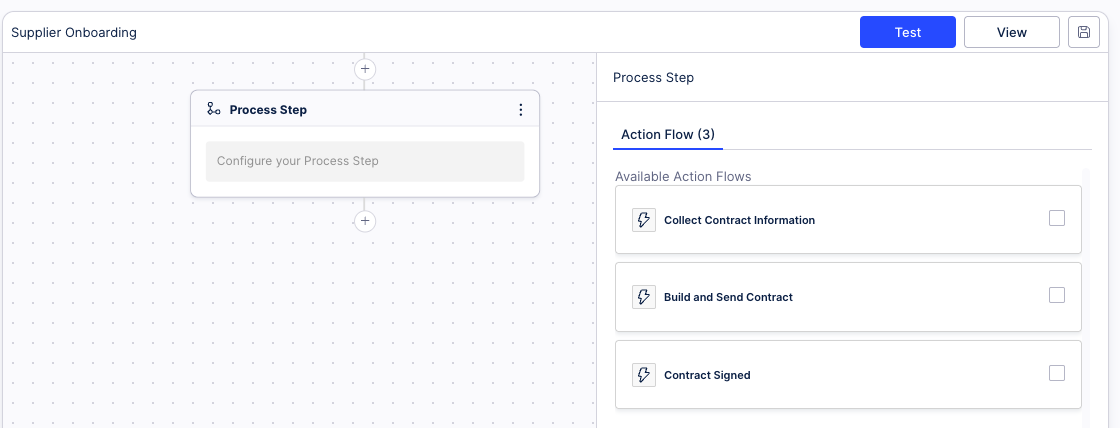
Process steps in Orchestration Engine (OE) are actual actions performed in the Process Orchestration. OE steps are built from Action Flows. Your Process Orchestration can consist of multiple steps, and each step can be built of multiple Action Flows.
 |
Adding a process step to Process Orchestration:
In Studio, go to your package and select your Process Orchestration. If you haven't created any Process Orchestrations yet, see Creating Process Orchestration..
Under a process step, click the plus icon and select Process step.
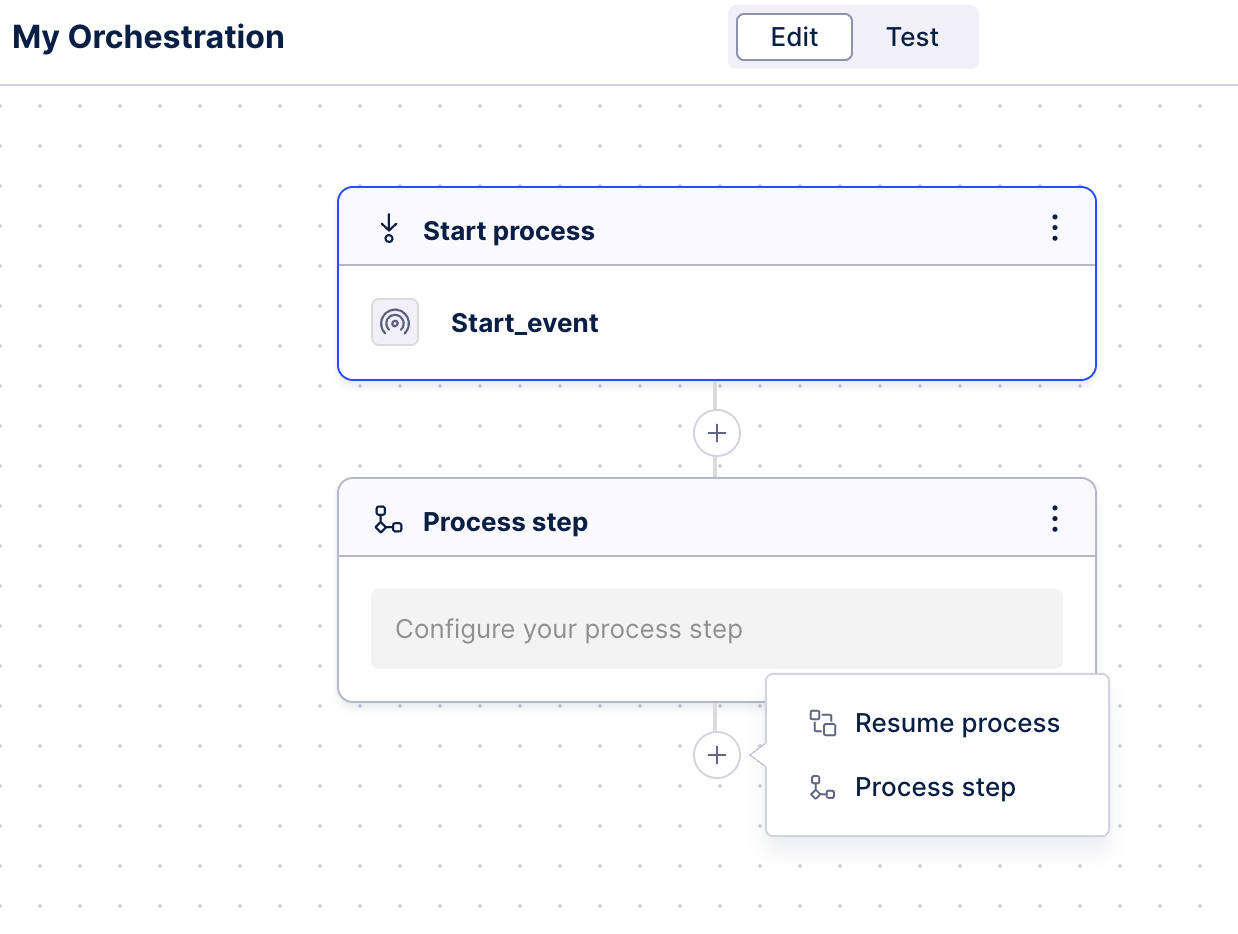
From the right-hand side panel, select Add action.
(optional) Define specific conditions for running this step. Click Create conditions.
From the list of Action Flows available in your package, select ones you want to add to the step. You can also create Action Flows directly from here.
Note
To be used in steps, an Action Flow must meet the following conditions:
It must be published and active.
It must include event type completion.
It must be scheduled to on demand.
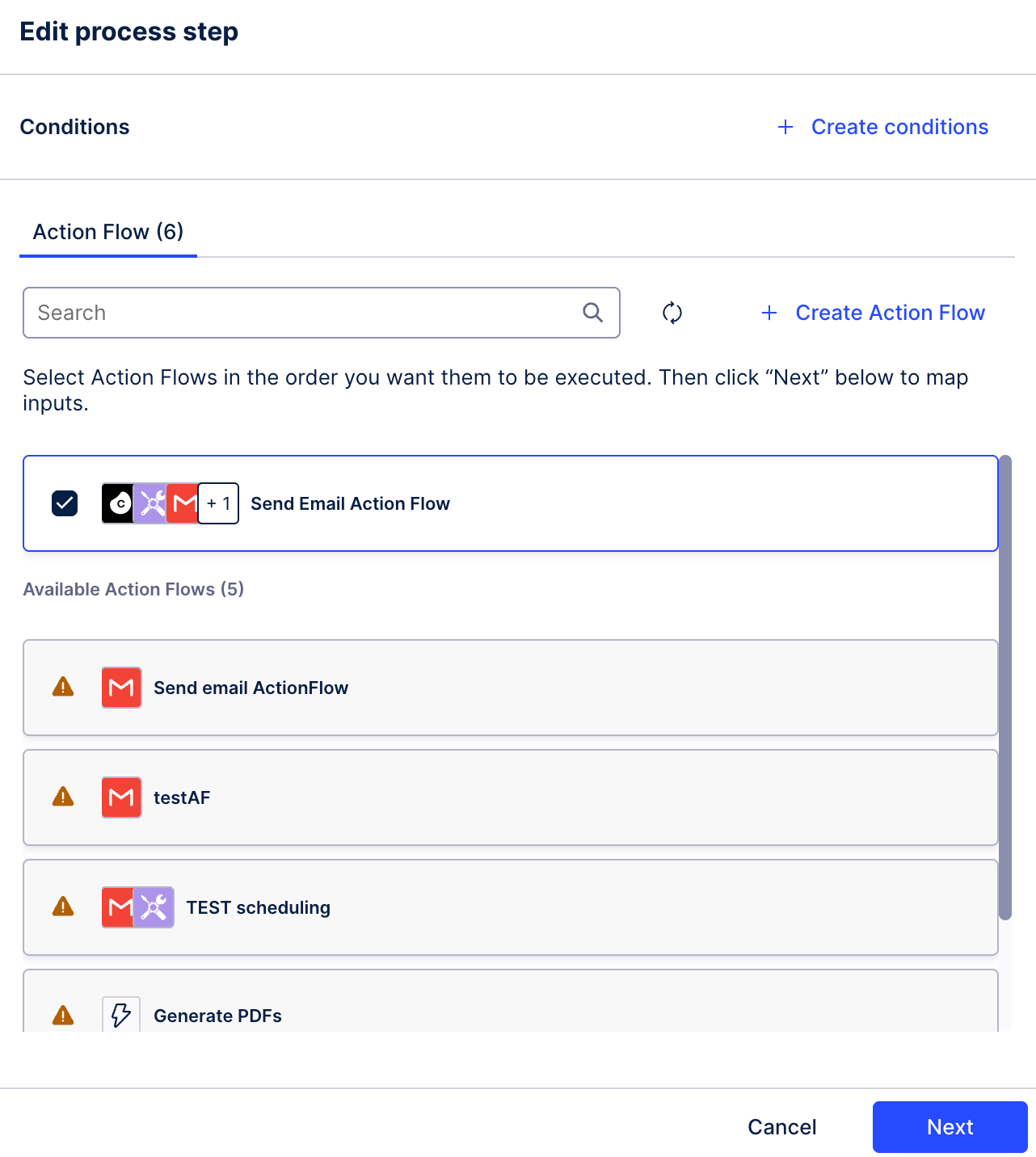
Action Flows will be executed for this step in the order of selection.
Click Next.
Map any inputs that are defined for any of the Action Flows you selected.
Input/Output Mapping provides an intuitive, low-code interface to ensure accurate data is passed between all automated steps. Right now, you can map Action Flow inputs and outputs directly within the Orchestration Engine step to streamline your workflow configuration. You can preview inputs defined for a given Action Flow, in a side preview in the Process Orchestration editor.
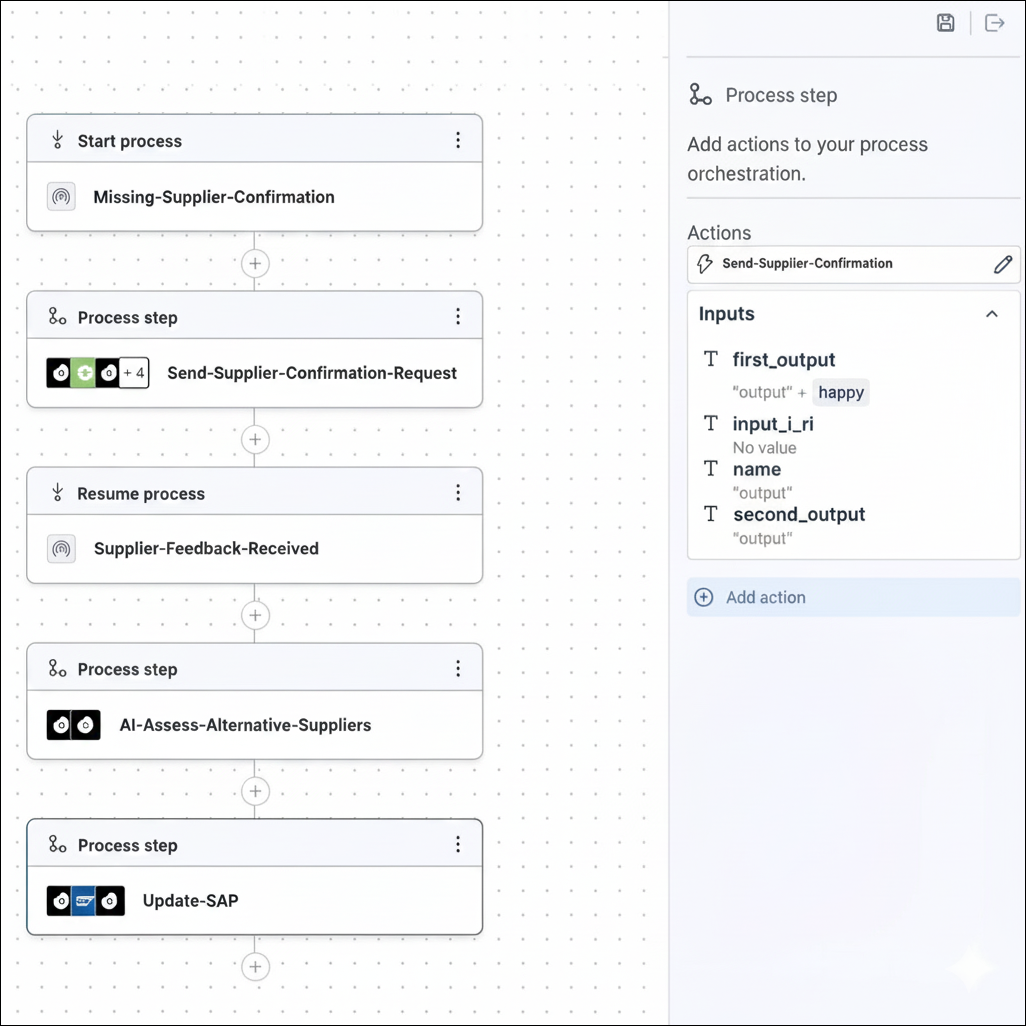
For Action Flows, input types are defined in the Action Flow editor directly. See Action Flow inputs.
Click Add.
Once you're satisfied with your Process Orchestration setup, you can test it to see its outcome and logs. To do so, in the edit mode for your Process Orchestration, select Test at the top.