Using the Objects and Events catalog
Celonis-provided core processes accelerate your data modeling setup by providing preconfigured, process-specific frameworks. Instead of building an object-centric data model (OCDM) from scratch, use these catalog templates to instantly map foundational object types, event types, and perspectives, such as isolating supply chain bottlenecks in Procurement or tracking payment delays in Accounts Payable.
Enable and configure these core processes for your team within the Catalog:
Accounts payable
Accounts receivable
Inventory management
Order management
Procurement
To access the catalog from the Objects and Events dashboard, click Catalog:
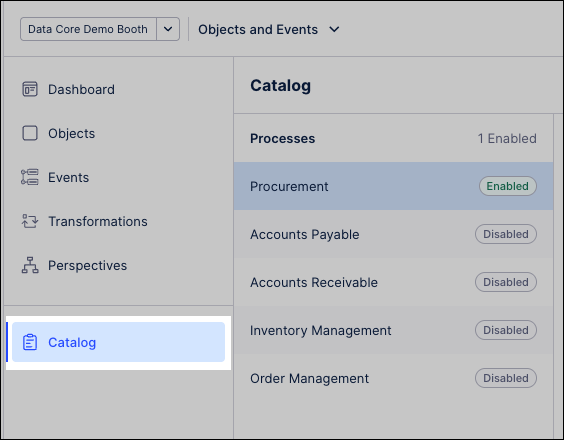
The dashboard provides the following features:
Feature | Description |
|---|---|
Core Processes | Activates, configures, or deactivates out-of-the-box Celonis process templates. |
Core Process Version | Identifies the active template version running on your Objects and Events dashboard. |
Auto-update | Applies minor patches and versions automatically to all active catalog processes. Enabling this setting suppresses dashboard update notifications. |
Release Notes | Links directly to the technical changelog for your active catalog version. |
Important
Updating the Celonis Catalog version changes the object-centric data model in your development environment. This may introduce behavior changes or new attributes. Full details of the changes are listed in the release note for that version.
When a new Celonis Catalog version is available, an update message appears next to the current version on the Objects and Events dashboard.
To update your catalog:
Click Update.
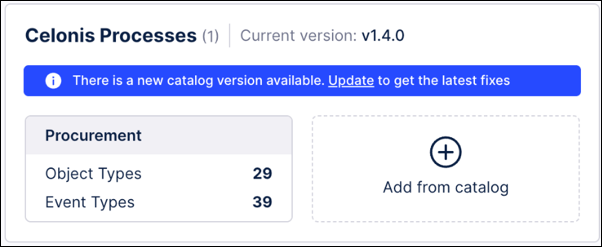
Review the release notes and acknowledge the disclaimer about how updating the catalog impacts your existing content.
For catalog versions 3.0.0 or higher only: Select which version of the release to update to.
For catalog versions below 3.0.0: Click Update
Click Update catalog.
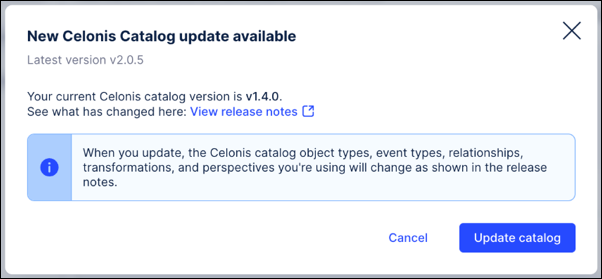
After the update completes successfully, verify the object-centric data model in your development environment.
Verify core model: Check object types, event types, relationships, and transformations against the release notes.
Review customizations: Ensure any added attributes or relationships are still correct and relevant.
Check transformations: Confirm partial/full overwrites remain appropriate; for full overwrites, populate any new attributes with SQL as needed.
To use the latest catalog version, create a version of your object-centric data model and then deploy it to development or production.