Transformation Hub in Views: Installing the App
The Transformation Hub in Views application allows you to monitor and realize value through an object-centric lens. By installing this app from the Celonis Marketplace, you gain access to centralized KPI snapshots and automated opportunity tracking. This process involves requesting the app, selecting a Studio workspace, and preparing your environment for object-centric data integration.
 |
Before you begin, ensure you have completed the following steps or meet the requirements listed below:
Object-Centric subscription: Ensure your Celonis Platform subscription includes object-centric process mining. See: Service permissions
Studio permissions: You must have permission to create or manage a Studio space. See: Studio service permissions.
KPI Snapshots: Ensure the KPI Snapshots feature is active and accessible in your environment, creating an auto-generated data pool titled 'KPI Logging Combined Data Pool'. See: KPI Snapshots.
To install the Transformation Hub in Views application:
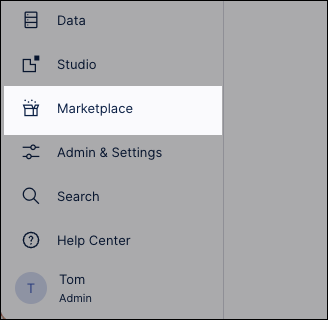
Within your Celonis Platform team, click Marketplace.
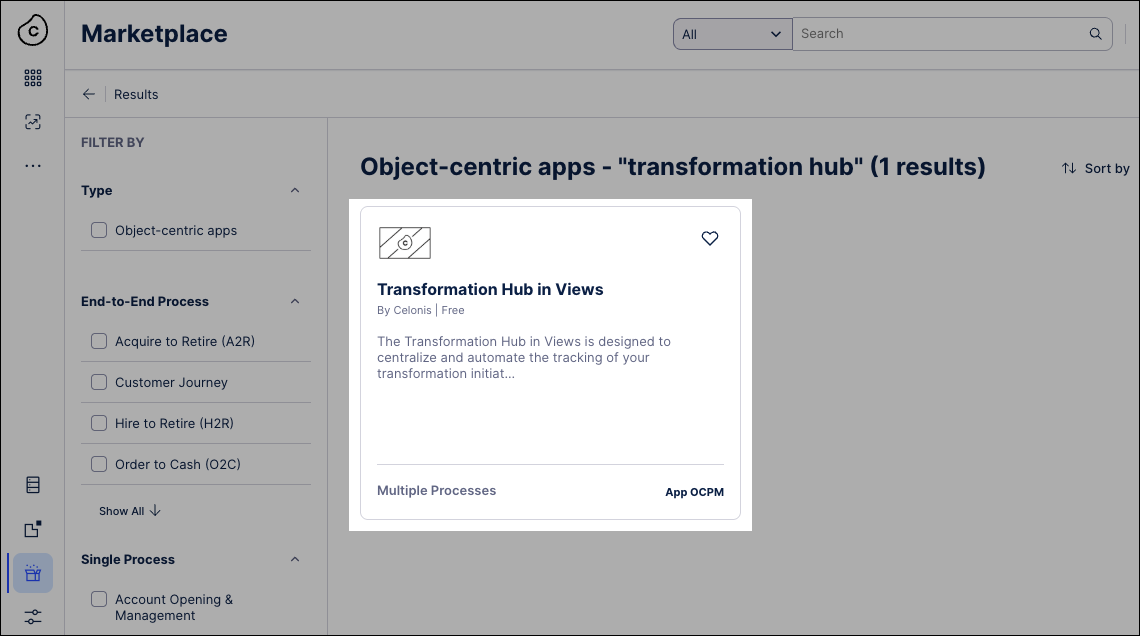
Search for Transformation Hub in Views and open the app tile.
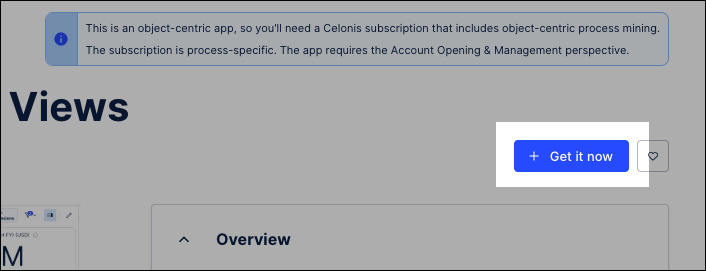
Click + Get it now, requesting the application for your Celonis Platform team.
Note
If the app has previously been installed in your Celonis Platform team, the button is '+ Get it again'.
You now need to choose the Studio space to install the app in. Either:
Select an existing Studio space
Create a Studio space.
Space name: Give the space a clear, descriptive name. This is how other users will find the installed application.
Space icon (optional): Choose a recognizable icon to improve the user experience and organization.
Suggested Data Models (optional): Leave unselected.
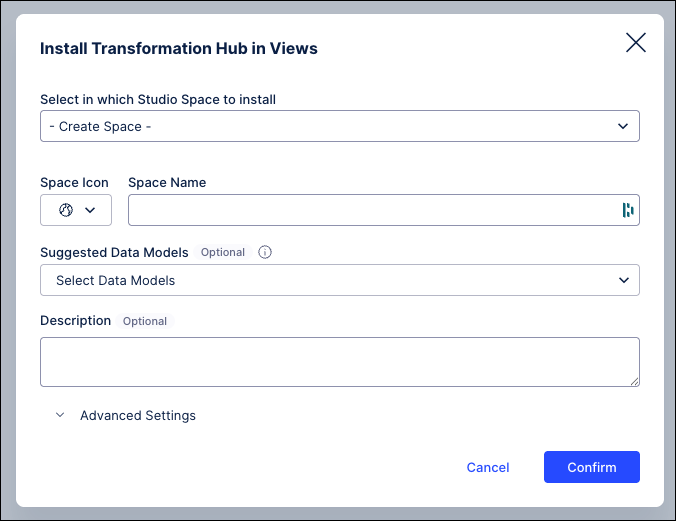
Click Confirm.
The application is now available in your Studio space. An empty configuration screen will appear, and the associated data pool has been automatically provisioned within your Data Integration service.
To confirm that the app has been installed correctly, click Data Integration and search for the 'Marketplace Installed Pool'.
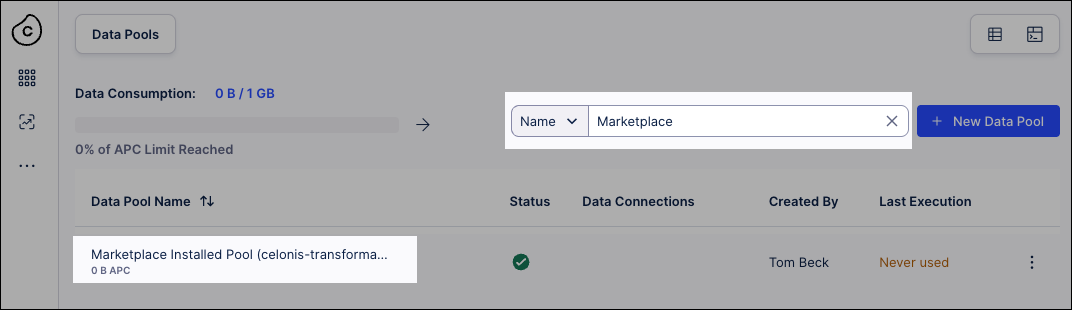
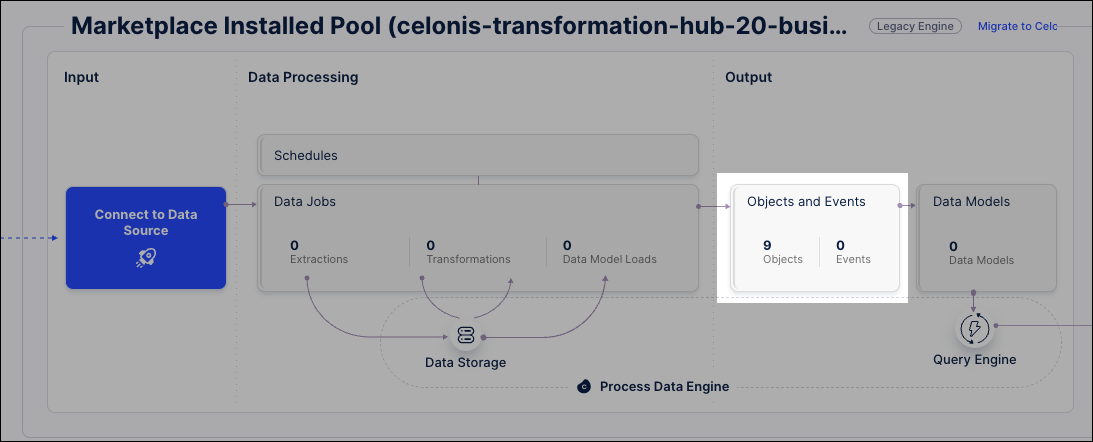
The data pool will have pre-populated objects within the OCDM pool. There should be a total of 9 objects.
Next steps
After installing the Transformation Hub in Views app, you now need to configure the object-centric data model for use in it.
See: Configuring the OCDM