Connecting Action Flows and Process Orchestration
You can use Action Flows as building blocks for Process Orchestration. Action Flows in Celonis Platform are automated workflows built from a series of modules that indicate how data should be transferred and transformed between apps and services.
Once you add Process Orchestration to your Studio package, it will be immediately available for use in dedicated Action Flow modules. However, in some cases, you might need to establish a connection between the Orchestration Engine and Action Flows manually. This is necessary when you create an Action Flow first and then decide to add it to Process Orchestration.
Adding Process Orchestration to your Studio package makes it instantly available for use in Action Flows. If, however, you create Action Flow first and then decide to connect it to Process Orchestration, you must manually establish the connection between the two.
Create an OAuth client with the necessary scopes. For step-by-step instructions on how to add a new OAuth client to Celonis Platform, see Registering your OAuth client. The minimum required scopes for the Orchestration Engine are:
orchestration-engine
studio (knowledge-models:query, knowledge-models.augmented-attributes:update, studio, triggers:manage).
Give your new client package permissions. In Studio, find the listing for the relevant package within the relevant space and click the associated three dots on the far right to open up the Permissions associated with the package.
Search for the name of your OAuth client as a user, and in the Template column, select "All Permissions" and save.
Add a Process Orchestration module, for example, a Completion Event, to Action Flow.
In your module, open the connection configuration - select Add in the connections section. You'll see the Create a connection window.
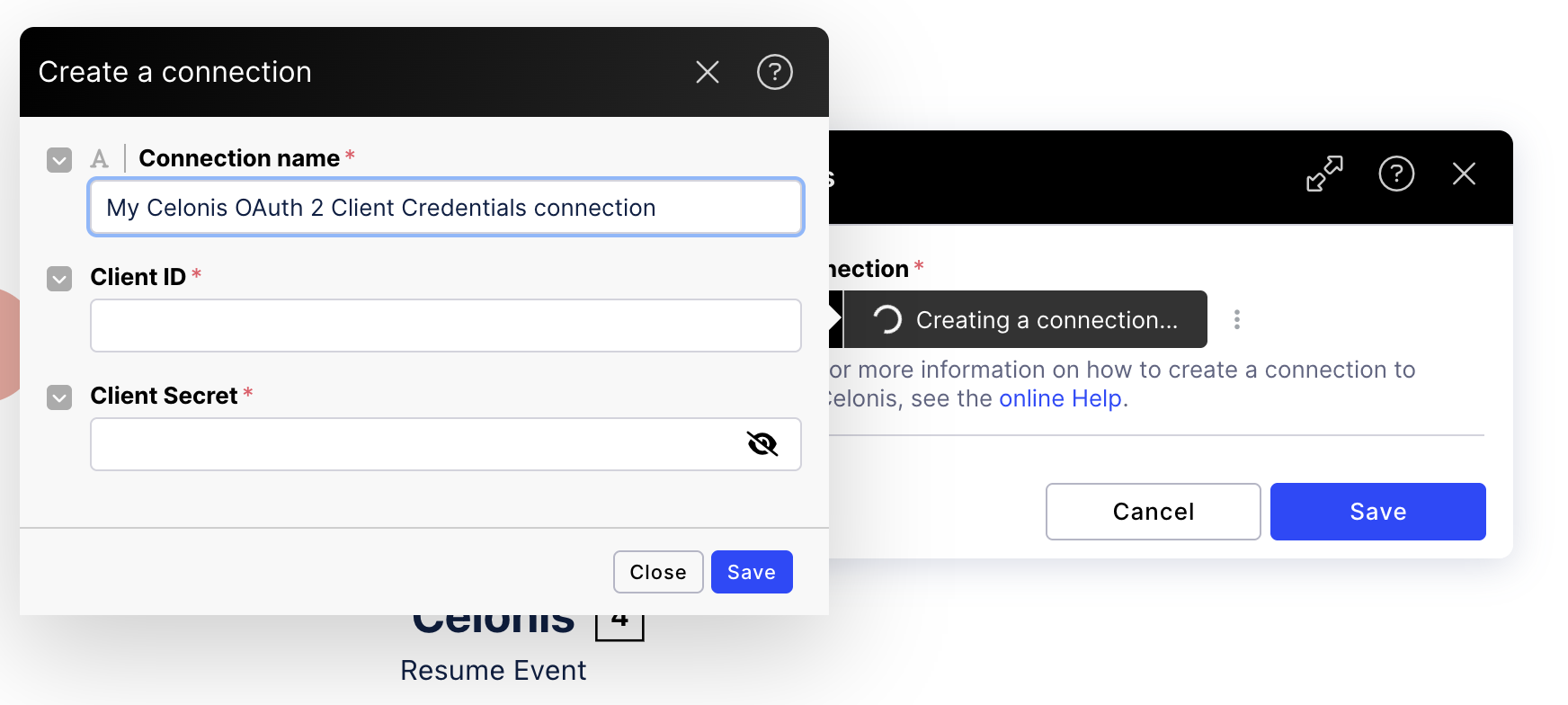
Enter the Client ID and the related Client Secret.
You can copy and paste the ID and the secret created in Step 1.
Choose the environment with which you want to establish the connection.
Select Save to create the connection.
You've connected Action Flow with your Orchestration Engine.