Extraction task configuration
When creating or editing an extraction task, use the following configuration options to optimize how data is retrieved, filtered, and transformed from your source systems before it is loaded into the Celonis Platform.
Select and configure the data tables you want to extract. Depending on your data connection type, the following table configuration options are available:
Column subset: Specify which columns to extract by clicking Configure next to the column count.
Pseudonymized columns: Pseudonymize the data you extract using SHA-1, SHA-256 (with and without salt), or SHA-512 (with and without salt) algorithms. When you choose to pseudonymize your data, the system replaces values displayed in the source system with hashed values.
To ensure data residency, pseudonymization occurs on-premises on your extractor server. Raw data is hashed and converted to parquet format before uploading, ensuring that plain-text values are never exposed to or stored within the Celonis Platform.
Primary key columns: Explicitly specify which columns to use as primary key columns during a delta load. This is only necessary if the source system does not provide this information automatically. Overriding the primary key columns does not change how data is stored in the database; it is used exclusively for delta loads and is not saved permanently.
Note
The data ingestion pipeline automatically sanitizes records by removing non-assigned characters (categories Cf, Co, Cs, Cn) and normalizing line endings to ensure system compatibility.
If these special characters are the only elements differentiating your source system's Primary Key columns, the sanitization process flags these records as duplicates. Select Primary Keys carefully to ensure they contain genuinely unique values.
To avoid duplicate errors, establish a robust Composite Key by adding an additional column to your primary key configuration.
Remove duplicate records when executing JDBC extraction tasks by selecting the target ordering column:
 |
This feature uses your primary key configuration to isolate duplicate records and removes them based on the ordering column in descending order. Use a timestamped column as your ordering column; when two or more duplicates are found, the system removes the oldest record.
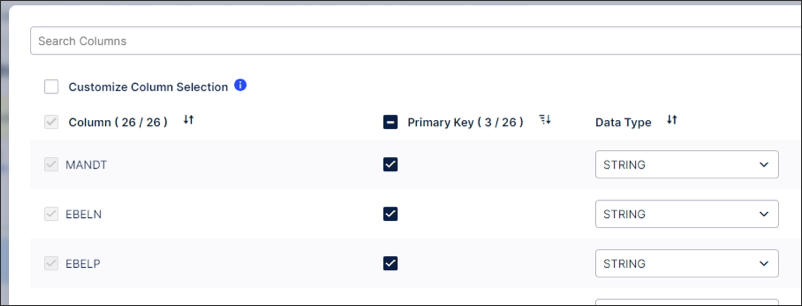
The following example demonstrates duplicate removal using the columns MANDT, EBELN, and EBELP within an Order-to-Cash process configuration:
 |
Add one or multiple join partners to your data table. Each partner joins either through the primary keys of the tables or through a custom join path. For a primary key join to execute correctly, include the primary keys of the table to be joined within the primary keys of the base table. Apply an independent filter for each joined table to isolate specific records prior to join execution.
When creating joins in your extraction, configure child tables and parent tables:
Child tables: The target tables designated for extraction.
Parent tables: The joined tables used to filter the incoming data stream from the child table.
The extraction engine executes these tables in the following sequence:
Define and apply your data filters to the target parent table located in the right-hand configuration panel.
The engine runs the join from the parent table to the child table. This Java-based join operates similarly to a standard SQL inner join.
The system applies any additional secondary filters to the table resulting from the join.
Review the following execution rules for complex join paths:
"Use primary key" specifies the target parent primary key.
Joining a child (n) table to a parent (1) table targeted for extraction on the primary key generates duplicate records in your final extracted table.
When configuring multiple parent tables, the system filters and joins the parents top-down before joining the final resulting table to the child table.
Creation date filter: A filter on a date column applied during both full and delta loads. The engine combines this filter with the "Filter Statement" under "Additional Filters" using a logical AND condition, requiring both criteria to be met.
Change date filter: A filter on a date column that automatically identifies the maximum date in the existing target table and isolates data newer than this date. The engine combines this filter with the "Delta Filter Statement" under "Additional Filters" using a logical AND condition.
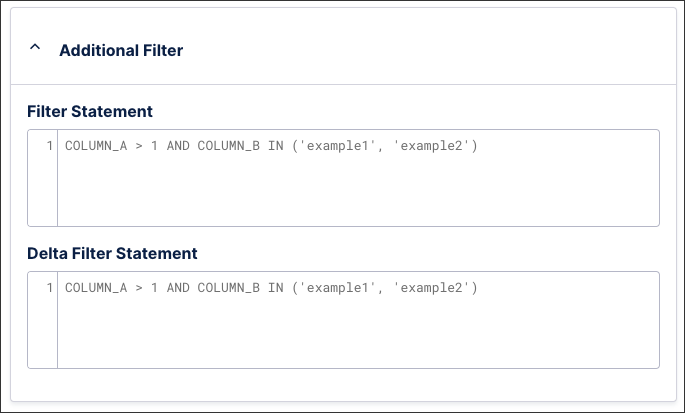
Filter statement: Specify which rows to extract using standard SQL syntax. For example, to restrict an Accounts Payable data extraction to a specific company code and highly relevant fiscal years, enter:
COMPANY_CODE = '1000' AND FISCAL_YEAR IN ('2025', '2026')Delta filter: Specify the incremental filter parameters applied exclusively when the extraction job executes a delta load. The engine combines this expression with your normal filter using a logical AND operator. For example, to isolate newly modified purchase orders within a Procurement workflow, enter:
LAST_MODIFIED_DATE >= :LAST_EXTRACTION_DATE
 |
By creating and managing extraction parameters, you can control which data is extracted from your source system based on matches to your criteria.
When creating extraction parameters, you can select between private, public, and dynamic:
Dynamic extraction parameters: Delta filters are used to define which entries in the table are loaded in the delta load. Best practice is to use dynamic parameters with the operation type FIND_MAX for delta filters as they indicate the maximum value of a defined column. If the indicated table does not exist in the Celonis Platform or is empty, the DEFINED VALUE is utilized. If this VALUE does not exist, the DEFAULT VALUE is utilized.
Private (static / default): Only admins can see and edit; value is fixed.
Public (static): Admins can see/edit; but other users (when installing connectors or similar) might also have ability to see/edit in some contexts.
Table and column references
When adding your table and column references to your extraction parameter configuration, enter the name only. Adding {brackets} or “NAME“ will result in an error.
For example, the table NAME should be added as: NAME, rather than "NAME" or {NAME}.
The available extraction settings depend on the source system that you're connecting to.
Debug mode: Once enabled, the debug mode provides detailed log information for the data extraction job and will be displayed in the execution logs. This allows for more transparency and easier troubleshooting. This mode is active for three days and the logs created are then deleted.
Convert to a delete job: Converts the extraction task in the data job to a deletion task. All records found by this extraction task will be deleted from your data pool.
Delta load configuration: Select from either:
Option A - Standard: The delta load will be cancelled, when metadata in your source system changes (i.e. new columns) compared to already extracted data in the IBC. Metadata changes will not be ignored. A full reload or manual changes of your table is necessary to clear this conflict.
Option B - Including metadata changes: The delta load will include metadata changes (i.e. new columns) and run through with a warning. Only delta loaded rows will include data for the newly added columns. Rows which are not part of the delta load will have the newly added columns nullified. This can lead to inconsistency in your data. A full load is recommended for data consistency.
Connector parameters: The following connector parameters can be configured:
Batch size: Allows specifying the batch size (in records) for one extraction request.
Max string length: Allows the modification of the default length (80 characters) of String-type columns.This is configured using the parameter: MAX_STRING_LENGTH
Binary data type handling: Table column with binary data type can be represented in two ways: UTF- 8 or HEX_NOTATION. Depending on the value specified here the binary value will be converted.
Change default metadata source: Depending on your database, you can select from:
DRIVER_METADATA: This metadata source is supported by all source systems and mostly it is the default one. Here the driver internally runs the metadata Query against the source system and fetches the result set.
SAMPLE_QUERY: This metadata source is supported by all source systems. This also works the same as driver metadata, only the query used is different.
INFORMATION_SCHEMA: This metadata source is supported mainly by Oracle system. And it's a default metadata source for Oracle 11g.
PG_CATALOG: This metadata source is supported by Amazon Redshift. And it's a default metadata source.
Limit total number: Set the maximum number of records to be extracted per job.
Extraction preview is available exclusively for JDBC connections. Review the complete list of compatible capabilities for supported database integrations in Databases.
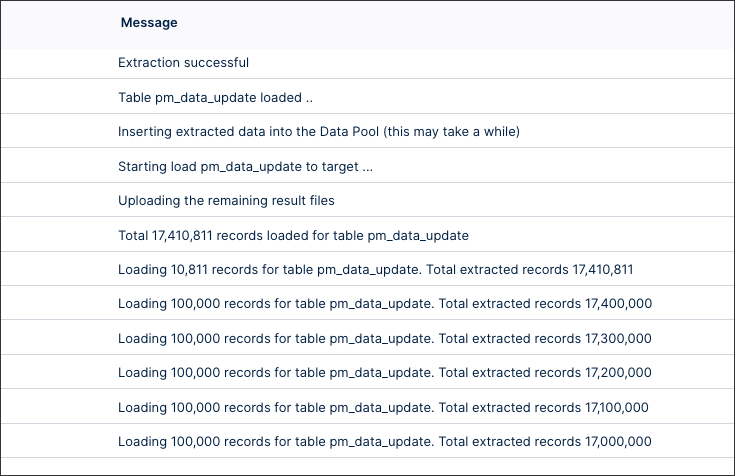
Extraction progression logs provide real-time visibility into your data extraction status. The system generates a log entry for every 100,000 processed records, independent of your batch size configuration.
 |