Get Assignee (Action Flow)
The Get Assignee Action Flow module allows you to query any existing Assignment Rules to determine the correct Assignee or a custom output based on specific input parameters.
Thanks to the open nature of Assignment Rules, they can be utilized for a broad spectrum of use cases. In a nutshell, most tasks involving the return of a value, based on a custom lookup, can be completed using Assignment Rules. Some examples include:
Assigning a task to a specific user based on certain criteria.
Defining email recipients on a per-case basis.
Expanding the source system through additional information.
To use this module, you must create and activate an Assignment Rule in the packages variable settings. For information on how to create an Assignment rule, see Assignment Rules.
If you want to use the OAuth connection method in the Get Assignee module, your OAuth app must have the following scopes assigned to it:
knowledge-models:read
studio.packages:read
In Studio, go to your package and click New asset > Action Flow.
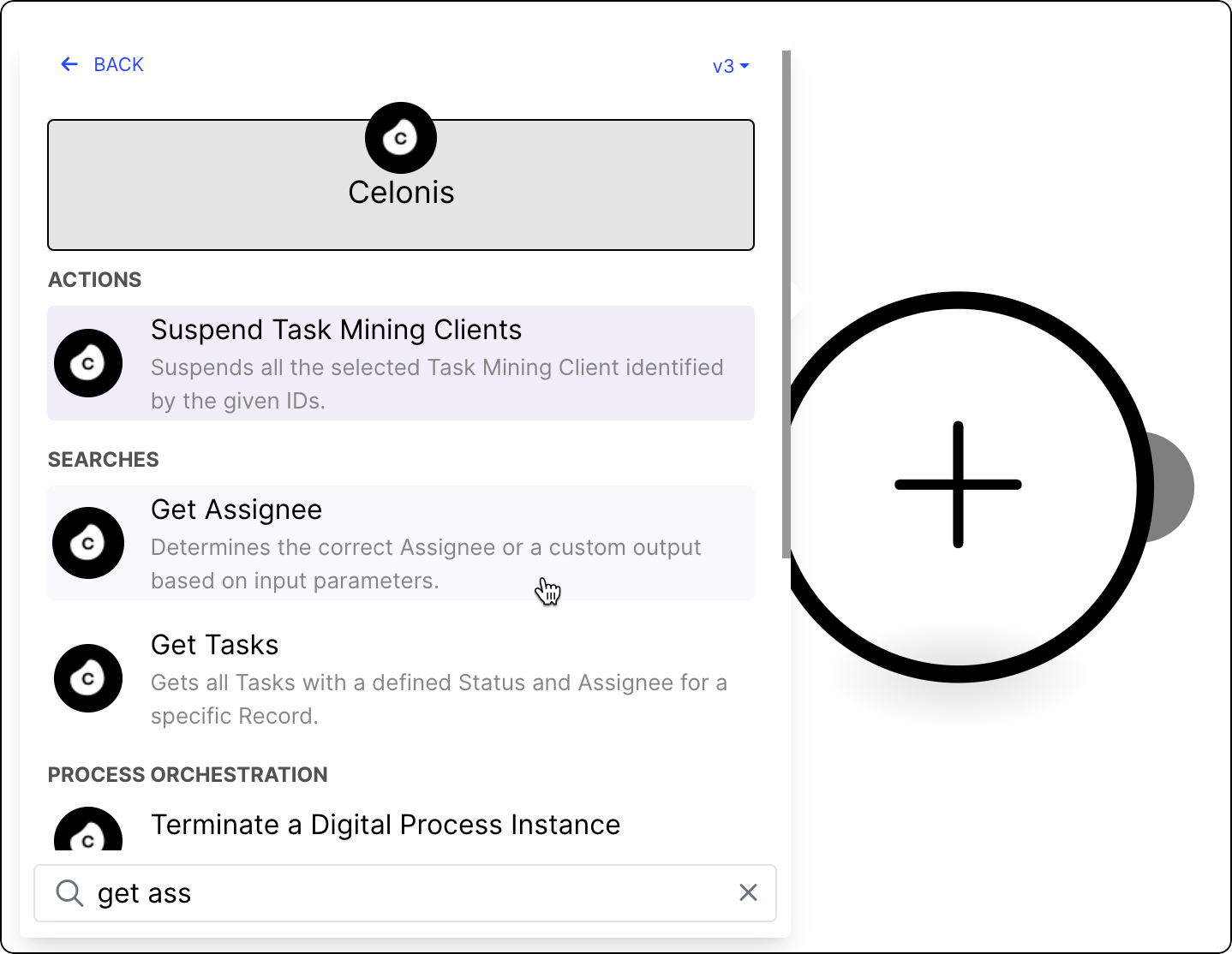
Click Add module and from the list select Celonis > Get Assignee.
Add a connection to the module using one of the following methods:
The Celonis User connection will reflect your existing data permissions and allow you to query data to which you already have access.
Note
You must have Data integration service permission to use this connection method. See Data Integration permissions.
Give your connection a name.
Click Save.
Celonis Application Key -This connection type will reflect the data permissions granted to the selected Application Key and allow you to query data to which you may not otherwise have access.
Give your connection a name.
In a separate window, create an application key and copy it. See Application keys.
Paste the application key and click Save.
Celonis OAuth Client Credentials this connection type will reflect the data permissions granted to the selected OAuth app and allow you to query data to which you may not otherwise have access.
Give your connection a name.
In a separate window, create the OAuth application application Client ID and Secret and copy it. See Registering your OAuth client.
Paste the Client ID and Secret here and Save.
Note
For creating and testing an Action Flow, the 'Celonis User Connection' might be the fastest and easiest choice to get started.
For unattended full-automation use cases, we recommend switching to the 'Celonis App Key Connection'. This ensures that the automation runs stable even if a specific user is removed from the team.
From the Assignment Rule dropdown, select the rule you wish to apply.
If you haven't created any rules yet, see Assignment Rules.
Fill in the required Assignment Rule by clicking in their boxes and selecting the respective attributes using the pop-out menu.
Save your changes.
Deploy your package version to make the module operational.
Your module is ready for use. Run in to start generating output based on the Assignee values defined in your Assignment Rules. To view the Get Assignee output, click the magnifying glass icon to its top right. You can then utilize this output value in a variety of ways:
Send an Email to the correct Assignee
Update a column in a database
Update a document (e.g. contact details)