User attributes (from 2.8.1)
User attributes are custom attributes that are used to refine Task Mining data. If you define user attributes for team and geographic location, for example, you can analyze your captured Task Mining data at team and geographic location level. A maximum of five user attributes can be defined for each Task Mining project. Once set up, users will be prompted to select user attribute values the next time they start the Task Mining Client software.
User attributes are used in the Team Insights tab of the Workforce Productivity app which is a Studio View. For more information, see the Workforce Productivity app.
Note
When defining user attributes, ensure that individual users cannot be identified by:
Ensuring there are sufficient users per individual attribute value to keep users from being identified.
Assessing whether custom Data Pool permissions should be added to hide users if groups with fewer than five users if required.
Before you begin, ensure you have completed the following steps or meet the requirements listed below:
Configured Workforce Productivity app
In the Task Mining Configuration Editor, select User Attributes.
The User Attributes screen appears.
Select the Edit button
 to add a new user attribute or refine an existing user attribute.
Enter:
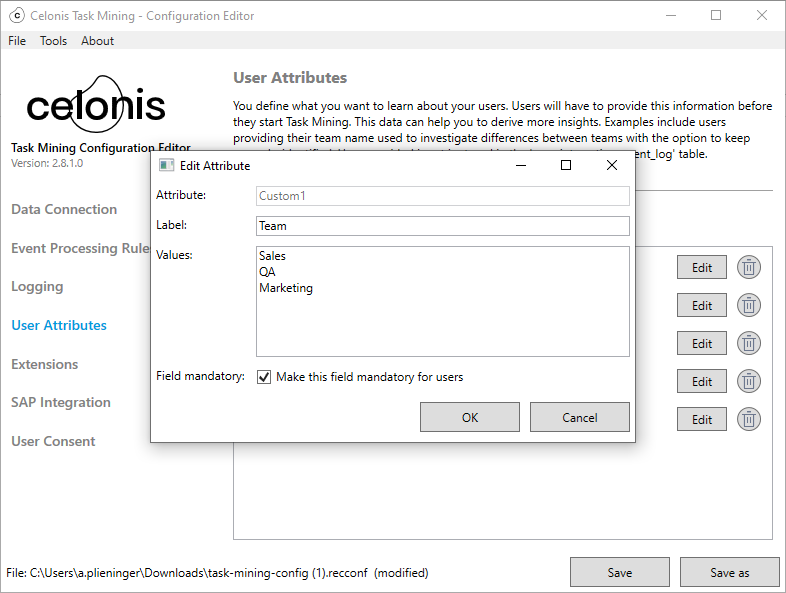
A label for your attribute in the Label field.
Values for your attributes in the Values field.
Note
You cannot change the name of the custom attribute here.
Select the Field mandatory check box to make this a required field.
If selected, users will have to enter this information the next time they start the Task Mining Client software.
Select OK.
In the Task Mining Configuration Editor, select Event Processing Rules.
The Event Processing screen appears.
For each event processing rule:
Select the Edit button
 .
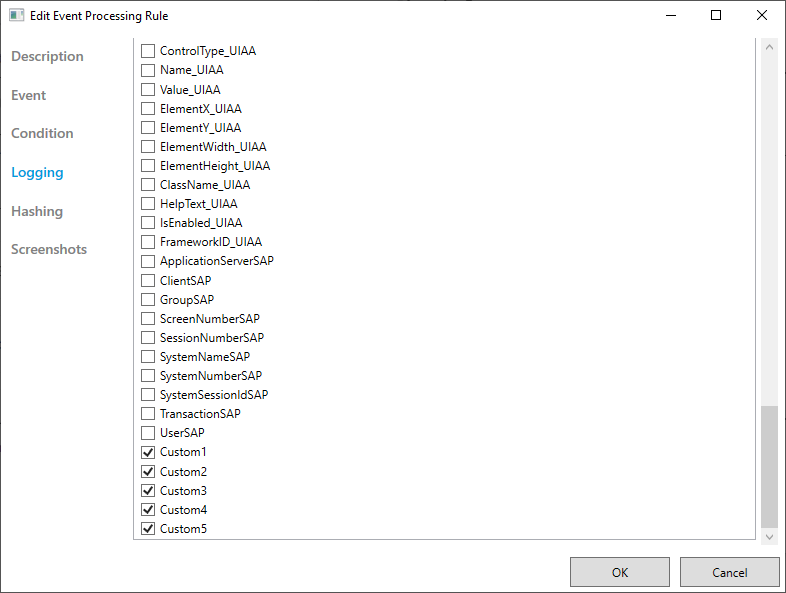
.Select Logging.
Ensure any custom attributes you added are selected.
Save and upload your configuration file.
The next time users start the Task Mining Client software, they’ll be prompted to add this information.