Synchronize SAP Solution Manager elements to Celonis Process Management
This topic explains how SAP Solution Manager library objects, structure and diagrams are synchronized and represented in Celonis Process Management and how they are relevant to the process synchronization.
Applications are the Celonis Process Management equivalent to Logical Component Groups in SAP Solution Managers. All the Logical Component Groups for the selected SAP Solution Managers Solution will be imported in Celonis Process Management during the Linking process. After they are imported into Celonis Process Management, these elements are read-only and cannot be deleted or modified.
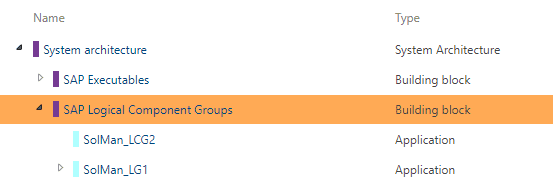
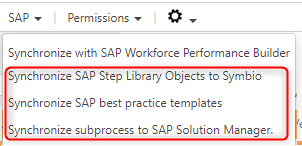
These elements can be reimported manually by clicking Synchronize SAP Step Library Objects to Celonis Process Management in the Processes architecture view, under the SAP menu.
Application services are the Celonis Process Management equivalent to Executables in SAP Solution Manager. All the Executables from the SAP Solution Manager branch or scope will be imported by clicking Synchronize SAP Step Library Objects to Celonis Process Management from the SAP menu in the Processes architecture view. If the Executables are connected to the Process Step Original which is part of the Scope synchronization, they will be imported to Celonis Process Management. They are connected to an Application, just like an Executable is connected to LCG. After they are imported in Celonis Process Management, these elements are read-only and cannot be deleted or modified.
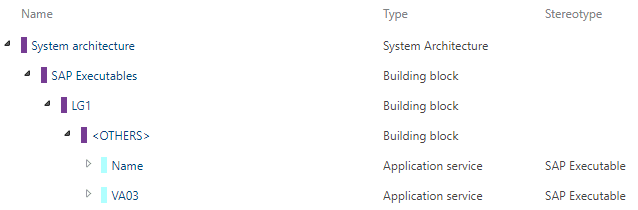
These elements can be manually reimported by going to the Processes architecture view and clicking Synchronize SAP Step Library Objects to Celonis Process Management in the SAP menu.
All the Process Steps Originals from SAP Solution Manager are imported to Celonis Process Management by going to the Processes architecture view and clicking Synchronize SAP Step Library Objects to Celonis Process Management in the SAP menu. They are imported as Best Practice Tasks, and after the import they are read-only.
Best Practice Tasks are connected to the Application, just like the connection between Process Steps and Logical Component Groups in SAP Solution Manager. Also if the Process Step has a reference to an Executable, a Best Practice Task has a connection to Application service. Best Practice Task, can be connected to a Local or Global Task in Celonis Process Management. If a task is connected to the Best Practice Task, it will be synchronized as a reference to the Process Step, otherwise it will be linked to the Default Process Step Original.
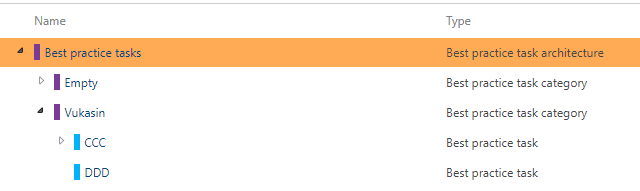
These elements can be reimported manually by going to the Processes architecture view and clicking “Synchronize SAP Step Library Objects to Celonis Process Management” in the SAP menu.
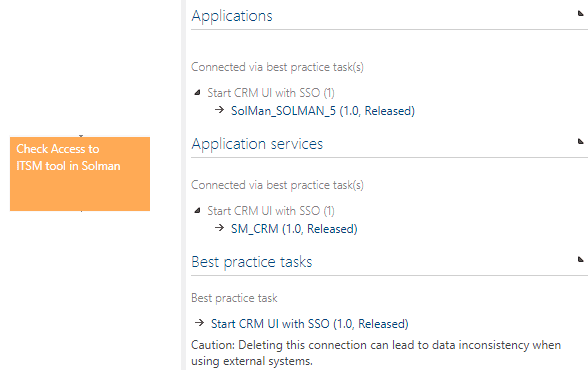
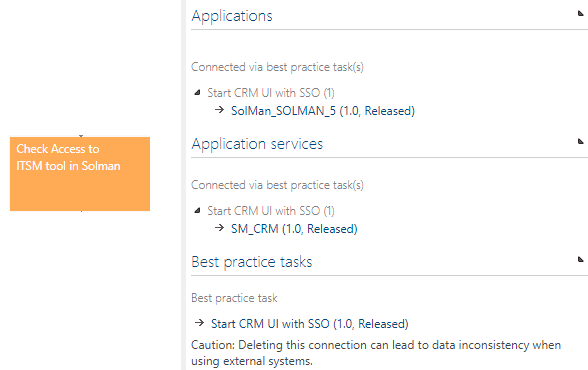
Additionally, if a synchronized Task has an attached Best Practice Task, the Application and Application service that are attached to that Best Practice Task are also visible in the detail content of the Task:
Mapping of structure elements
The elements are going to be synchronized following the table below:
SAP Solution Manager | Celonis Process Management |
|---|---|
Folder | Category |
Scenario | Main Process |
Process | Main Process |
Diagram a | SubProcess A |
Diagram b | SubProcess B |
Diagram c | SubProcess C |
This way, if the process has multiple diagrams, all of the diagrams will be synchronized.
The diagram will be synced if the type is “Process” or “Collaboration” but only with one original pool. The diagram will be synced if the sub type is “By Role”, but if the sub type is “By System”, the diagram will not be synchronized.
SAP Solution Manager | Celonis Process Management |
|---|---|
events (start, end, intermediary) | appropriate events |
gateways | appropriate gateways |
draft task | local task |
process step reference | local task with appropriate bpt attached |
empty sub process | interface |
Synchronizing sub process reference
For the sub process reference elements to be synchronized correctly some conditions have to be met:
1. Sub process has to be referenced to the process;
2. Sub process reference has to the attached to one diagram, or if it has multiple, one has to be set as the default.
If the sub process reference does not have a link to a concrete diagram, or it has more diagrams attached but no default is set, the sub process will be synced like an interface with an empty placeholder. If the conditions are met, the sub process reference will be synced like a sub process reference shape.
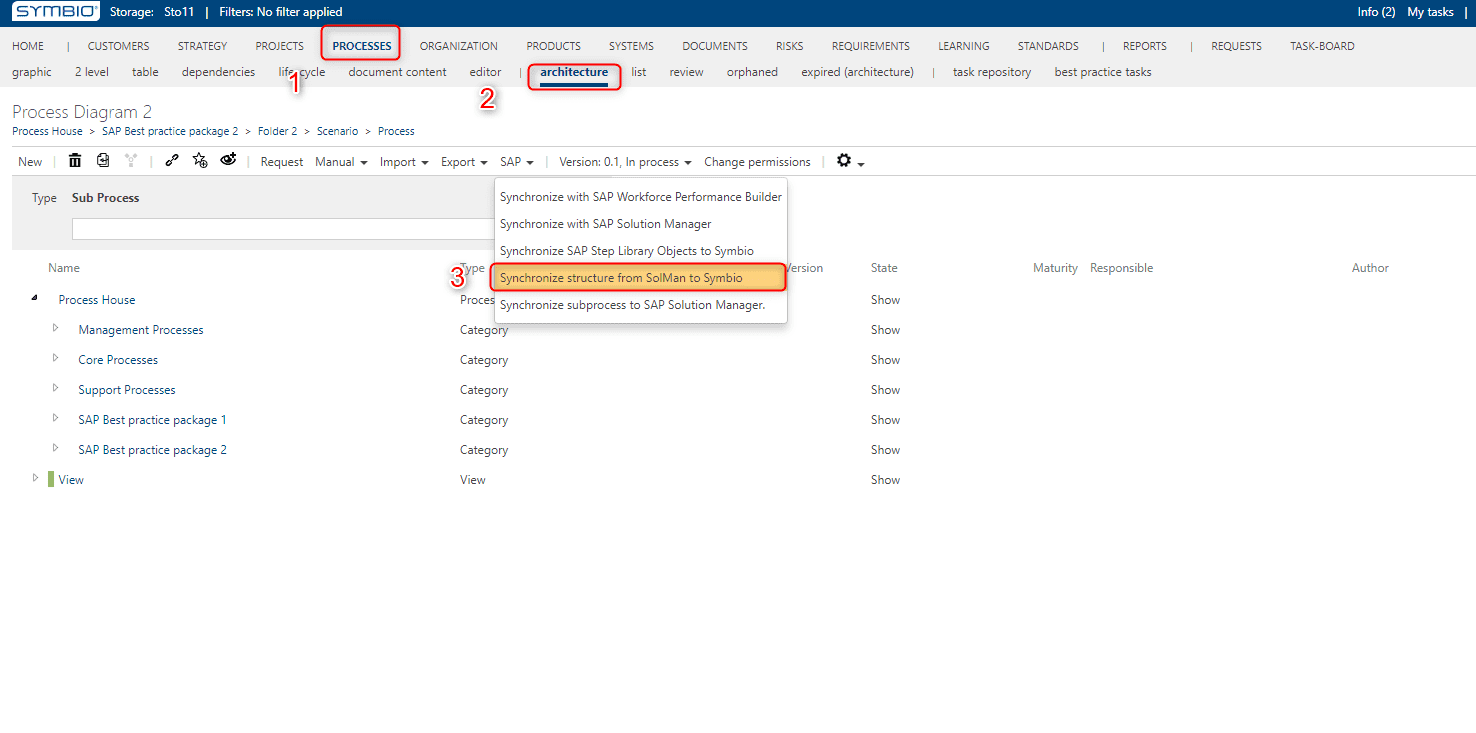
To synchronize the structure from SAP Solution Manage to Celonis Process Management go to Processes > architecture and click the SAP button. Then click Synchronize best practice package.
A dialog will open. Choose what scope you want to sync, or if you leave it empty, the entire structure will be synced.
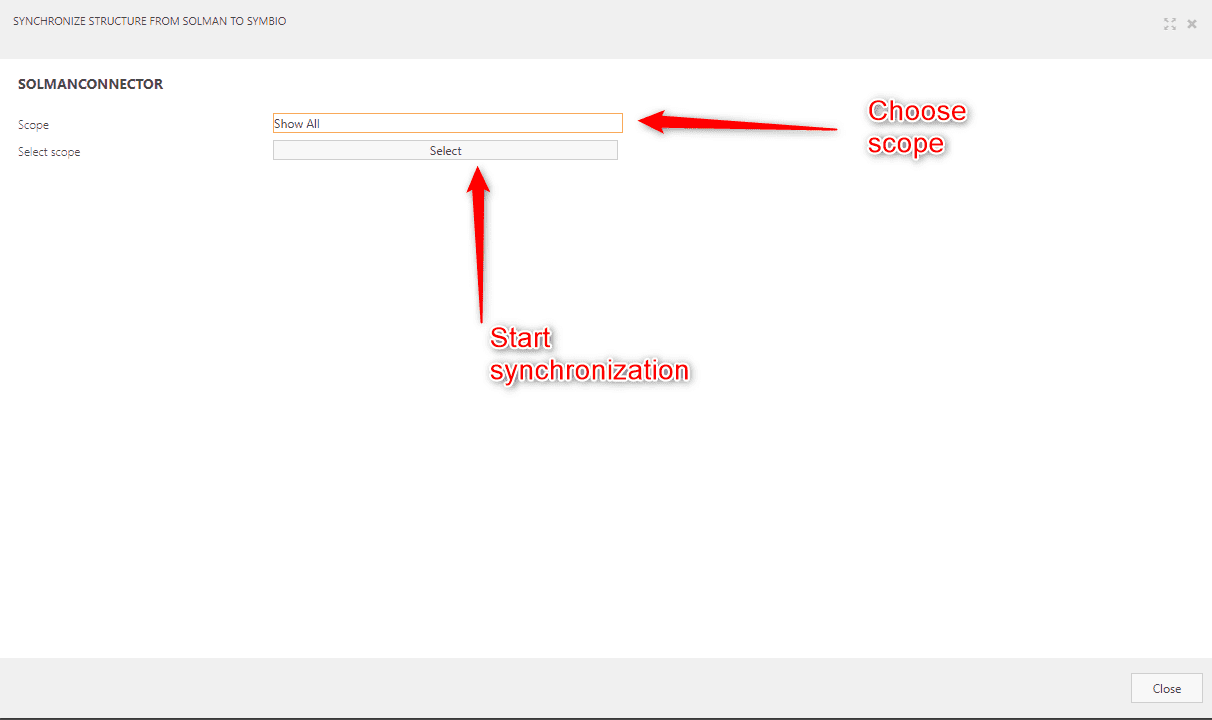
When the synchronization is done there will be a new category added to the process house element. The entire synchronized structure will be in this category. The elements will be released and not editable. For now you can copy only diagram elements to another structure.
If a synchronized Task has an attached Best Practice Task, the Application and Application service that are attached to that Best Practice Task are also visible in the detail content of the Task: