Deploying an OCDM version
Deploy an Object-Centric Data Model (OCDM) version to development or production environments to transition data transformations from sandbox testing to active operational reporting. Segmenting these environments protects production analytics from unverified schema changes, safeguarding data integrity across downstream process applications.
For the video overview of these features:
Start the data model deployment process using one of the following interface paths:
Open the deployment configuration window using one of the following methods:
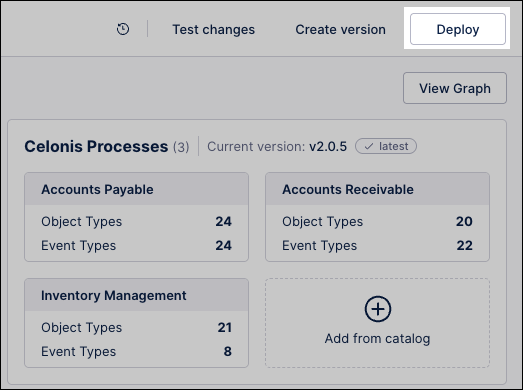
From the Objects & Events top bar: Click Deploy while viewing any page in your workspace.
From the Package History area: Click Package History, locate your target version (for example,
Version 1.0.4-O2C), click Options, and select Deploy version.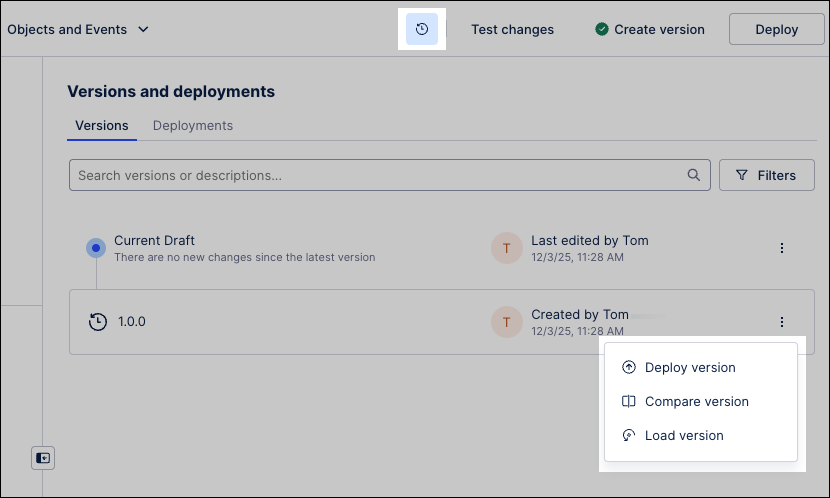
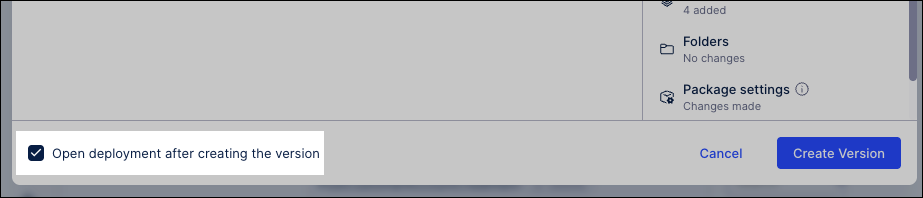
During the versioning workflow: Select Open deployment after creating the version when finalizing a new model snapshot.
In the deployment configuration window, specify your parameters:
Version to deploy: Select your verified development snapshot.
Target: Select Development to run validation testing on your event logs, or Production to push updates to live end-user dashboards.
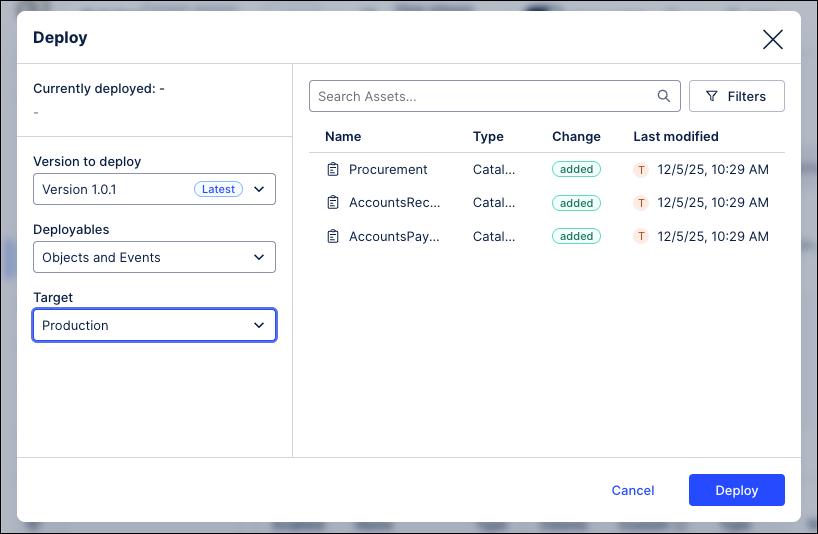
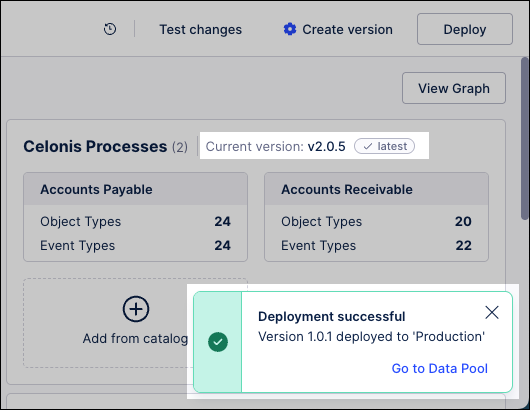
Click Deploy. The platform executes the integration and displays the real-time deployment status in a progress window.
Click Go to Data Pool once the success confirmation appears to review your updated data pipeline.
An object-centric data model moves through three distinct lifecycle states. Understanding these states ensures consistent governance across your data ecosystem:
Model state | Operational definition | Visibility and impact |
|---|---|---|
Draft | The active working environment where engineers modify objects, attributes, and event configurations. | Visible only to data developers; has no impact on active data pool executions or end-user dashboards. |
Version | An immutable, timestamped, and semantically numbered snapshot of the draft assets at a specific point in time. | Stored in the Package History repository; functions as a permanent restore point or deployable asset. |
Deployed version | A specific version activated within a designated target data pool to execute live data transformations. | Powers downstream analytics. Depending on the target, it drives either isolated validation or production reporting. |
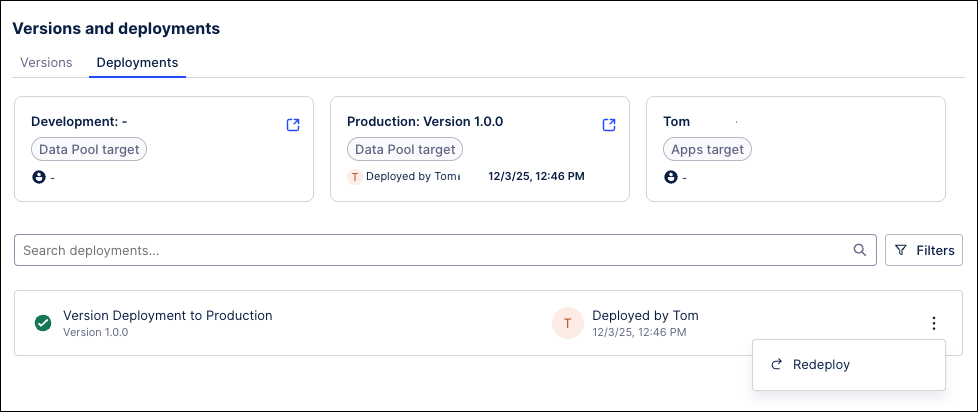
Manage existing OCDM versions and deployments by clicking Package History:
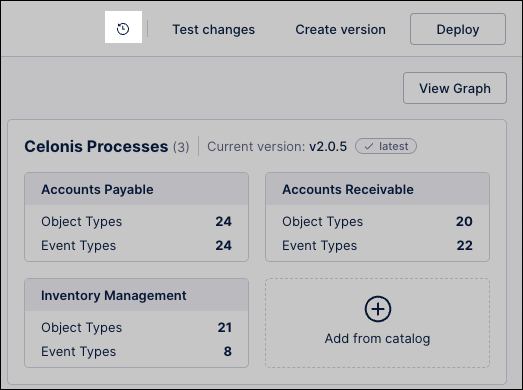
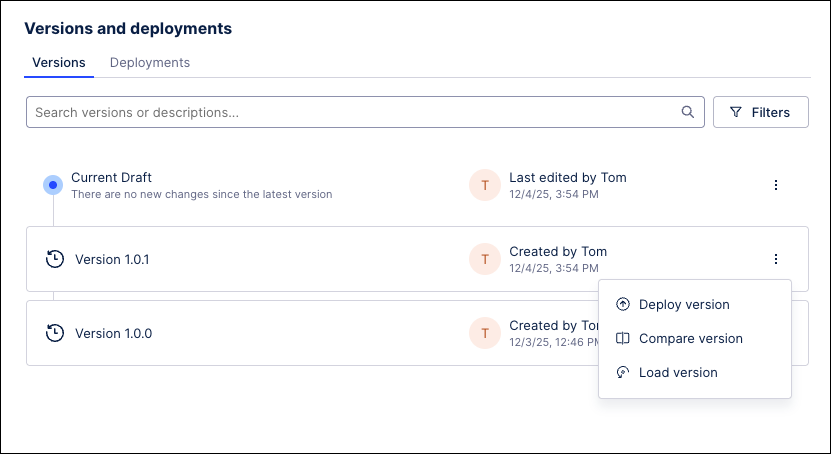
In the Package History area, you then have the following management options:
Versions: Each OCDM version has the following options:
Deploy version: Make this version available in the respective environment in the data pool. See: ???.
Compare version: Run a 1:1 comparison between available versions of this OCDM, showing you the differences between them.
Load version: Open a draft version of this OCDM, giving you the ability to make changes from the timestamped version you've selected.
Deployments: Each deployed OCDM version has the following options:
Re-deploy version: Choose a previously deployed version of the package to re-deploy to production. This feature is useful when you have incorrectly deployed a version or want to fall back to a previous one.
Open deployed version in Development / Production: Click Go to deployed target to open the deployed version of this OCDM.