KPI Snapshots
KPI Snapshots capture KPI values at scheduled intervals, creating a permanent record of performance at a specific point in time. Instead of recalculating KPIs dynamically against live system modifications, KPI Snapshots store calculated results as historical data to ensure reliable trend analysis.
For example, if an Accounts Payable team optimizes vendor payment terms to improve cash flow metrics, live dashboards retroactively recalculate historical baselines, obscuring past performance inefficiencies. KPI Snapshots preserve the true historical state, enabling you to compare process performance before and after optimization initiatives to accurately measure business impact.
KPI Snapshots support your process governance strategy by enabling you to:
Isolate Performance Baselines: Maintain an immutable record of historical KPI values regardless of backend transactional changes.
Conduct Impact Assessments: Compare pre- and post-optimization performance to quantify the value of process changes.
Unify Cross-Process Reporting: Consolidate snapshot data across independent data pools and models into a single, centralized reporting dashboard.
How KPI Snapshots work
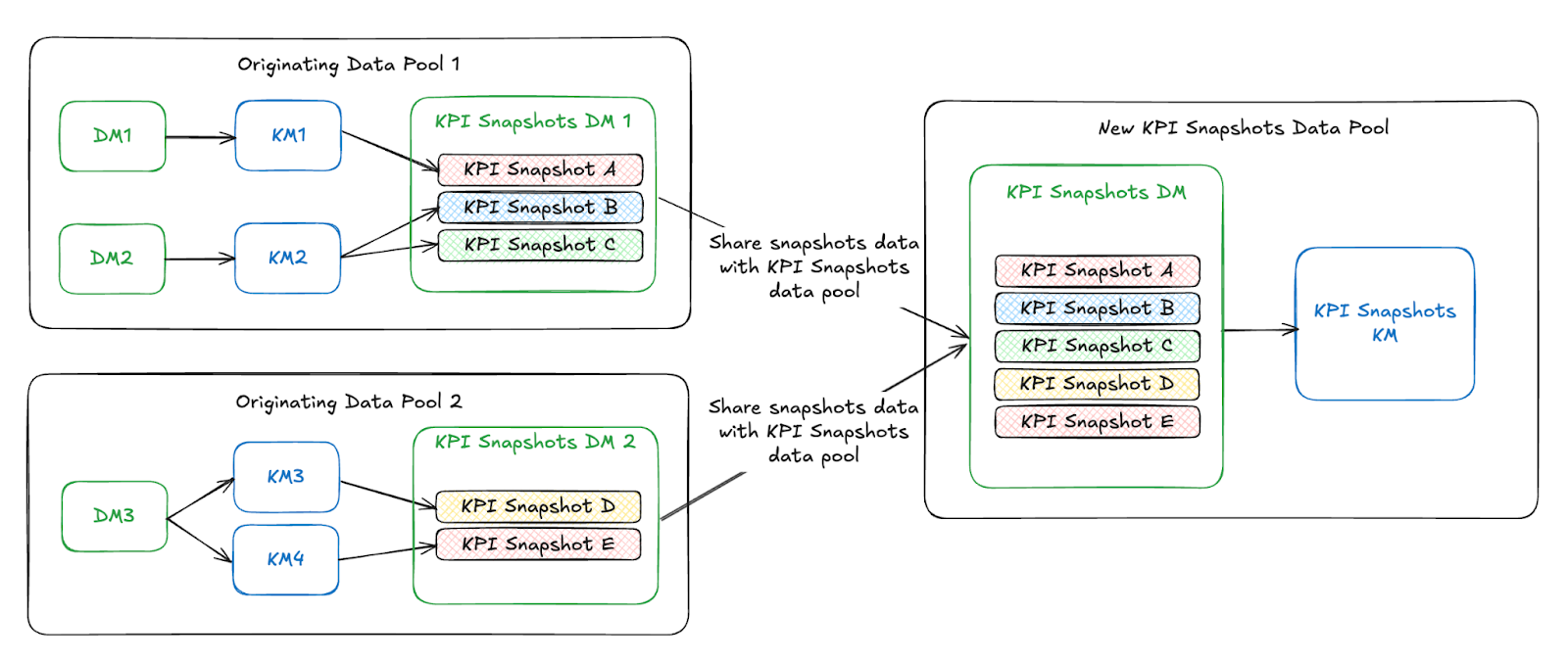
KPI Snapshots are created by selecting a Knowledge Model that contains KPIs and configuring which KPIs, along with any optional filters or attribute breakdowns, should be captured on a recurring schedule. When a KPI Snapshot is taken, the selected values are stored in the originating data pool and shared to a centralized KPI Snapshots data pool for consistent reporting and analysis across teams and processes.
In this example diagram, KPI snapshots from multiple originating data pools are captured via their respective Knowledge Models. These snapshots are then stored in local KPI Snapshots Data Models, and subsequently consolidated into a centralized KPI Snapshots Data Pool for unified reporting and analysis across teams and processes.
KPI Snapshots frequently asked questions
The data pool type for Combined Snapshots is determined automatically by the first KPI Snapshot created.
If the first snapshot originates from a Vertica data pool, the Combined Snapshots data pool is created as Vertica.
If the first snapshot originates from a Celocore data pool, the Combined Snapshots data pool is created as Celocore.
No. KPI Snapshots require strict compatibility. Originating data pools and the Combined Snapshots data pool must be of the same type (either all Vertica or all Celocore).
This error occurs during migration from Vertica to Celocore. Attempting to create a KPI Snapshot using a data pool type that differs from the existing Combined Snapshots data pool results in a system rejection to prevent data mismatches.
To resolve this, ensure that the originating data pool matches the type of the Combined Snapshots data pool.
Migrating a Combined Snapshots data pool requires backend configuration. Contact your Celonis account team or support representative for assistance during the migration process.