Connecting to Amazon S3
Important
Any references to third-party products or services do not constitute Celonis Product Documentation nor do they create any contractual obligations. This material is for informational purposes only and is subject to change without notice.
Celonis does not warrant the availability, accuracy, reliability, completeness, or usefulness of any information regarding the subject of third-party services or systems.
The Celonis Amazon S3 connectors let you bring data stored in Amazon S3 into the Celonis Platform for process mining and analysis. There are two supported connection types API extractions and zero-copy connections (for data stored in AWS Glue catalogs in Iceberg format).
API extractions offer the following benefits:
Zero-copy connections offer the following benefits:
This feature is currently available as a Private Preview only
During a Private Preview, only customers who have agreed to our Private Preview usage agreements can access this feature. Additionally, the features documented here are subject to change and / or cancellation, so they may not be available to all users in future.
For more information about our Private Preview releases, including the level of Support offered with them, see: Feature release types.
Secure connection: Connecting the Celonis Platform with secure authentication methods and ensuring data encryption in transit.
Zero-copy data access: Query your raw data directly at the source without duplication.
Instant, simplified setup: No complex extraction pipelines. Data copies of the raw data are eliminated. Connect once and start consuming data immediately.
Native integration in your IT landscape: Raw data remains in its original location, preserving data governance.
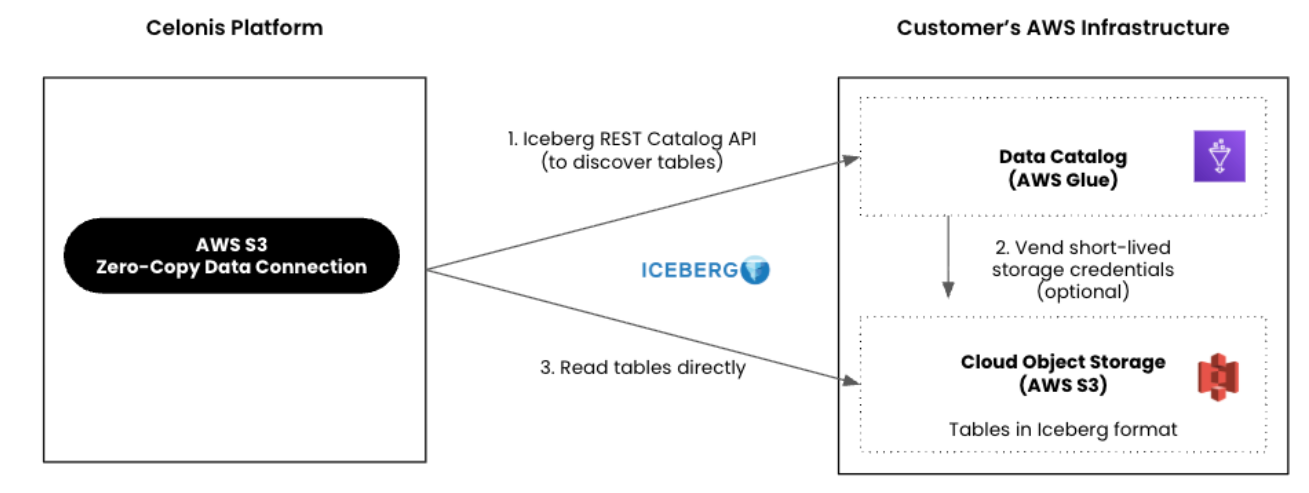
This section details the required prerequisites and background knowledge for connecting your Amazon S3 source to the Celonis Platform.
When connecting to Amazon S3, note the following points:
Table schema: There are two ways to get your files in the Amazon S3 bucket translated into a table structure:
Add specific files to an extraction. In this case, each file will result in a corresponding table with the table name matching the file name.
Add a complete folder to an extraction. In this case, all files in the folder are combined into one table, with the table name matching the folder name. This method requires all files in the folder to conform to the same schema and file type.
Filtering and delta loads: Filtering is not supported for S3 extraction. Therefore, there are no delta filters. You can execute your extraction as full loads or as delta loads. For full loads, the extraction will replace existing tables. For delta loads, it will append the records to the existing tables.
Data access: The Celonis Extractor performs read-only operations on your S3 bucket. No writing changes (such as updates and deletions) will be performed during the extraction process.
Security: Transfer of the data from S3 to the target system is secured through HTTPS, which allows for an encrypted exchange of information.
Supported file types: CSV, JSON, and Parquet.
This feature is currently available as a Private Preview only
During a Private Preview, only customers who have agreed to our Private Preview usage agreements can access this feature. Additionally, the features documented here are subject to change and / or cancellation, so they may not be available to all users in future.
For more information about our Private Preview releases, including the level of Support offered with them, see: Feature release types.
ETL Engine requirement: Your Celonis Data Pool must run on the ETL Engine. For more details see ETL Engine.
Data catalog and storage: Your data is stored in AWS S3 in the Iceberg format and is made available via an AWS Glue catalog.
Celonis Platform access: Both the AWS Glue Iceberg REST Catalog endpoint (Allowlisting Celonis domain names, IP addresses, and third-party domains) and the underlying S3 files must be accessible by the Celonis Platform.
Credential configuration restriction: AWS Glue must be configured to allow direct access to S3 (AWS Lake Formation's credential vending is not supported).
Amazon S3 connections have separate authentication methods and credential requirements depending on whether you are using API extractions or zero-copy connections.
The Amazon S3 REST API requires you to provide an access key ID and a secret access key to connect to the Celonis Platform.
You can create both access key ID and the secret access key in the My Security Credentials of your Amazon S3 instance. When creating these assets, you should assign the following permissions:
s3:GetBucketAcl
s3:GetObject
s3:ListBucket
ACL: bucket-owner-full-control (if writing files to the S3 bucket from an external location)
A JSON example of these permissions is:
{
    "Version": "2012-10-17",
    "Statement": [
        {
            "Sid": "Celonis S3 Extractor",
            "Effect": "Allow",
            "Principal": {
                "AWS": "<THE ARN OF YOUR IAM USER>"
            },
            "Action": [
                "s3:GetBucketAcl",
                "s3:GetObject",
                "s3:ListBucket"
            ],
            "Resource": [
                "arn:aws:s3:::<YOUR BUCKET>",
                "arn:aws:s3:::<YOUR BUCKET>/*"
            ]
        }
    ]
}This feature is currently available as a Private Preview only
During a Private Preview, only customers who have agreed to our Private Preview usage agreements can access this feature. Additionally, the features documented here are subject to change and / or cancellation, so they may not be available to all users in future.
For more information about our Private Preview releases, including the level of Support offered with them, see: Feature release types.
When connecting to Amazon S3 via zero-copy connections, select one of the following authentication methods based on your security infrastructure:
- Method 1: Delegated access using assumed IAM roles (Recommended)
Create an IAM role in your AWS instance configured for delegated access. This role requires:
The required data access permissions assigned via an IAM policy (see Required data access permissions).
A trust relationship explicitly defining the Celonis external IAM role ARN as the Trusted Entity (Principal).
The Celonis External ID configured as a
StringEqualscondition within that trust relationship.
Note
For a complete trust policy example, see Delegated Access Trust Relationship JSON.
- Method 2: Access Key / Secret Key
Create a dedicated AWS IAM user to generate a static Access Key and Secret Key pair. You must attach the required data access permissions policy directly to this user.
Required data access permissions
Regardless of your chosen authentication method, you must grant the following AWS Glue and Amazon S3 permissions to the respective IAM role or user:
glue:GetCatalogglue:GetDatabaseglue:GetDatabasesglue:GetTableglue:GetTablesglue:GetPartitionss3:GetObjects3:ListBucket
The following JSON example outlines the required permissions policy structure:
{
    "Version": "2012-10-17",
    "Statement": [
        {
            "Effect": "Allow",
            "Action": [
                "glue:GetCatalog",
                "glue:GetDatabase",
                "glue:GetDatabases",
                "glue:GetTables",
                "glue:GetTable",
                "glue:GetPartitions"
            ],
            "Resource": [
                "<Provide the Resource ARNs of your Catalog, Database, and Table>"
            ]
        },
        {
            "Effect": "Allow",
            "Action": [
                "s3:GetObject",
                "s3:ListBucket"
            ],
            "Resource": [
                "<Provide the Resource ARNs of your S3 Bucket>"
            ]
        }
    ]
}
Delegated Access Trust Relationship JSON
If you use delegated access, apply the following JSON configuration to your AWS IAM role's trust relationship:
{
    "Version": "2012-10-17",
    "Statement": [
        {
            "Effect": "Allow",
            "Principal": {
                "AWS": "<Add the IAM role ARN provided in the Celonis data connection>"
            },
            "Action": "sts:AssumeRole",
            "Condition": {
                "StringEquals": {
                    "sts:ExternalId": "<Add the external ID provided in the Celonis data connection>"
                }
            }
        }
    ]
}For a full list of available endpoints for Amazon S3, see: Amazon S3 API Reference.
This section describes the basic setup of configuring Amazon S3 connections. To configure the extractor:
Note
Depending on your Amazon S3 connection type, specific permissions are required for the authenticating user or role. For details, see Amazon S3 authentication.
In the Celonis Platform left navigation, select Data > Data Integration.
On the Data Pools screen, select the data pool you want to integrate. This opens the Data Integration window.
Note
If you have not yet configured a data pool for this data set, see Creating and managing data pools.
In the Input section, select the Connect to Data Source tile. This opens the Add Data Connection window.
Note
If this is not the data pool's first connection, the Data Connections window opens below. Select + Add Data Connection to add a new connection.
In the Add Data Connection window, select Connect to Data Source. This opens the in-tool connection catalog.
In the connection catalog, select the Amazon S3 tile. This opens the configuration window.
In the Name field, provide a unique name for this connection.
Next, select one of the following options:
Extractions (via APIs)
Zero-copy (via Iceberg REST catalog)
Note
Zero-copy (via Iceberg REST catalog) is currently a Private Preview feature, and may not be available in your environment.
Fill the configuration fields with your the data required for your connection.
(Optional) If using Extractions (via APIs), toggle the Advanced settings option to open the advanced configuration options. Read through each option and update as needed.
If using Zero-copy (via Iceberg REST catalog), select Authenticate and Load Namespaces, and then select the shares you want to use for this connection.
Select the Test Connection button to confirm the extractor can connect to the host system. If the test fails, adjust the data in the configuration fields as needed.
Once the test connection passes, select the Save button to continue. This returns you to the Data Integration window.