Transformation Hub in Views: Configuring dimensions
By mapping these dimensions to your data snapshots, you enable users to slice and dice high level value metrics by specific organizational or geographic segments. This process ensures that your reports reflect your unique business structure.
While you use the Admin Workbench to capture the impact and calculation of your value realized journey, dimensions provide the specific location of that value. If you do not perform this configuration, the app displays default placeholder dimensions that might not align with your actual data. You must ensure that the attributes you selected in the drilldown options of your snapshots match these dimensions. This alignment allows you to produce accurate reports and perform precise performance comparisons across different entities.
The Admin Workbench tracks your total value while configuring dimensions allows you to view that data by attributes like Country or Company Code in the Transformation Hub filters.
Click Data - Objects and Events and open your Marketplace Installed Pool.
Click Transformations and open any transformation.
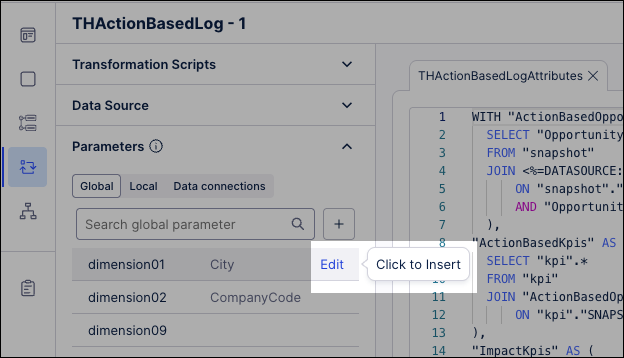
Expand the parameters and click Edit for a specific dimension like dimension01.
Provide the exact name of the dimensional attribute you selected during your KPI Snapshot setup in the Value field.
Warning
You must not change the Key because you only need to update the Value field.
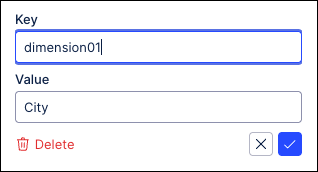
Click Save and then run your Data Job again to reflect these names in your filter bars.