Grouping Task Mining events into Tasks (Task Discovery)
This feature is currently available as a Private Preview only
During a Private Preview, only customers who have agreed to our Private Preview usage agreements can access this feature. Additionally, the features documented here are subject to change and / or cancellation, so they may not be available to all users in future.
For more information about our Private Preview releases, including the level of Support offered with them, see: Feature release types.
You can now create Tasks in your captured Task Mining data by grouping together individual Task Mining events created by user actions that are performed together to achieve a specific outcome.
For example, when a user creates an invoice, there are specific actions they will always perform. Grouping the events created from these actions into a Create Invoice Task gives these events business context. Adding the Create Invoice Task to your analysis gives you detailed data for the individual events, as well as data for the Task as a whole.
You can group Task Mining events into Tasks and Subtasks:
The method you use will depend on your use case and whether this functionality has been enabled for your team.
Note
When you create a Task, it applies to new data only. However, if you re-process all the existing data, the Task will be applied to all data. For more information, see Task Mining data processing.
Before you begin, ensure you have completed the following steps or meet the requirements listed below:
Admin or Analyst role
GPT 5 (Azure OpenAI) enabled
In the Celonis Platform Navigation bar, select Data >Task Mining.
All available Task Mining projects display.
Open the Task Mining project you want to create Tasks for.
Select Tasks from the Task Mining project navigation.
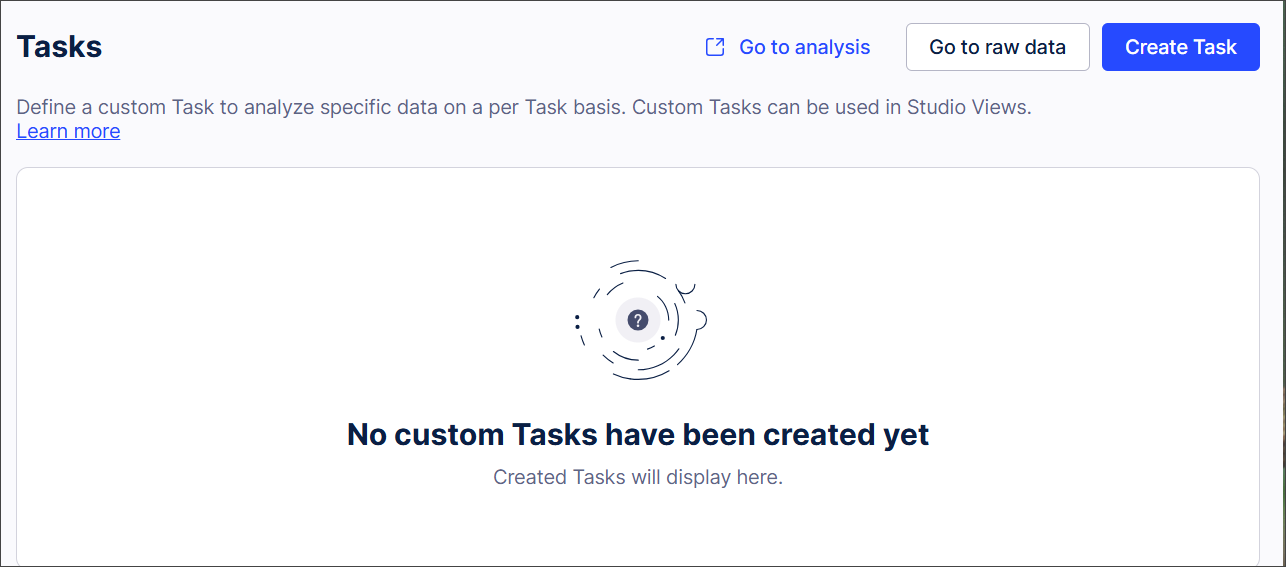
Select Create Task.
The Create Task screen appears.
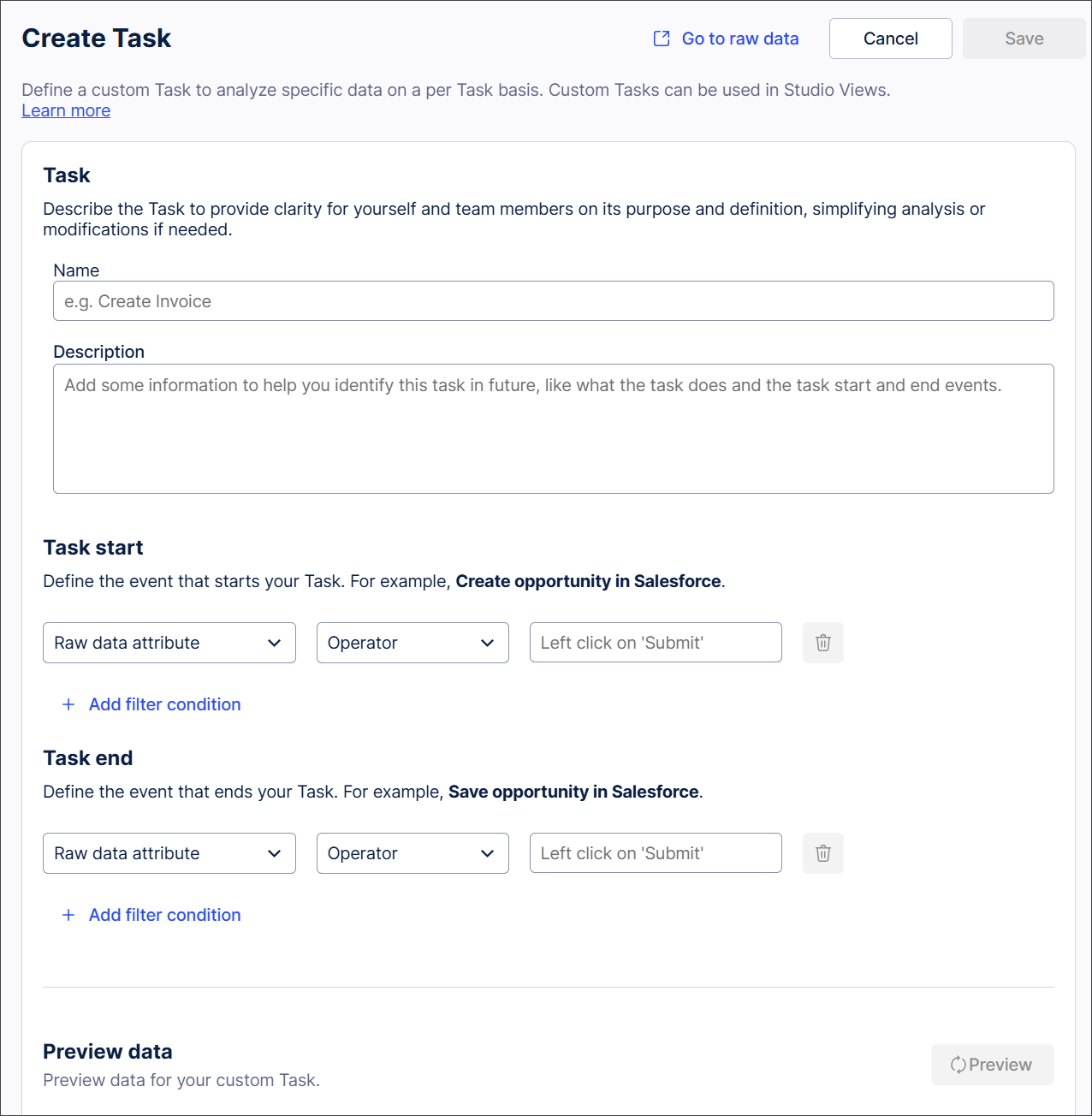
Add a name and description for your Task.
Add the events that indicate the start and finish of your Task.
Tip
Select Raw data and search for events if you’re not sure what to include here.
Select Preview to view your Task.
Select Save.
In the Celonis Platform Navigation bar, select Data >Task Mining.
All available Task Mining projects display.
Open the Task Mining project you want to create Tasks for.
Select AI Task Discovery from the Task Mining project navigation.
The AI Task Discovery screen appears.
Tip
Any Task Mining runs that have already been created for the project display here, along with the status of the run.
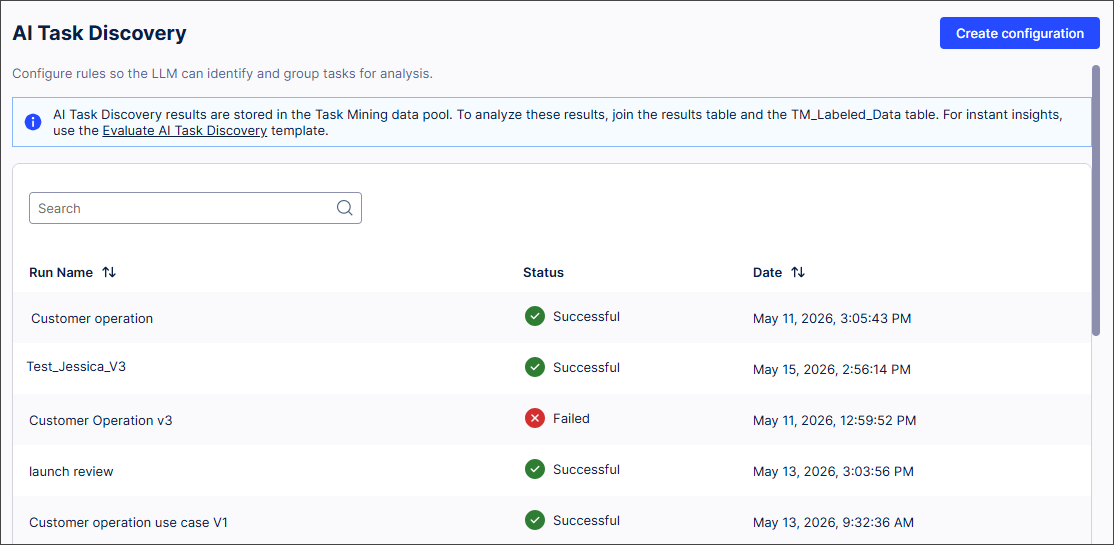
Select Create configuration.
The Create configuration screen appears.
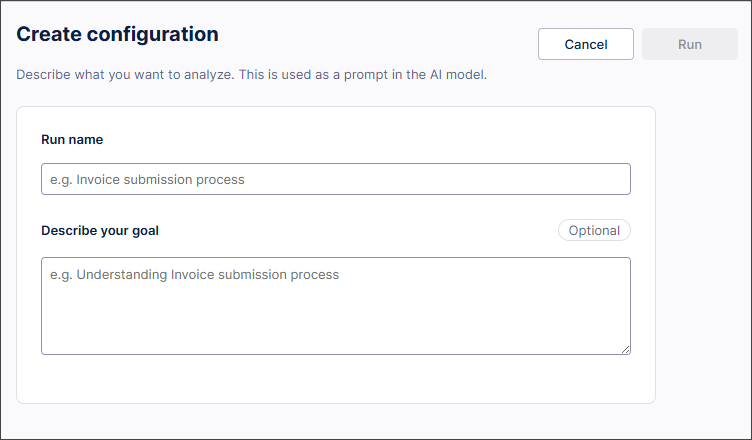
Complete the configuration fields in the Create configuration screen.
Select Run.
The run and its status display in the AI Task Discovery screen. Once completed, the data created during the AI Task Mining discovery is saved to a new table which has the same identifier as the run name.
Open the Data Model used in your Task Mining project.
For more information about Data Models, see Modeling your data.
Add the new table to the Data Model.
Connect the table to the
TM_Labeled_Datatable.
Field | Description |
|---|---|
Run name | Identifier for the prompt used by the AI model. This is also the identifier of the table created in your data pool that contains the AI Task Discovery results. |
Describe your goal | Describes the types of user actions you want to group into Tasks and Subtasks. |
You can analyze the AI Task Discovery data in the Workforce Productivity app. We recommend importing the Task Discovery Evaluation template into the Workforce Productivity app as this is set up to display data specific to AI Task Discovery including:
The total number of raw data events (user actions).
The Tasks and Subtasks the raw data events have been grouped into.
The percentage of the total raw data events that were clustered into Tasks and Subtasks (AI coverage).
Tip
You can access the Task Discovery Evaluation template from the Celonis Marketplace. Select the Marketplace icon  in the Celonis navigation bar and search for task discovery.