Creating custom object types from scratch
Custom object types model unique business entities not captured by standard, out-of-the-box Celonis process models.
For example, if you are analyzing a logistics workflow, use the Objects and Events dashboard to build a custom "Logistics_Vehicle" object type to track your specific physical fleet assets, delivery capacities, and regional operational workflows.
Verify that your user profile has administrator permissions or permissions to edit data models within the Celonis platform.
To create a custom object type from scratch using the Objects and Events dashboard:
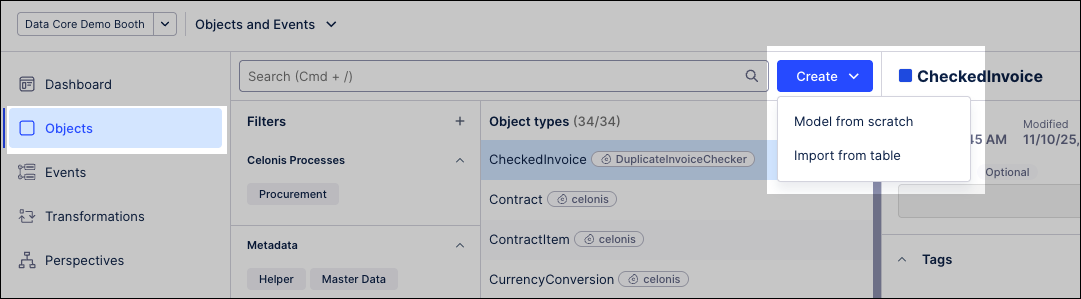
Click Objects.
Click Create - Model from scratch.
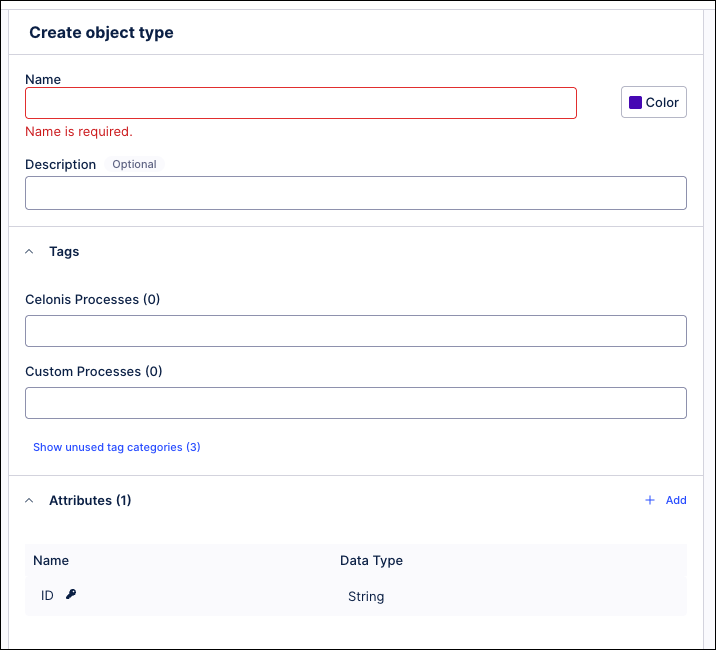
Complete the object type configuration fields in the properties panel:
Name: Enter a unique, alphanumeric identifier up to 40 characters to establish the object type in the database (for example, enter
Logistics_Vehicleto track your physical fleet assets). Do not use spaces or special characters.Color: Select a distinct display color to isolate this asset class visually within your process model graph view, making it easy to distinguish fleet tracking from standard order flows.
Description: Enter an operational summary visible only in the table view (for example, enter
Primary distribution fleet vehicles, including heavy trucks and refrigerated vans).Tags: Categorize this object to organize your data model navigation.
Celonis processes: Choose from existing tags used as part of Celonis provided processes.
Custom processes: Enter text to create a new tag or select from existing tags. For example, under Custom processes, enter
Fleet_Operationsto group it alongside related transit and regional delivery workflows.
Object attributes: Configure properties to define your vehicle profiles and enable downstream filtering. Click Add Attribute to create your core schema parameters:
For example:
Add
vehicle_idas a string to serve as your unique alphanumeric asset tracker (for example,TRUCK-084).Add
max_payload_kgas a long integer to record the maximum weight capacity (for example,12500), allowing you to analyze cargo utilization efficiency.Add
is_refrigeratedas a Boolean (TrueorFalse) to flag cold-chain transport capabilities for delivery bottleneck analysis.Add
purchase_dateas a datetime timestamp to track when the asset was commissioned into service.
Click Save.
Once saved, deploy the custom object type to the development environment to make it available for transformations and analysis.
Custom object types and event types can be extended over time by adding attributes and relationships, including links to existing Celonis objects and events. Object and event extensions are available after publishing in the current environment. A production deployment is only required if the analysis runs in production.
To extend or edit an existing object or event:
From the dashboard, click Objects / Events.
Select the object or event you want to extend, opening the configuration panel.
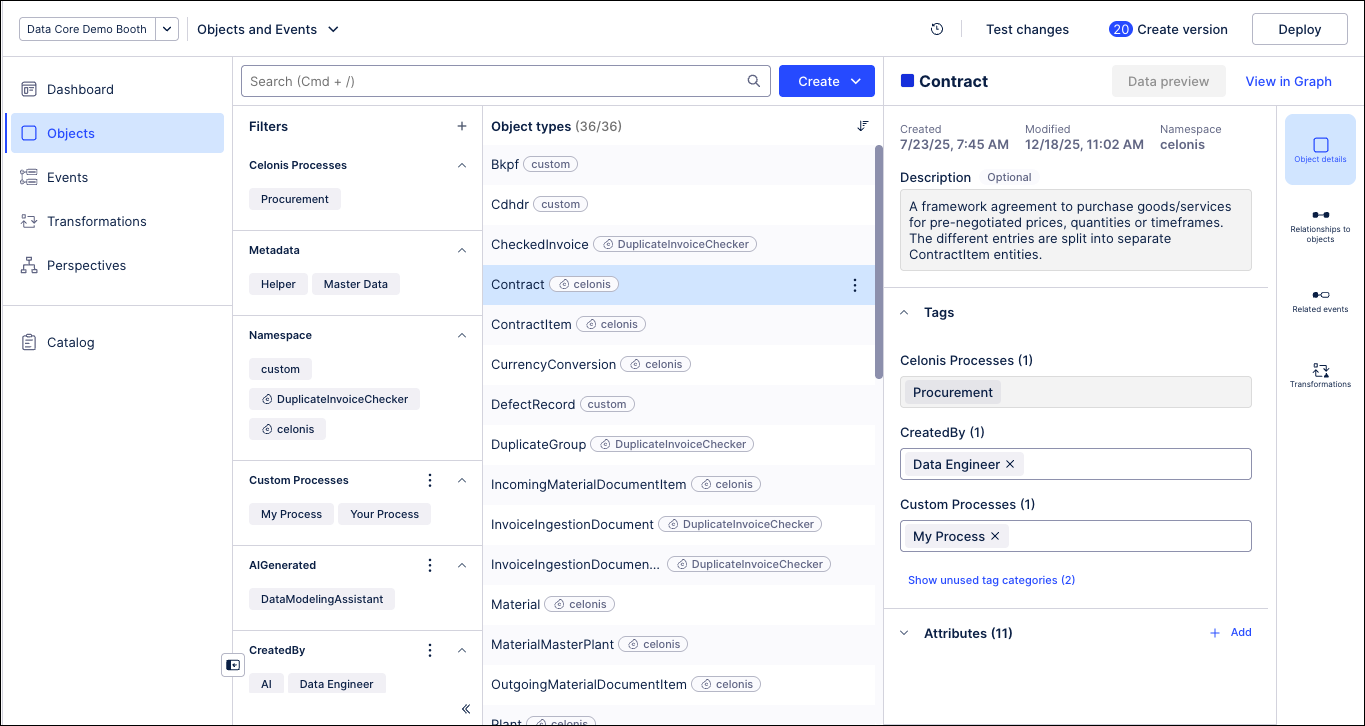
Make the necessary updates to the object or event, using the information provided in the above procedures.
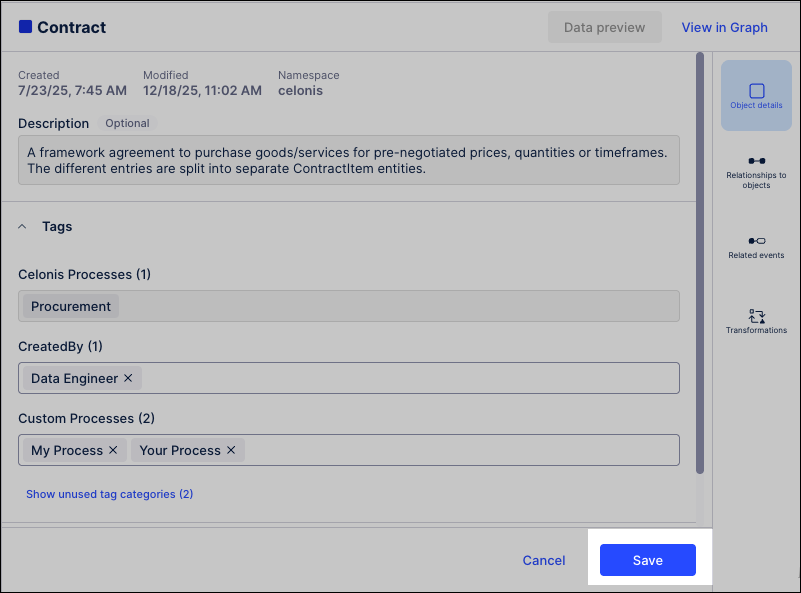
Click Save.
Optional: If the object or event extension is required in your production environment, click Deploy.
For more information about versioning and deployment, see: Versioning and deploying OCDM.