Enabling and configuring core processes
Celonis core processes in the Catalog provide predefined object types, event types, relationships, and perspectives. Enabling these prebuilt pipelines establishes the foundational schema for your Object-Centric Data Model (OCDM), allowing you to bypass manual mapping and rapidly build analytical views in Studio for operational processes like Accounts Payable or Procurement.
The following core processes are available for activation within the Catalog :
Accounts payable
Accounts receivable
Inventory management
Order management
Procurement
Establish a data connection between your source environment and the Celonis Platform to initialize object and event modeling. The supported connection types include:
SAP ECC, SAP S4/HANA, Oracle EBS and Oracle Fusion: Celonis supplies prebuilt extractions and transformations for SAP ECC and Oracle EBS systems via the extraction package in the Celonis Marketplace. For configuration steps, see: Quickstart for SAP ECC and Oracle EBS.
Other source systems: Connect alternative systems using the standard extractor or build a custom connection via the Extractor Builder. Import data tables or upload a sample file to configure SQL transformations in the editor. For configuration steps, see: Quickstart for custom source systems.
Configure and activate your selected core process from the data pool interface:
Click Data - Objects and Events and select your target data pool.
Click Catalog.
Click the name of the target Celonis process (for example, Procurement) and toggle the Enable process slider.
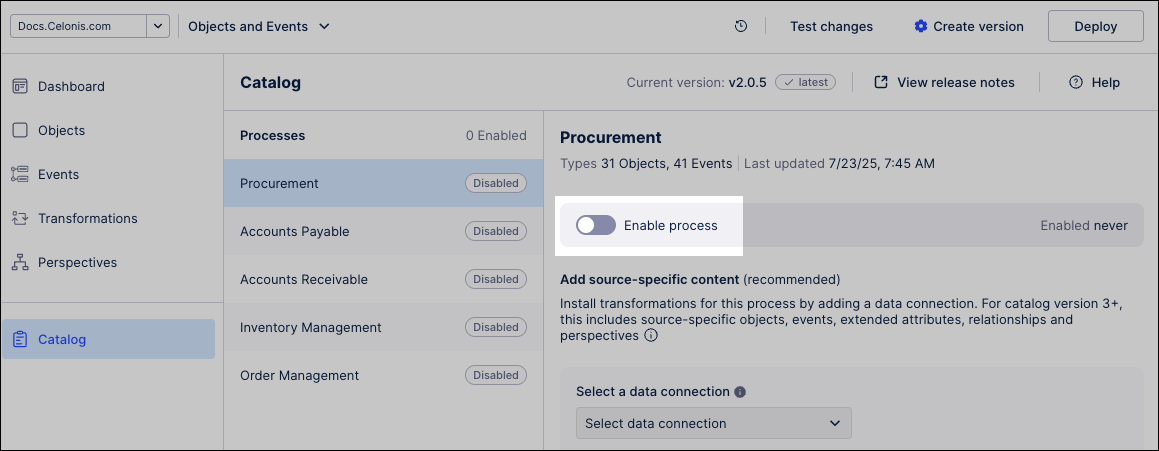
The associated Celonis object types, event types, relationships, and perspectives activate automatically.
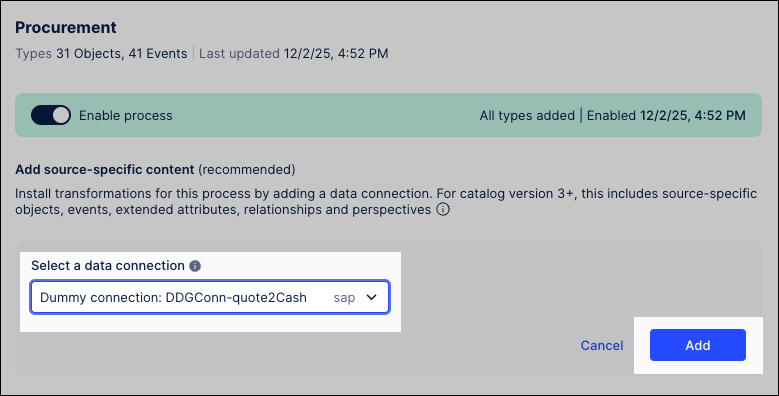
Select your ERP data connection (for example, your SAP_ECC_Procurement connection) from the dropdown and click Add to map the prebuilt Celonis transformation scripts. To prevent data transformation errors, assign only one source system per data connection.
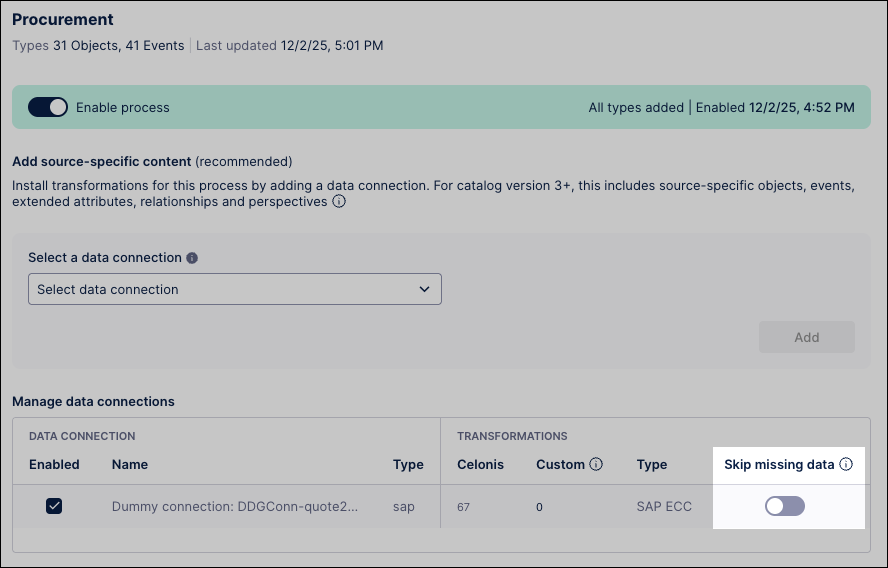
Optional: If your source ERP system lacks non-mandatory columns required by the standard Celonis model, enable Skip missing data. This allows the transformation pipeline to run to completion despite missing data fields, automatically populating empty columns with null values.
Missing columns: The pipeline generates objects and events with null values in these specific fields.
Required columns with mismatched data types: The system automatically converts the data into the expected format.
Click Data - Objects and Events, then click Create version to snapshot your core process architecture (such as your Accounts Payable pipeline) before deployment.
To learn more about lifecycle version management and production deployments, see: Versioning and deploying OCDM
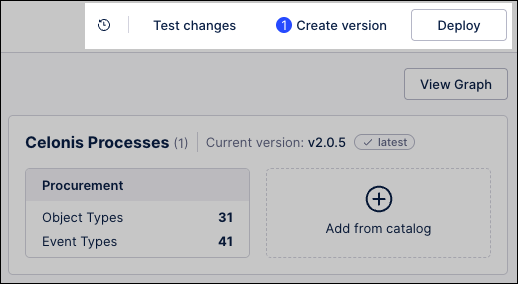
Deploy the validated version to your production environment by clicking Deploy and completing the setup wizard.