Configuring SAML JIT single sign-on
View our security recommendations
Your team security and user provisioning settings may vary depending on your team size. Before setting up your team, we therefore recommend that you choose a coupling approach and relevant settings.
For more information, view our Celonis Platform security recommendations and best practice: Security recommendations
You can enable Just-in-time (JIT) user provisioning when configuring your SSO options, allowing new users to join and access your Celonis Platform team on demand. Adopting SAML JIT user provisioning reduces the need for manual user management, with the information passed between the Celonis Platform and your IdP securely.
Note
SAML JIT takes ownership of groups that have the same name as groups that appear in the SAML claim of some users. For these groups, people will be removed depending on whether or not their SAML claim upon login lists that membership. Any group that has never appeared in any SAML claim will stay as-is, including all memberships.
To enable SAML JIT SSO for your Celonis Platform team:
Note
The next step is to configure your IdP.
Click Admin & Settings - Single Sign-On.
Click SAML - Configure.
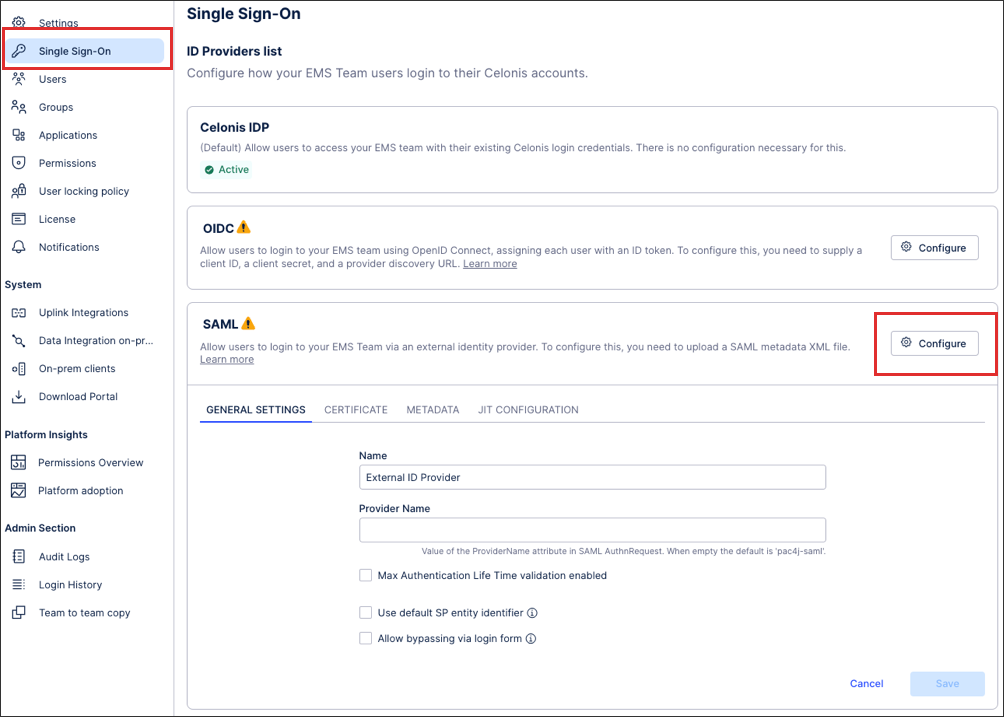
Configure your general settings, including a name and provider name.
You can also configure the following options here:
Maximum Authentication Life Time: This enables you to control how long the user remains signed in (minutes), with the default set to 480 mins (8 hours). After this time, the user must sign-in again with their identity provider to regain access to your Celonis Platform .
If this option is disabled, the maximum period allowed by the Celonis Platform is 10 years. Typically this means that the timeout period is defined and configured on your identity provider.
Allow bypassing via login form: Enabling this option allows users who are outside of your identity provider to still access your team with their email address and password. This feature is beneficial when working on implementation projects or when adding the user to your identity provider is not possible. You can also enable this option if you need to give a member of the Celonis Support team access to your environment to problem solve.
When bypassing via login form, your login from can be accessed via the following URL format:
https://<team>.<realm>.celonis.cloud/ui/login
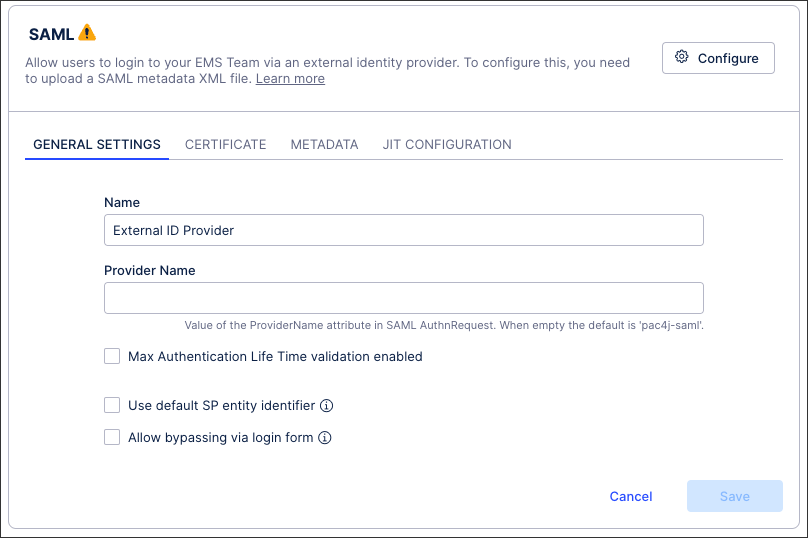
Select your certificate type (uploading a user-provided certificate if necessary).
See: Certificate management for SAML single sign-on
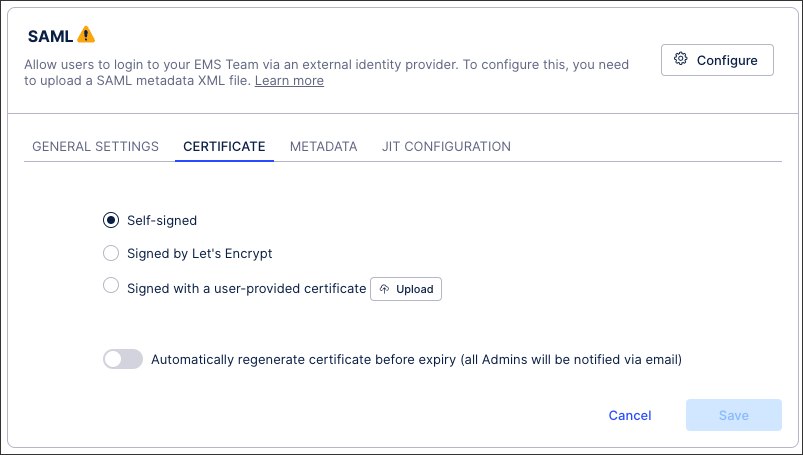
Upload your identity provider's metadata. The metadata is an XML file representing the configuration of your SSO and should be available for download in the SSO’s admin interface.
You can also use the following features here:
Download SP Metadata: The service provider (SP) metadata file allows for quick configuration on the identity provider and is available once you have uploaded your identity provider metadata file.
Enable SP Metadata Access via Public URL: This gives you access to a link that reduces the manual effort involved when certificate changes are needed. Depending on your identity provider, this link can enable you to automatically update the certificate when required and without accessing the Celonis Platform to do so.
Click JIT CONFIGURATION and then Enable Just-in-Time (JIT) provisioning:
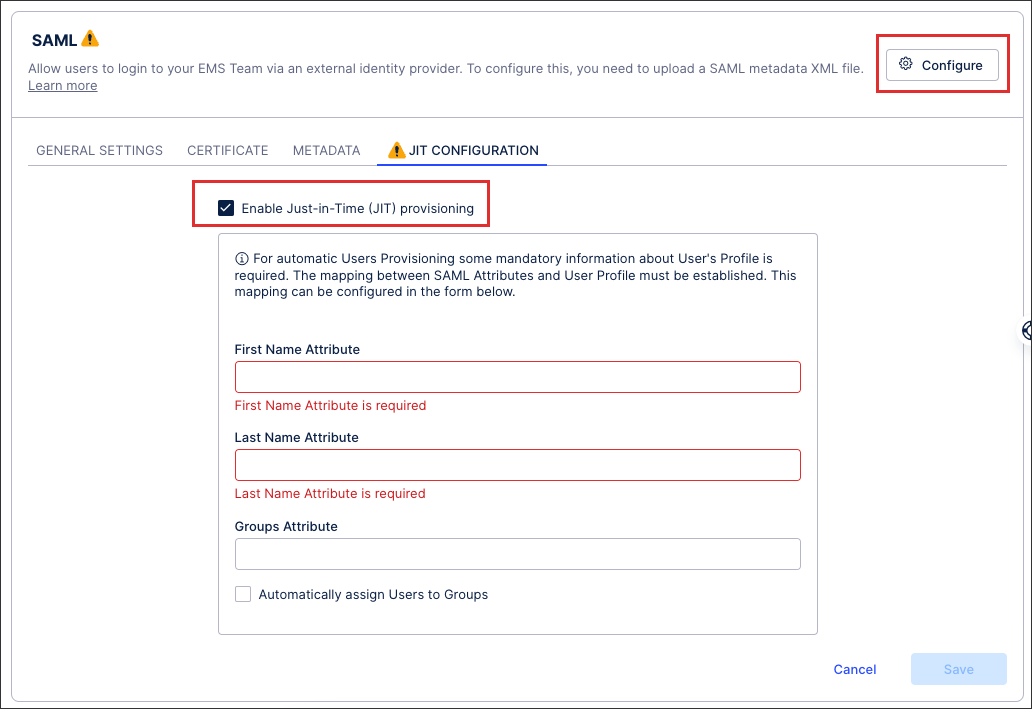
Configure your JIT settings:
First and last name attributes: You need to provide both the users’ first and last name attributes. We also recommend that all new users are given group attributes, assigning them permissions automatically.
Group attribute: This must be formatted as a multi-value inside auth response to the Celonis Platform: Celonis Platform , similar to this:
<Attribute Name="groups" ...>
<AttributeValue xsi:type="xs:string" ...>groupB</AttributeValue>
<AttributeValue xsi:type="xs:string" ...>groupA</AttributeValue>
</Attribute>
Click Save.
When prompted, either click Activate or choose to activate your configuration later.
Your SAML SSO is now active, with all active users at that point being automatically logged out of your Celonis Platform .They’ll need to re-authenticate to regain access.