Archive (Action Flow)
The Archive Action Flow module allows you to perform operations on compressed archives so that they can be processed further by other Action Flow modules. Use it to extract, compress, or resize archived data to meet your workflow requirements
To add your Archive module to your automation:
In Studio, go to your package and either start editing an existing Action Flow or start a new one by clicking New asset > Action Flow.
Click Add module and from the list select Archive.
Your module is added to the Action Flow. Start configuring it. See Types of Archive modules
This action module extracts files from an archive. These files can be further processed using other apps/module
Source file | Select the file you want to extract. It can be retrieved from a previous module (e.g. Dropbox, email, etc.) |
Example of an Action Flow with an Archive module
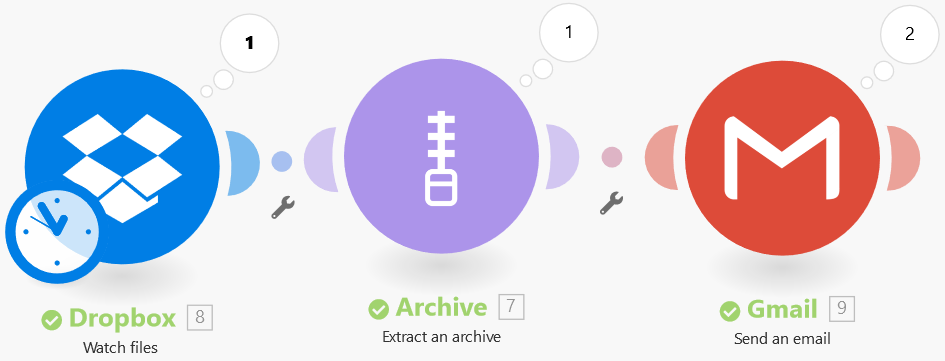
Get the ZIP file from the defined Dropbox folder (e.g. Archives), extract it using the Archive module and send extracted files to the desired email address as attachments with the email or gmail module.
Inflate
Data | Enter the data you want to decompress using the inflate function. |
Deflate
Data | Enter the data you want to compress using the deflate function. |
Create an archive
Adds the desired files to a ZIP or TAR archive.
Source module | Select the module you want to retrieve the files from. |
Type | Select whether you want to add files to a ZIP archive or a TAR archive. |
Archive name | Enter a name for the created archive. Do not add an extension. |
Source file | Map the source file or select the radiobutton with the file source. |
Example
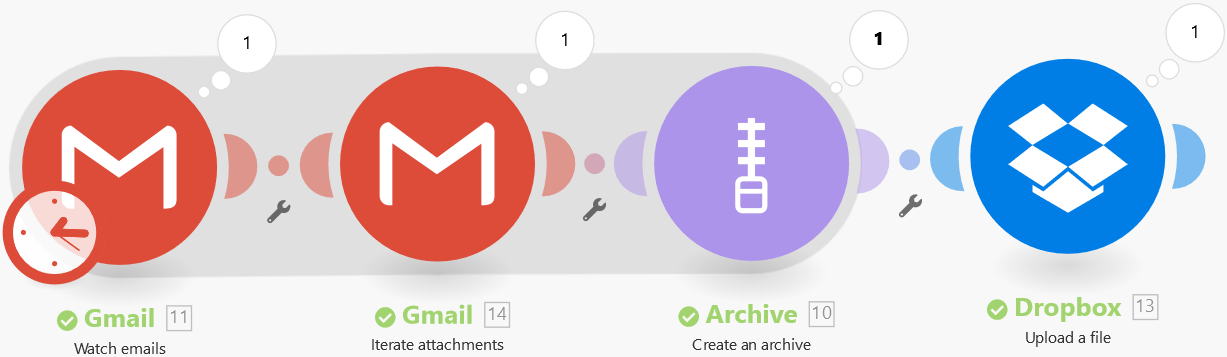
Watch incoming emails using the Gmail Watch emails module. If an email is received, its attachments are iterated into individual bundles then archived to the ZIP file and saved to the defined Dropbox folder.