Hiding events in Process Explorer
In Process Explorer you can control the list of events and activities displayed in your process graph by hiding any specified activities that you are not currently interested in. For example, you can hide an activity that occurs in all cases or activities that are generated automatically as part of the workflow. By hiding these activities, you can focus on the activities you are most interested in.
Note
This feature is only accessible in Process Explorer when using sliders to control the process graph and will not be available when using the panel.
To hide events in Process Explorer:
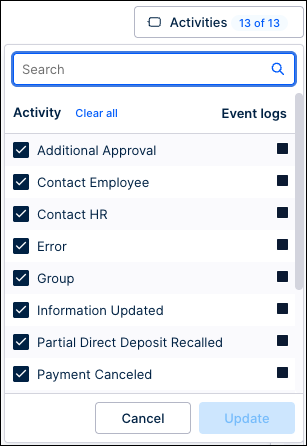
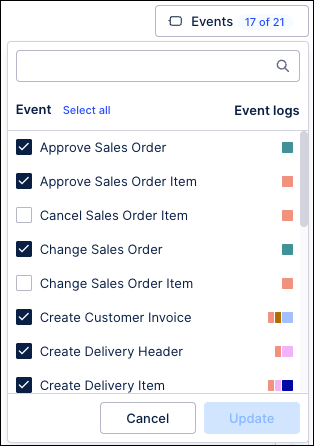
In the upper-right corner of the Process Explorer, click the activities menu (for example, "17 of 21 events") to expand the list of available events.
Modify the visibility of activities using one of the following methods:
This feature is currently available as a Public Preview only
During a Public Preview, only eligible customers can access this feature. Additionally, there may be minor updates to the functionality and design of these features when they are released in General Availability.
For more information about our Public Preview releases, including the level of Support offered with them, see: Feature release types.
To hide a specific activity, uncheck the box next to the activity name.
To hide or show all activities at once, click or .
To filter the list, enter a term in the Search field, then use the bulk selection links to toggle only the filtered results.
For processes with multiple event logs, use the colored squares in the Event logs column to identify which log an event belongs to based on the corresponding color in the process graph.
Click Update.
The process graph, KPIs, and global sliders refresh to reflect only the selected activities.
|
| ||
Activities menu - case centric | Events menu - multi-object |