Get Rows (Action Flow)
The Get Rows Action Flow module queries parts of your Knowledge Model or Data Model and provides the respective columns as output, which can be used in subsequent steps.
If you want to use the OAuth connection method for your Action Flow, your OAuth app must have the following scopes assigned to it:
knowledge-models:read
knowledge-models:query
integration.data-pools:read
Integration.data-models:read
integration.data-pools:query
For more information, see Registering your OAuth client and Available OAuth scopes.
Go to the edit mode.
Click on the '+' icon to add a new action.
Search for Celonis.
Select Get Rows.
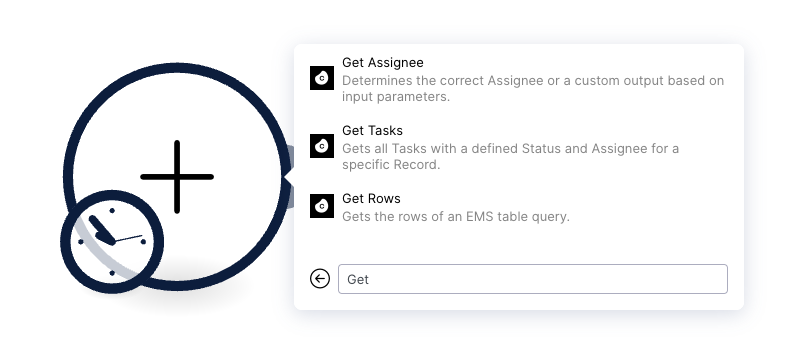
Add a connection by clicking Add in the Get Rows action.
You can either move forward by clicking the Continue button and establishing a "Celonis User" connection or selecting "Celonis Application Key" from the Connection type dropdown.
Tip
For creating and testing an Action Flow, the "Celonis User" connection might be the fastest and easiest choice to get started.
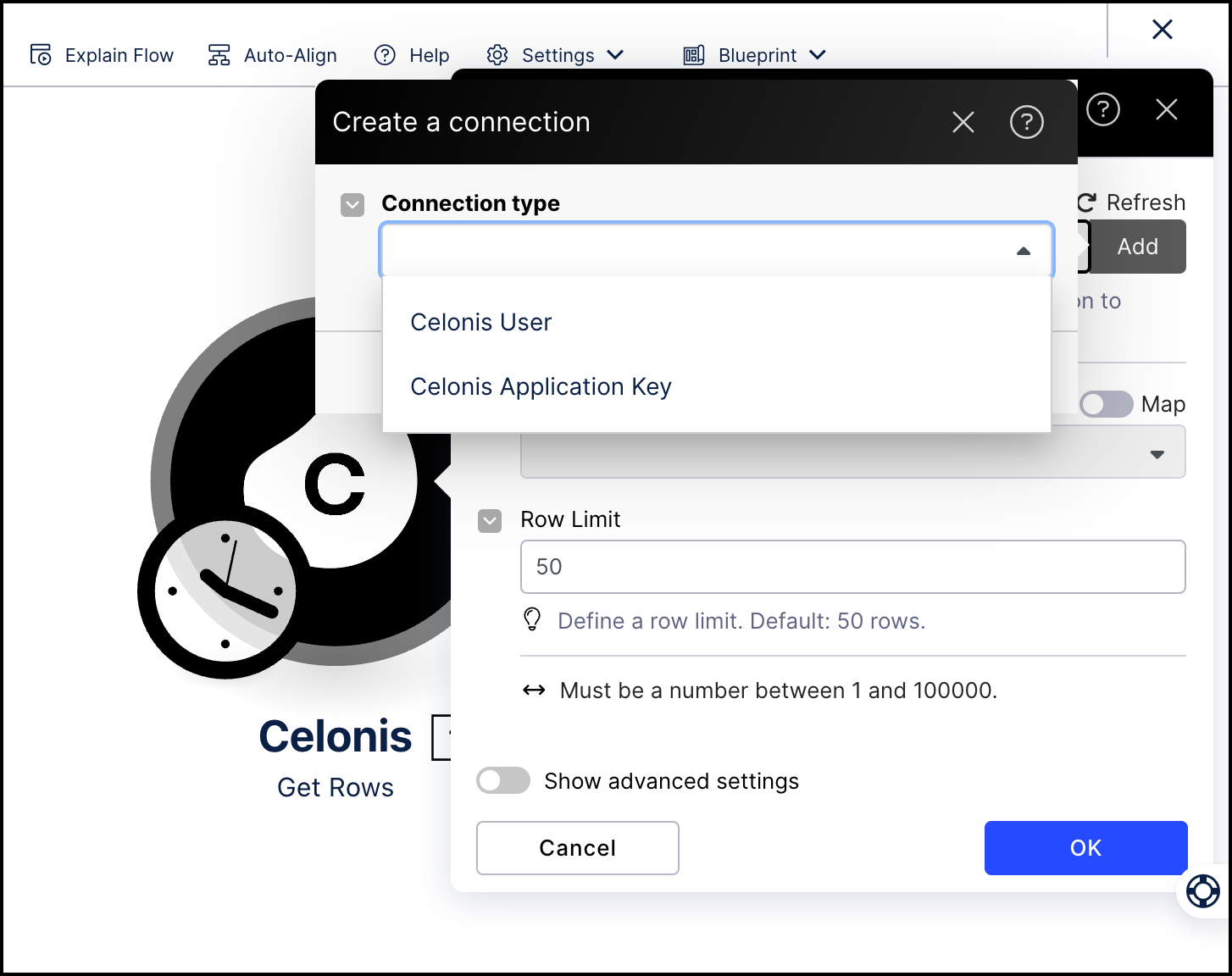
Add a connection to the module using one of the following methods:
The Celonis User connection will reflect your existing data permissions and allow you to query data to which you already have access.
Note
You must have Data integration service permission to use this connection method. See Data Integration permissions.
Give your connection a name.
Click Save.
Celonis Application Key -This connection type will reflect the data permissions granted to the selected Application Key and allow you to query data to which you may not otherwise have access.
Give your connection a name.
In a separate window, create an application key and copy it. See Application keys.
Paste the application key and click Save.
Celonis OAuth Client Credentials this connection type will reflect the data permissions granted to the selected OAuth app and allow you to query data to which you may not otherwise have access.
Give your connection a name.
In a separate window, create the OAuth application application Client ID and Secret and copy it. See Registering your OAuth client.
Paste the Client ID and Secret here and Save.
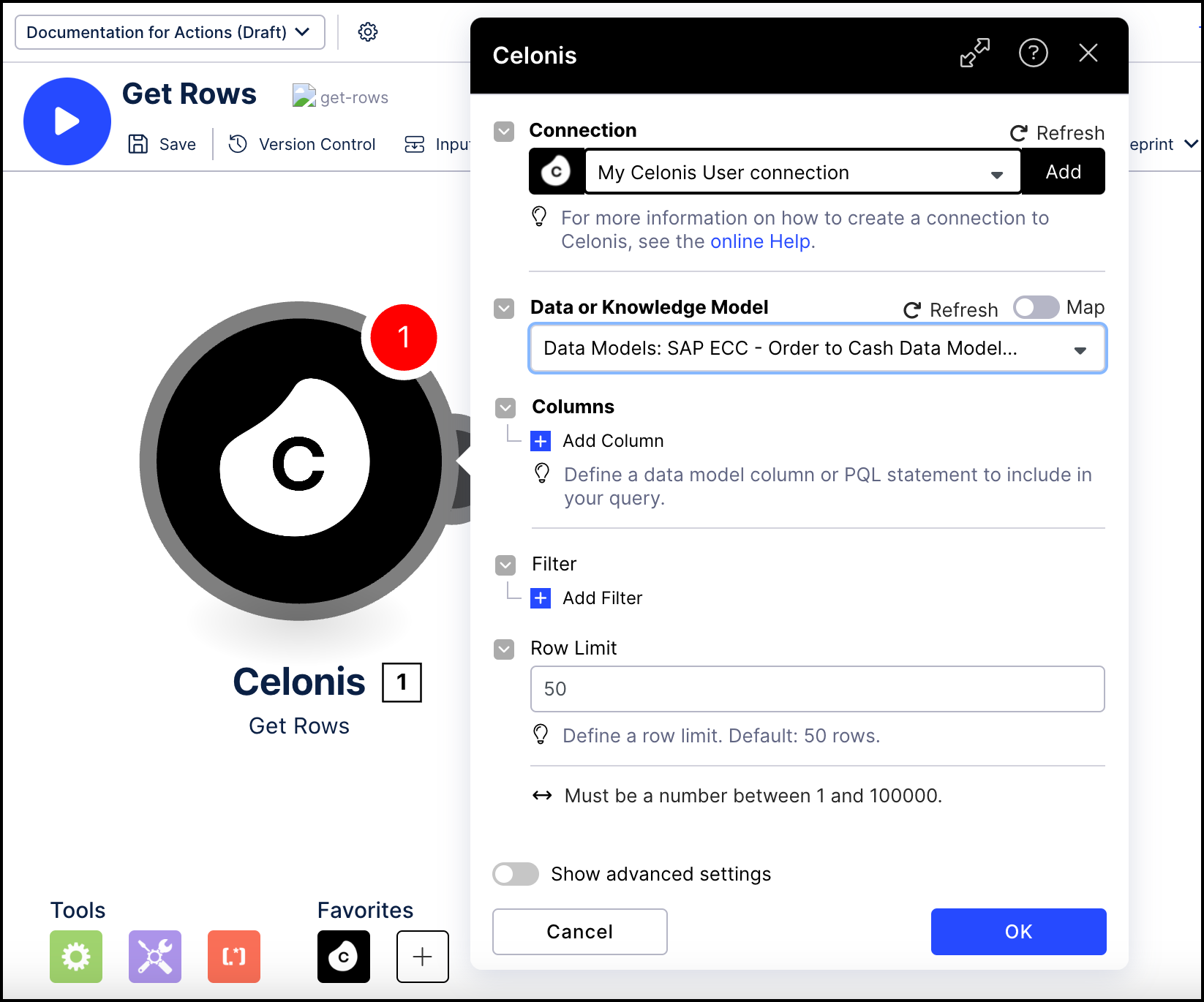
Select your Knowledge or Data Model.
The module will show only Knowledge Models available in a given Studio package.
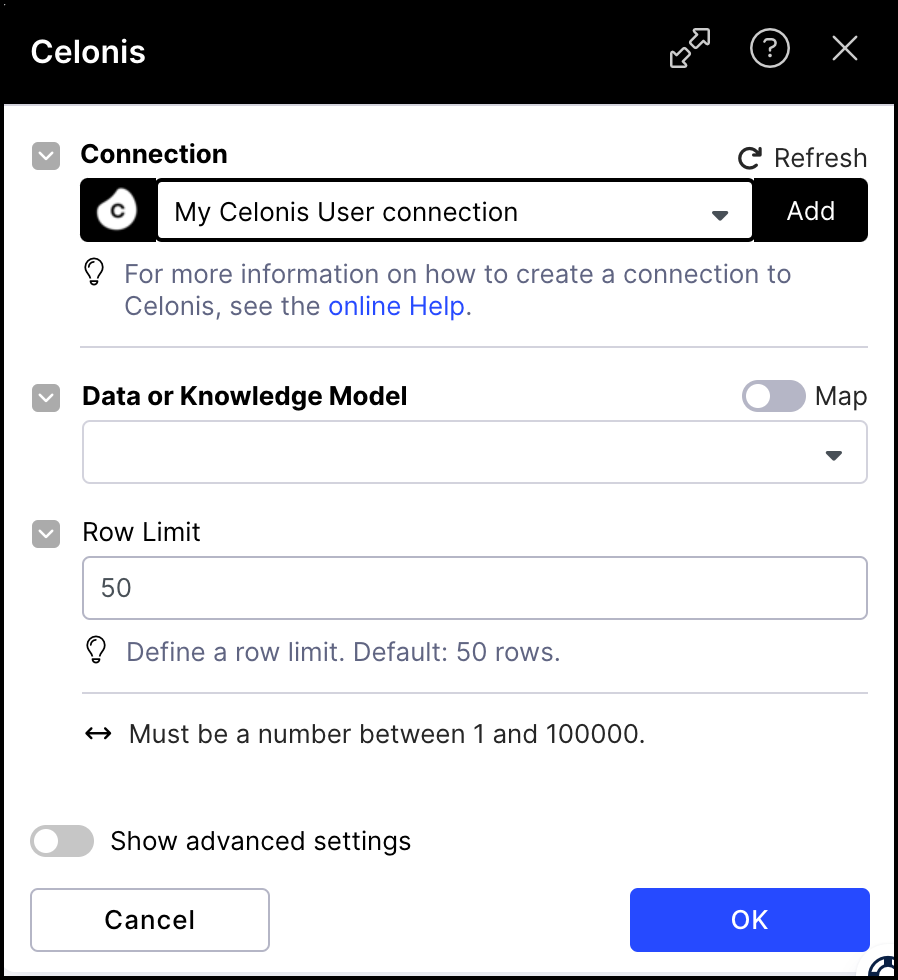
Click Add Columns to add the columns you want to query. Depending on the data source queries (Data Model or Knowledge Model), provide the following details:
Note
If the column you want to add from the Knowledge Model is not displayed in the dropdown, click Refresh to make sure any new columns added since the Get Rows module was created are added to the dropdown.
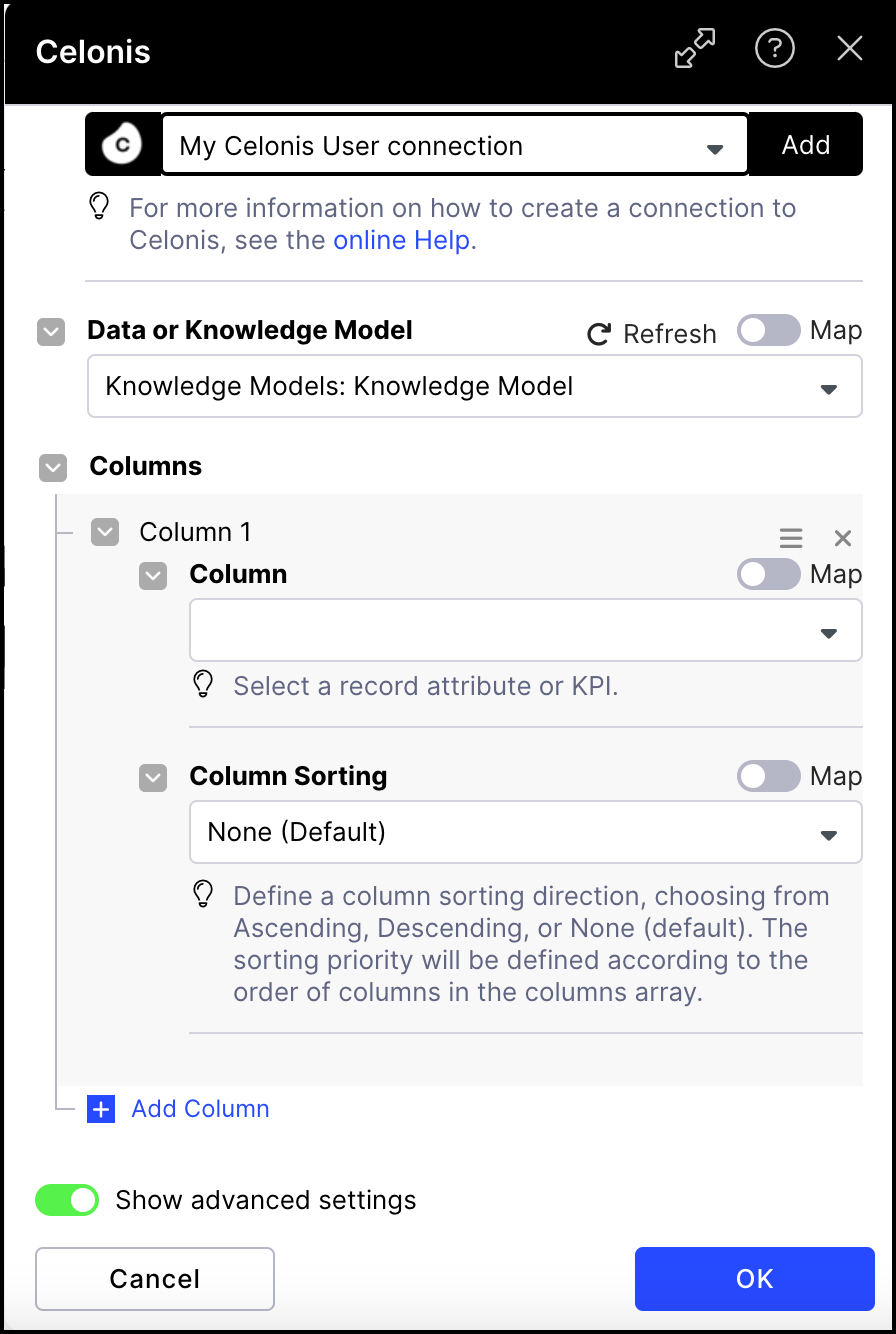
If a Knowledge Model is being queried, provide the following details:
Column - the record attribute or KPI which should be queried and then can be used in consecutive Action Flow modules.
Column Sorting - the direction in which the column output will be returned:
Note
This field is only displayed if the Show advanced settings option is toggled on.
None (default): No sorting is applied in query results.
Ascending: Results are returned in ascending order.
Descending: Results are returned in descending order.
If a Data Model is being queried, add a column by creating a PQL expression. Each column has three fillable fields:
Column Name - The name that will be used when displaying that column's outputs.
PQL Formula - The PQL query used to extract that column (e.g. "VBAK"."VKORG").
Column Sorting - Defines the direction in which the output of this column will be returned.
Note
This field is only displayed if the Show advanced settings option is toggled on.
There are three options:
None (default): No sorting will be applied when querying results.
Ascending: Results will be returned in ascending order.
Descending: Results will be returned in descending order.
The sorting priority will be defined according to the order of columns in the columns array. To change the sorting options, select the Show advanced settings checkbox.
Tip
When querying a Data Model, we recommend starting with a Studio Analysis from which you can copy the PQL queries to the Query Data action. When pasting PQL into the Query Data action we recommend using the "paste without formatting" option (Ctrl+Shift+V).
Add data filtering. Depending on the data source queried (Knowledge Model or data Model), provide the following data:
Select a filter from the selected Knowledge Model or define a custom filter using PQL.
Note
If the filter you want to add from the Knowledge Model is not displayed in the dropdown, click Refresh to make sure any new filters added since the Get Rows module was created are added to the dropdown.
Filtering in a Data Model: Define your filter by creating an expression using PQL.
If a Data Model is being queried, define your filter by creating an expression using PQL.
Click Add Filter.
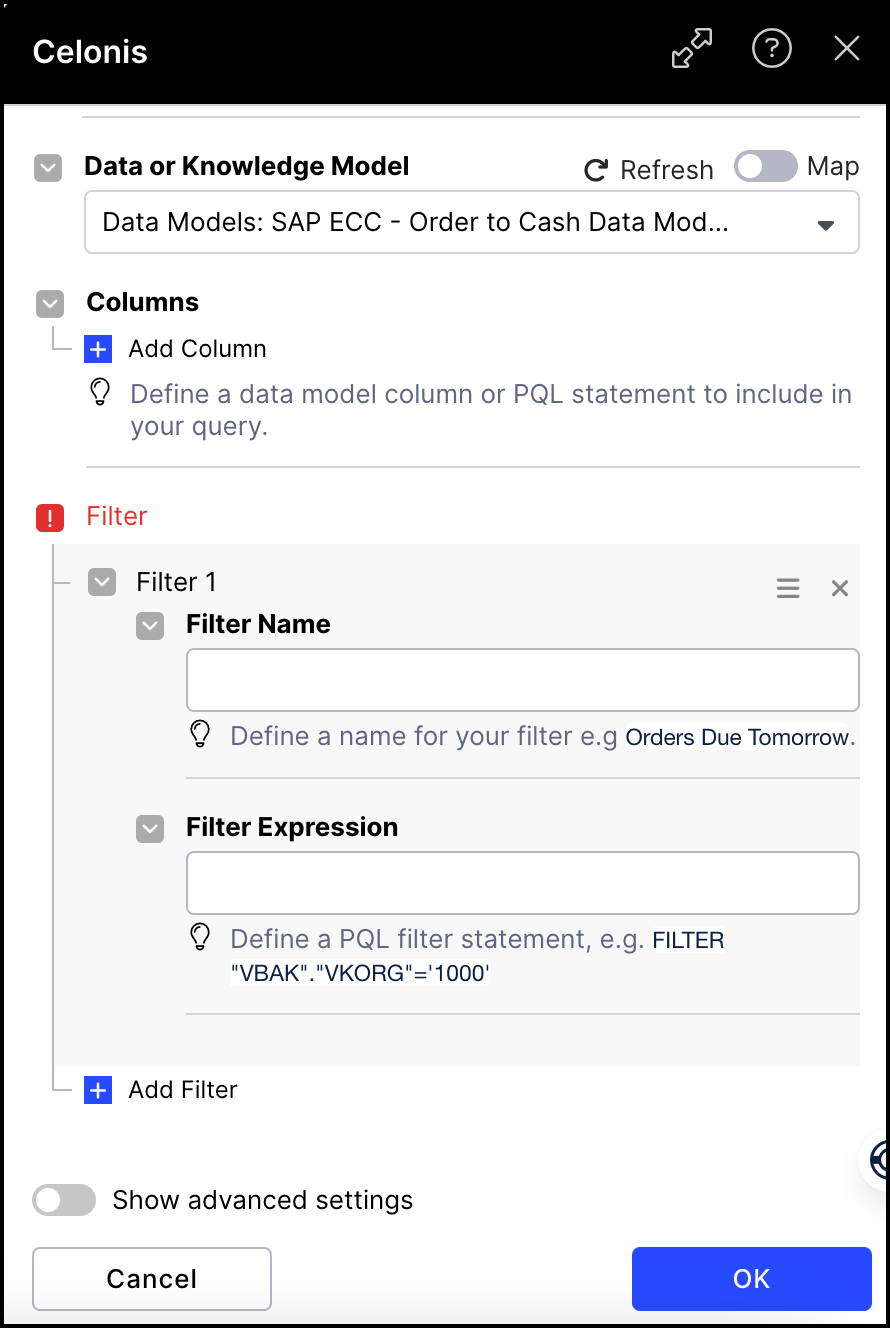
Enter a name, define the filter and then click OK to add the filter to the setup.
Repeat the process to add more filters.
If a Knowledge Model is being queried, select a filter from the selected Knowledge Model or define a custom filter using PQL.
Click Add Filter.
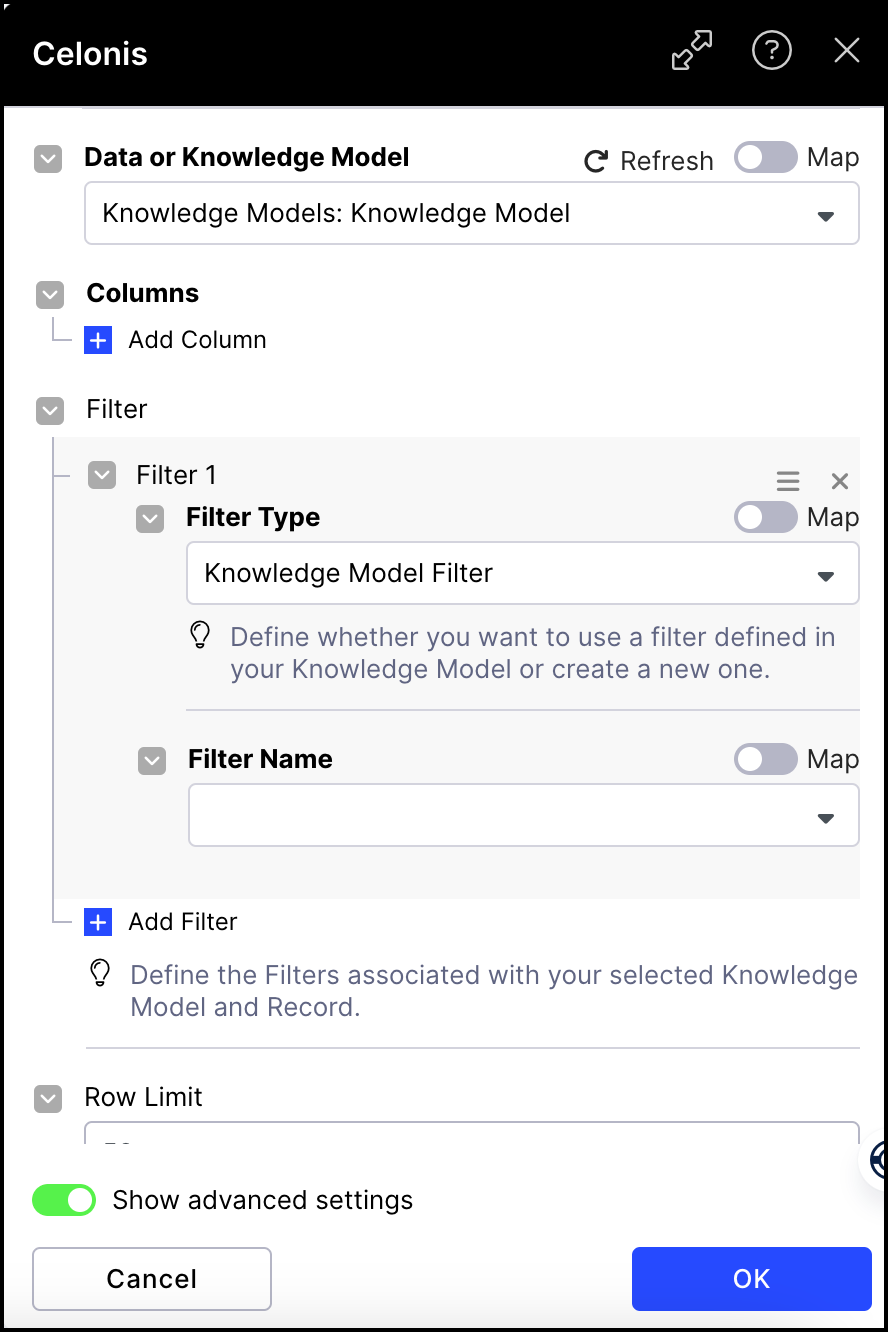
Select a filter type and enter a name.
If you selected "Custom Filter" as the filter type, create the filter by defining the expression using PQL.
Click OK to add the filter to the setup.
Repeat the process to add more filters.
Use the Row Limit field to adjust the number of rows being queried. The default value is 50 rows per execution cycle.
(optional) Add Advanced Settings (see Advanced Settings) or click OK to finish.
Deploy your changes to make the module operational.
To make the queried columns available in subsequent actions, you must run the module once by clicking the blue run button.
You're all set to use your defined columns in subsequent actions. Your columns will be listed just like parameters from other actions. In the example below, we're accessing our columns "Order Number" and "Planned Delivery Date" (these were the aliases we chose) to send a message in Slack.
Toggle the Show advanced settings switch on to adjust the following properties:
Property | Description |
|---|---|
Sorting | Indicates the direction in which the output of a column will be returned. There are three options:
|
Offset | Indicates the number of rows to skip so you can view the data in a different order. For example, if the offset is "500", then the filter will skip the first 500 rows. |