Transformation Hub in Views: Configuring the remaining object transformations
Setting up the remaining object transformations in the OCDM (Object Centric Data Model) is the final technical bridge that connects your raw data to the Transformation Hub.
This step is critical for three main reasons:
Ensures data consistency: By replacing generic join mappings with specific
DATASOURCEreferences, you ensure that the Hub is pulling from the correct, validated "Writeback" tables rather than outdated placeholders.Enables accurate KPI logging: The transformations for
THActionBasedLog,THRateBasedLog, andTHNonMonetaryLogare what allow Celonis to track your performance over time. Without these, you wouldn't be able to see the historical impact of your process improvements.Activates the "Value" connection: These transformations link your Opportunities (the problems you want to fix) to your KPIs (how you measure success). This is what transforms the Hub from a simple dashboard into a tool that actually proves the financial or operational value of your work.
In short: this process moves your setup from a "static configuration" to a "live tracking system" that can actually report on the progress of your digital transformation.
For the following transformations, you must replace the existing Join mappings with the DATASOURCE reference to ensure the Transformation Hub pulls from the correct writeback tables.
To do this, use the below steps and the table of information:
Click Data - Objects and Events and open your Marketplace Installed Pool.
Click Transformations.
Open the transformation listed in the table below and repeat steps 4, 5, and 6 for each transformation listed.
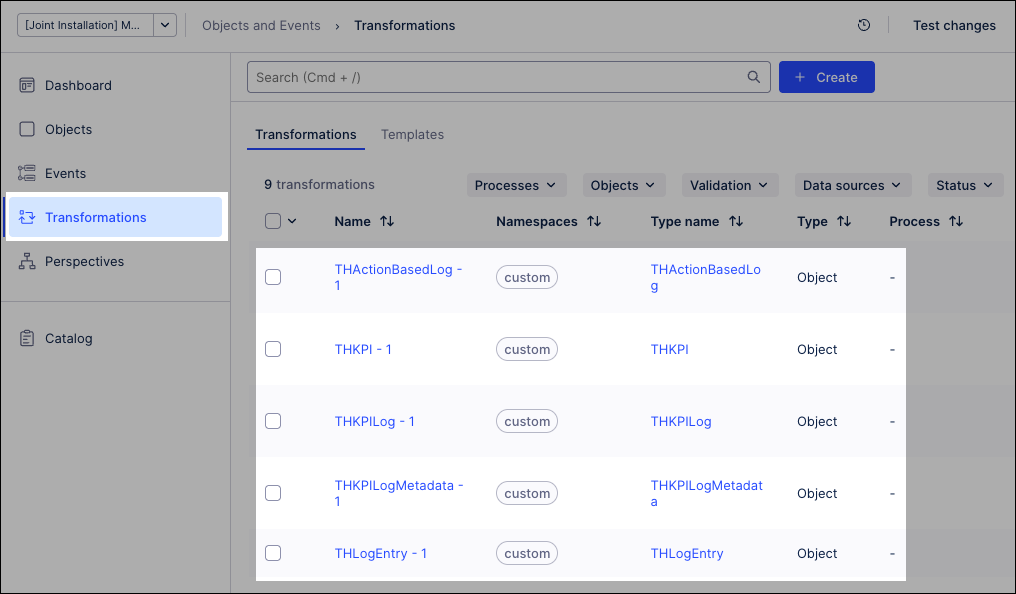
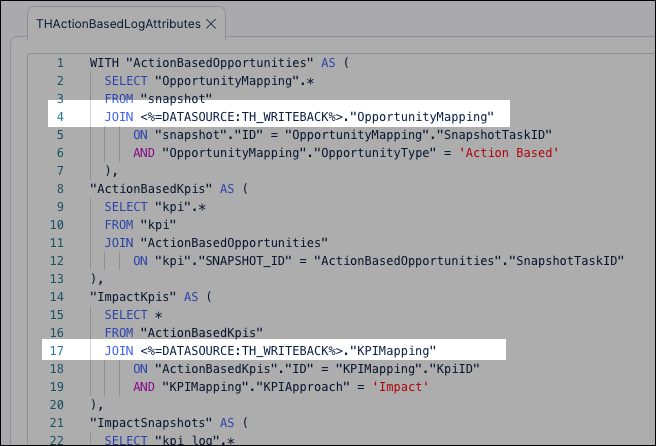
Replace the Existing Mapping strings with the Replacement strings at the specified lines.
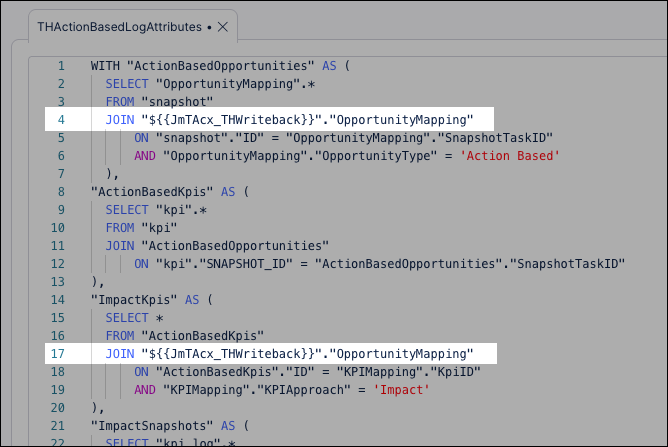
For example, the
THActionBasedLog - 1transformation needs to be updated at lines 4 and 17:Existing Mapping strings:
Replacement strings:
For each of the four transformations, set the Data Source to
KPI Logging - Combined Data Pool.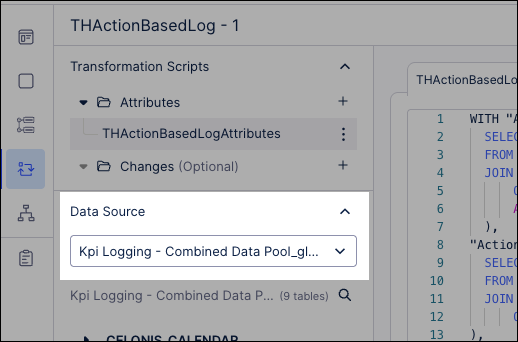
After updating each of the four transformations, click Save with validation.
Transformation mapping table
Transformation | Line number | Existing Mapping strings | Replacement strings |
|---|---|---|---|
THActionBasedLog - 1 | 4 |
|
|
17 |
|
| |
THRateBasedLog - 1 | 4 |
|
|
13 |
|
| |
THNonMonetaryLog - 1 | 4 & 17 |
|
|
THOpportunities - 1 | 8 |
|
|
Unlike the specific Action, Rate, or Non-Monetary logs, which aggregate data from external writeback tables,the THLogEntry acts as the "master index" or header for all log entries. It must remain within the core OCDM Schema to maintain referential integrity with the central Object-Centric Data Model. Using the Combined Data Pool here would break the relationship between the specialized logs and the primary process objects.
To update the THLogEntry data source:
From the Transformation overview page, open the THLogEntry transformation.
Click the Data Source drop down and select OCDM Schema.
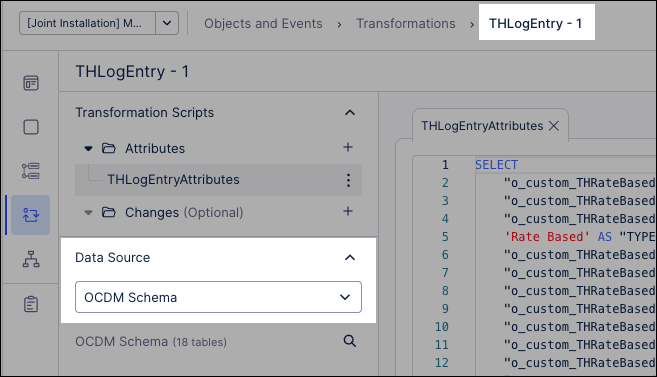
Click Save with Validation.
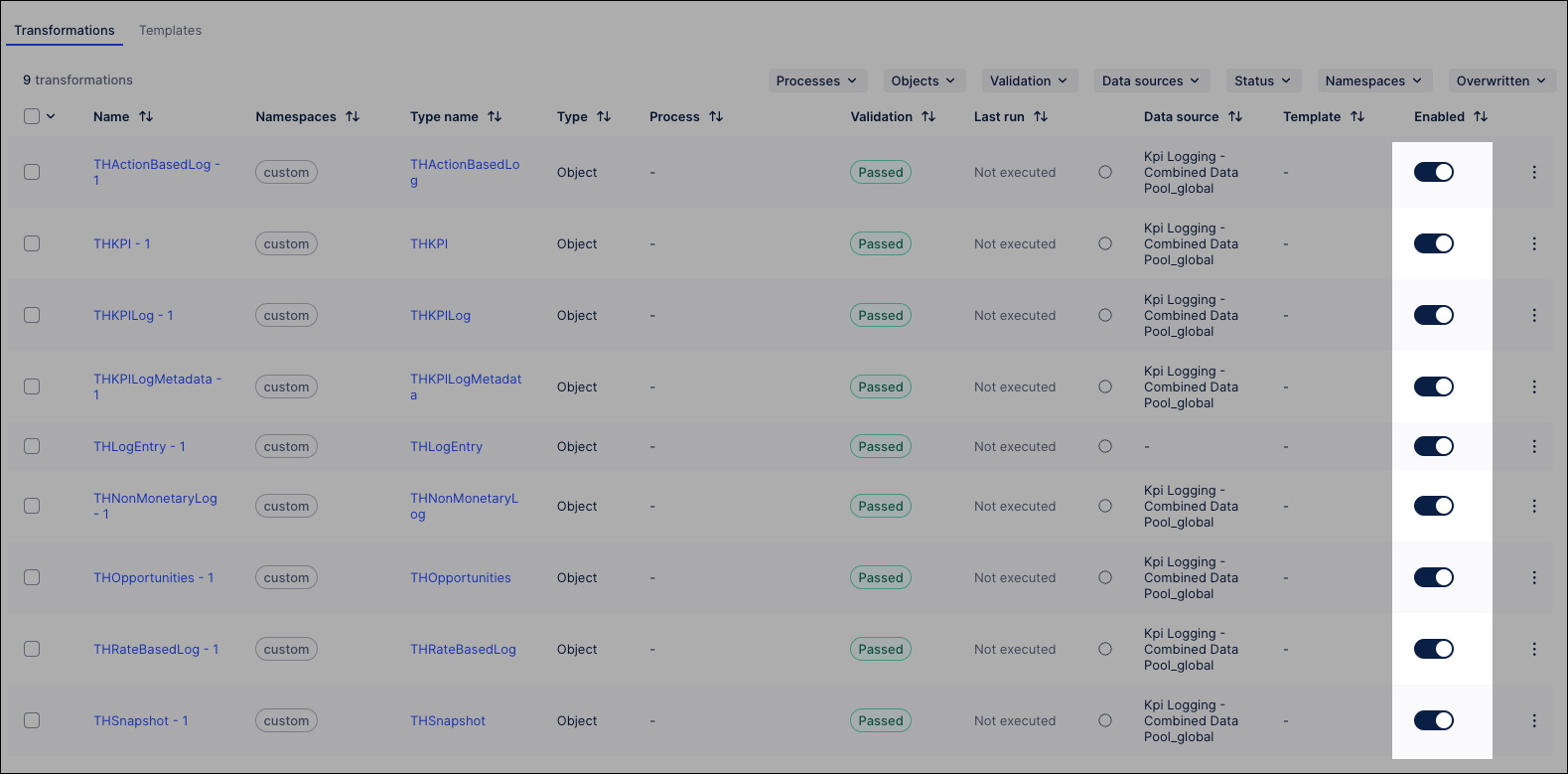
Use this opportunity to ensure that all other transformations used the
KPI Logging - Combined Data Pooldata source.For example:
Once the mappings are updated, you must finalize the environment to push the changes live:
Click Data - Objects and Events and select your Marketplace Installed Pool.
Click Transformations and enable all transformations.
Click Create version.
Select Open deployment after creating the version and click Create Version.
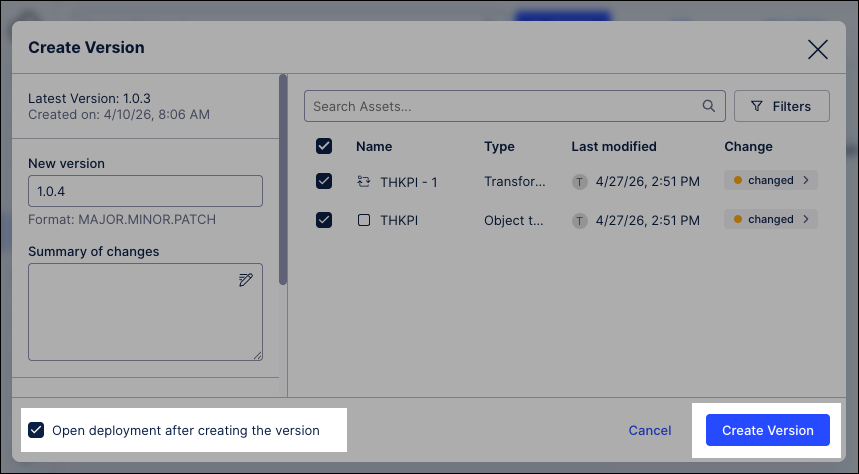
The data model version is created and the deployment window opens.
Select the deployed version of the data model, choose the Development environment, and then click Deploy.
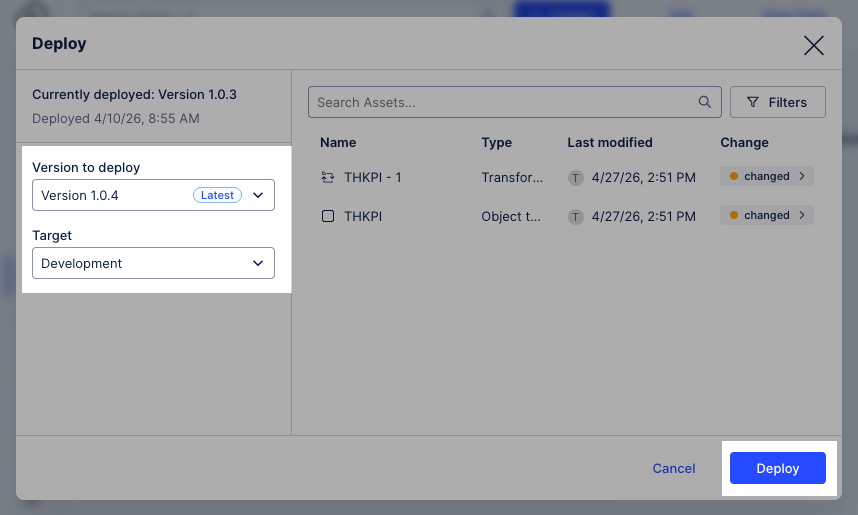
The data model is now deployed to the data pool.
Click View Data Pool, opening your
Marketplace Installed Pool.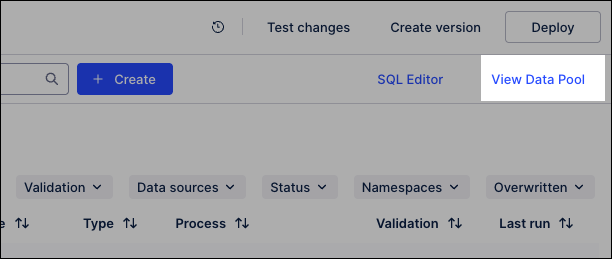
Click Data Jobs.
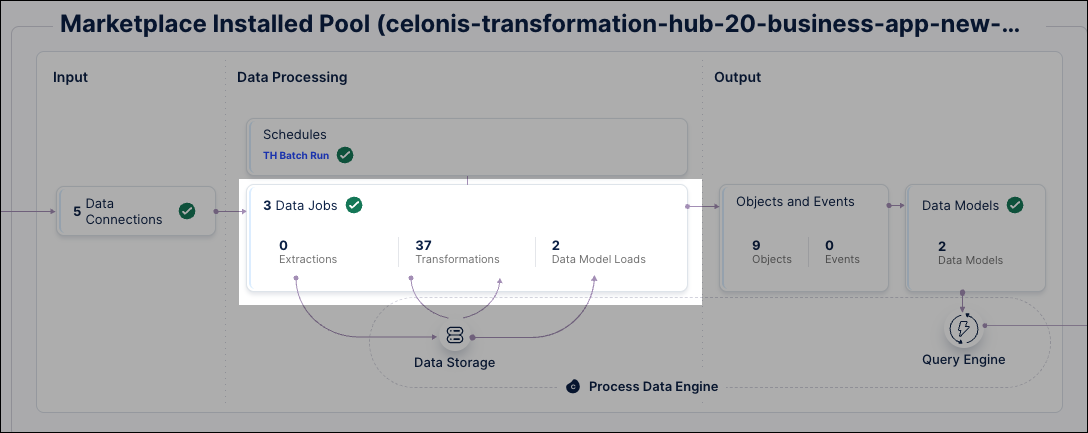
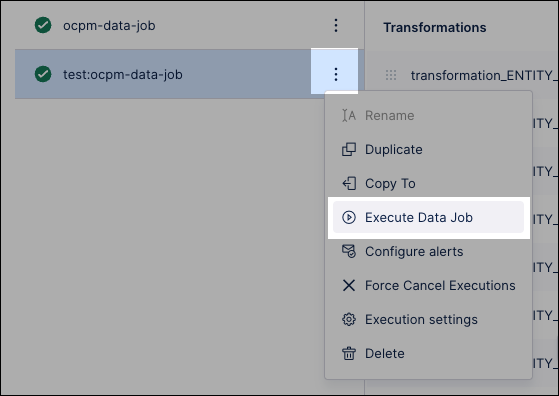
Locate the test data jobs and click Options - Execute Data Job.
Select Full load and click Execute Selection.
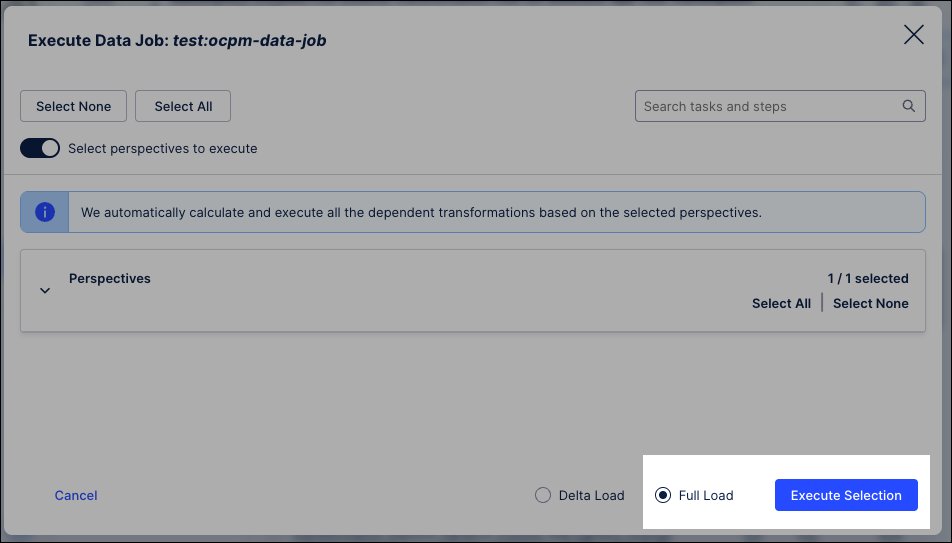
The data jobs execute, updating the data available.
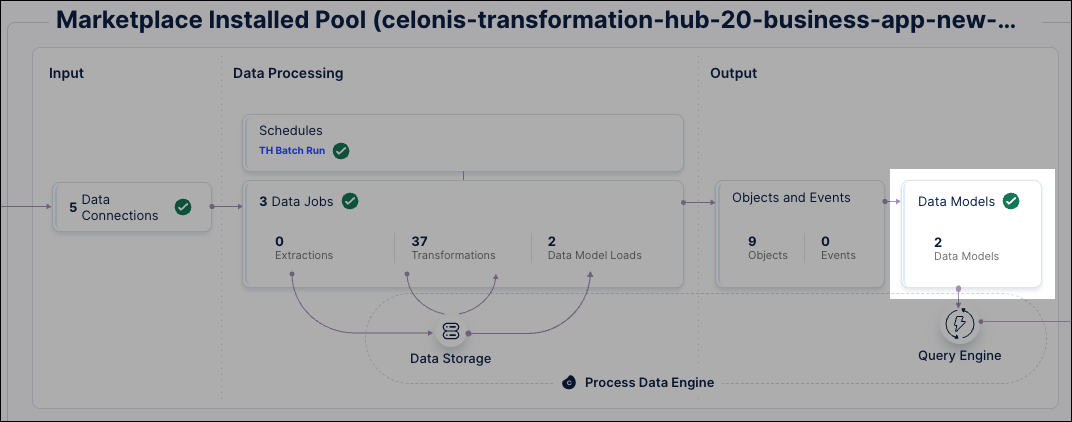
From the data pool diagram, click Data Models and select your perspective.
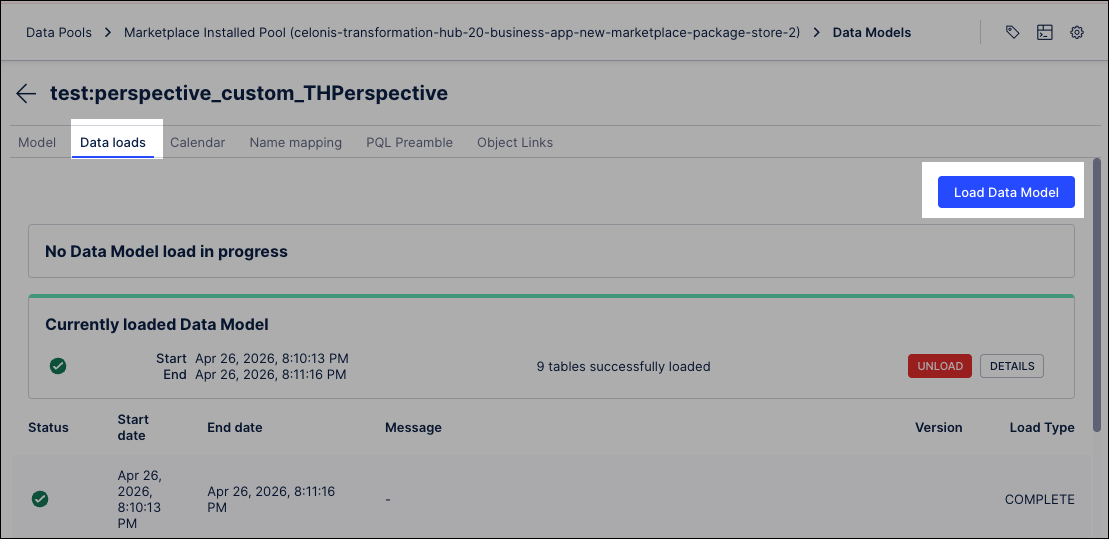
Click Data loads and then Load Data Model.
Select Standard Query Engine and click Load data model.
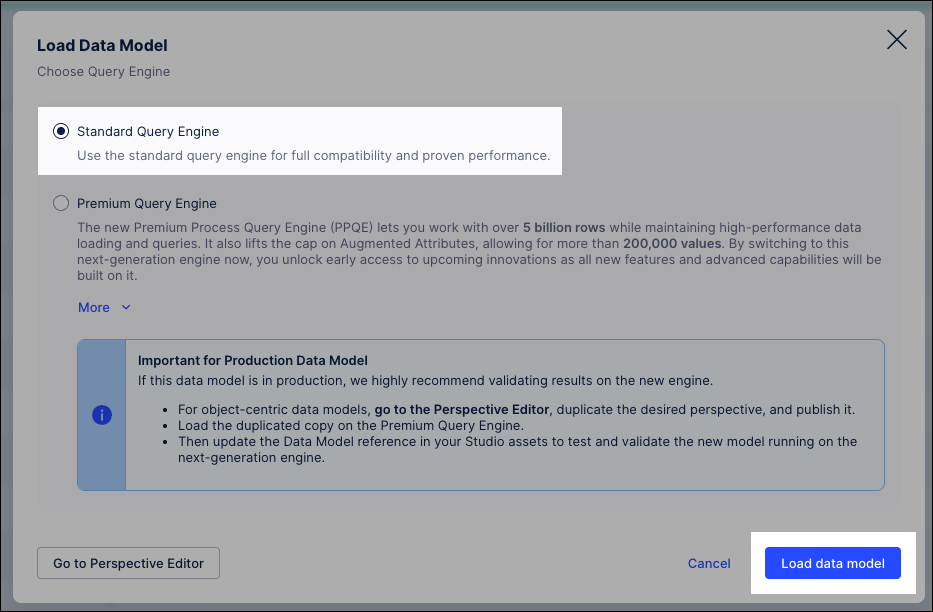
Verify the load: Wait for the status to change to a green checkmark.
Next steps
With the object-centric data model (OCDM) and Action Flows established, the Admin Workbench acts as the final bridge to actionable insights. While the OCDM organizes the data, the workbench defines its impact by mapping snapshots to a structured Value Realized Journey. Proper configuration ensures that only verified, accurately calculated figures reach your Value Reports and executive dashboards.