Calling Process Copilots from Action Flows
The “Call Process Copilot” module in Action Flows is used to create custom messages that are passed in real-time to your Process Copilot assets. This module connects your Action Flows to your Process Copilots, allowing you to access your LLM data and perform queries from within your Action Flow. This module can be configured by selecting an existing connection and the Process Copilot you want to connect to from this Action Flow. You can then create the custom message you want to send using both plain text and Action Flow variables.
When the Action Flow is executed, the responses from the Process Copilot are displayed automatically and include the response, the reasoning, and the conversation ID. These calls can also be tracked on the Process Copilot Monitoring screen.
To successfully configure the “Call Process Copilot” module in Action Flows, you will need to have the following assets:
Action Flow connection
Published Process Copilot instance
OAuth application with the following OAuth scopes assigned to it:
studio.packages:read
intelligence.conversations:write
OAuth application with identical permissions as the ones assigned to your data model
App Key with the USE and EDIT permissions assigned on the Studio Package where the Process Copilot being linked to was created.
Note
Providing the USE and EDIT permissions on the package allows the module to automatically list your available Process Copilots in the dropdown in the Action Flow configuration window.
If you prefer not to grant EDIT permissions, you can manually enter the <package-key>.<asset-key> to link to your Process Copilot.
Open the Action Flow you want to use to connect to one of your existing Process Copilots.
Add a new module and click to add an app.
Click Celonis app and then select “Call Process Copilot”.
In the configuration window, select an existing connection from the dropdown or create a new one. See Creating connections for Action Flows.
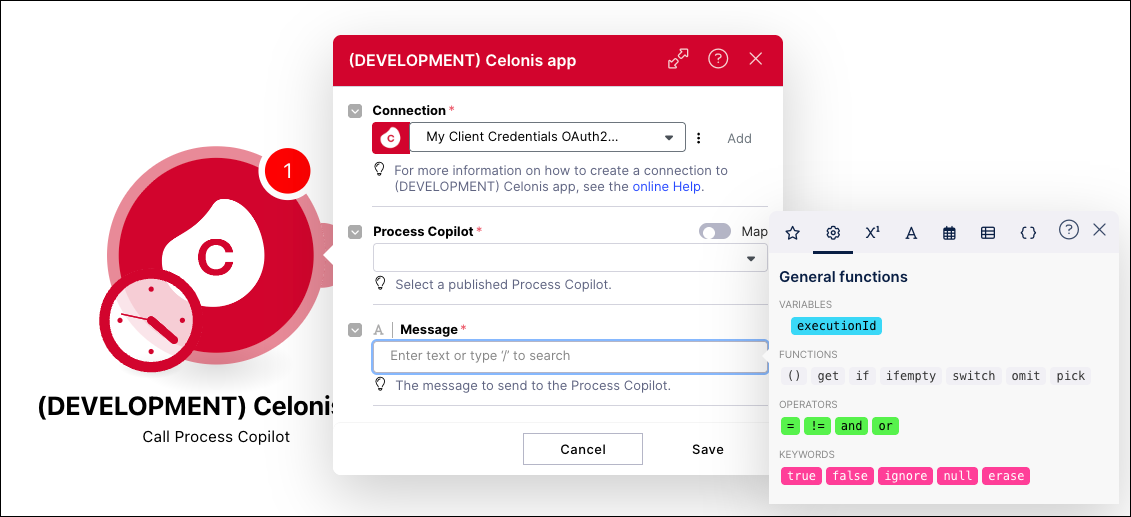
Use the dropdown to select the specific Process Copilot to which you want to connect.
If there are no existing Process Copilots on the list:
In Studio, next to your Process Copilot, click Options (three dots).
Select Key.
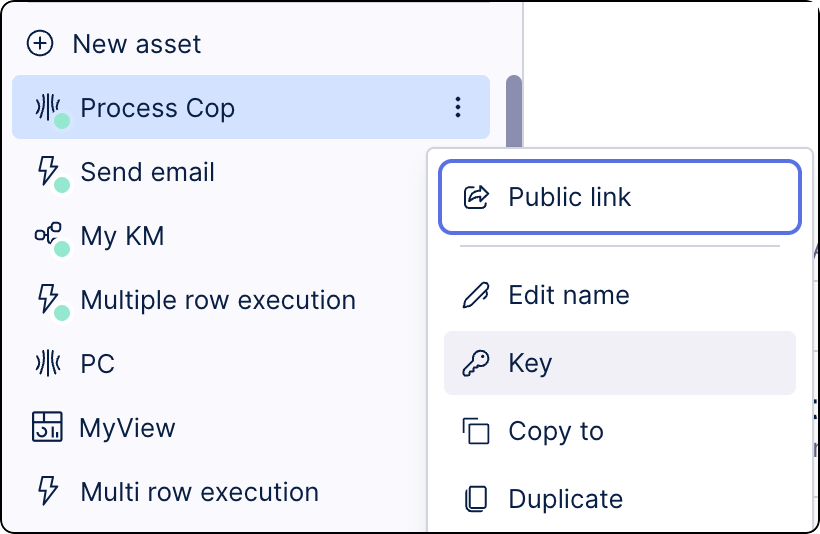
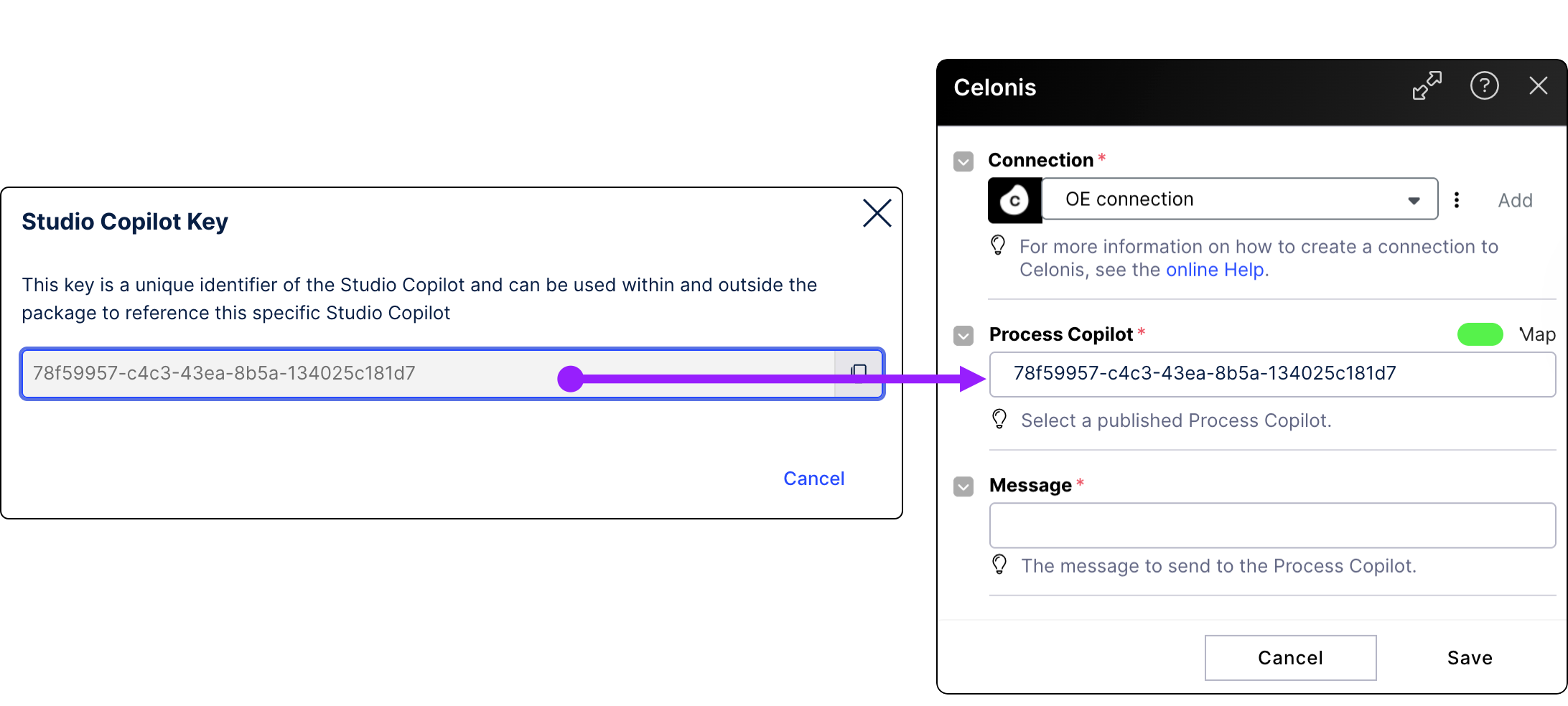
Copy the Process Copilot key to the clipboard.
In your Process Copilot module, paste this key into the Process Copilot field.
In the Message field, enter the text of the message you want to send to the Process Copilot selected above. You can also use the pop up window to add variables and functions to the message.
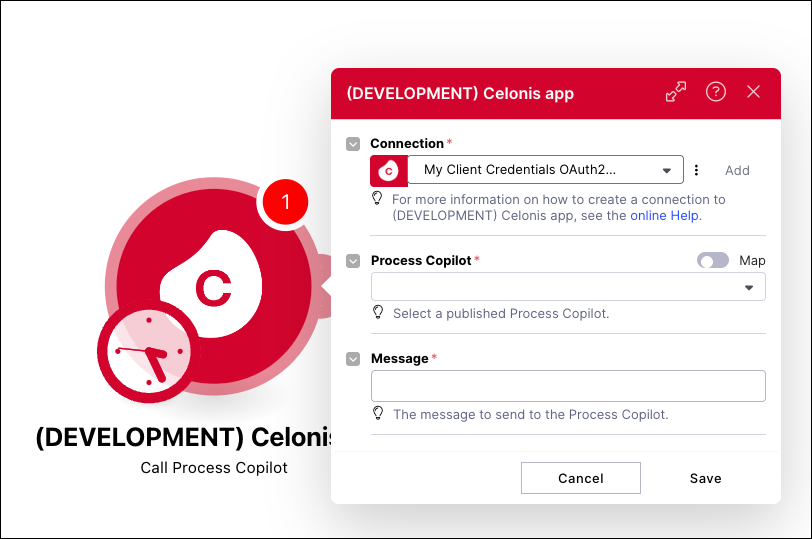
Click Save to close the window and exit back to your Action Flow.
Click the Save icon to save the changes to the Action Flow.
Run the Action Flow to verify the connection. If the connection is successful, the response to your message is displayed, including the initial message, the ID of the Process Copilot that created the response, and the unique conversation ID.
Note
The conversation ID can also be used to view this response on the Process Copilot Monitoring page.