Installing the Task Mining Client software
The Task Mining Client software is versioned and the Task Mining Client version number is indicated where relevant. For example, functionality marked as FROM 2.1.3, was introduced in version 2.1.3 of the Task Mining Client software and is not available in versions prior to 2.1.3. For more information about Task Mining software releases, see the Task Mining software install file release notes.
Task Mining Client software installation options
Install option | Use case | For more information |
|---|---|---|
User is invited to a project and emailed a link that lets them:
| Recommended for less technical users as this is the simplest way of installing the Task Mining Client software and connecting to a Task Mining project. | |
User:
| User hasn't been added to a Task Mining project or wants to create their own Task Mining project. | Installing the Task Mining Client software (installation package) |
FROM 2.3.0 Admin installs the Task Mining Client software from the command line:
Note Before performing a VDI install, see VDI installation considerations and limitations. |
| |
Updating the Task Mining Client software. | A new version of the Task Mining Client software has been released. |
Before you begin, ensure you have completed the following steps or meet the requirements listed below:
Hardware requirements: vCPU 4, 16 GB of RAM, 25 GB of free disk space
Operating system: Microsoft Windows 10 or newer
Software development framework: Microsoft .NET Framework 4.8 or higher
Note
This should already be installed on Windows 10 and Windows 11 machines. If it's not, the user will be prompted to install it when installing the Task Mining Client software. Installation of the .NET Framework typically requires admin rights.
Permissions: Admin, if you choose the command line installation option
User machine and network set up: The Task Mining Client software must be able to access:
The API endpoints used by the Task Mining Client software to communicate with the Celonis Platform.
Specific directories and registry keys during installation of the Task Mining Client software and while the Task Mining Client software is running.
Warning
For this installation method, you'll be emailed a link that will let you install the Task Mining Client software and connect to a Task Mining project. Before clicking the link, we strongly recommend you check the email sender is legitimate.
When you receive an email invitation to join a Task Mining project, click the link in the email.
A Task Mining invitation screen appears.
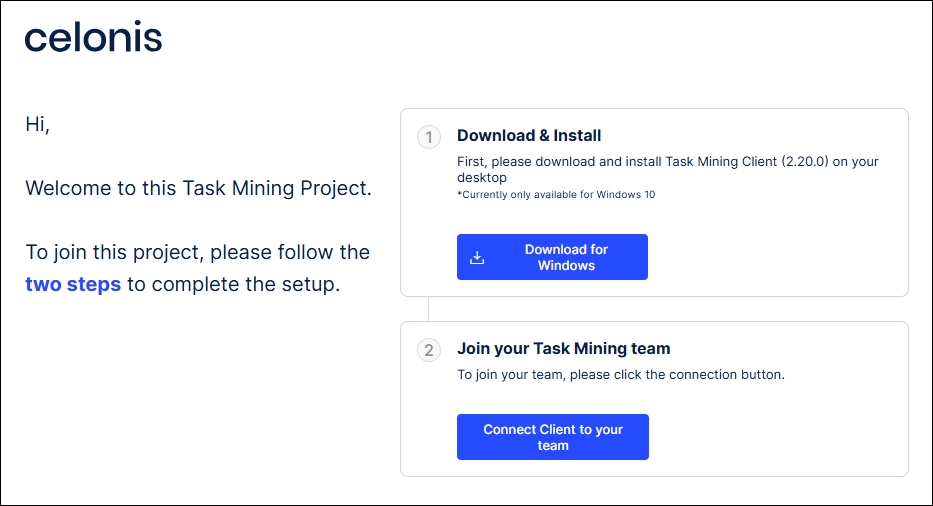
Select Download for Windows.
The Task Mining Client installation zip file downloads to your machine.
Navigate to your Downloads folder and extract all files from the Task Mining Client installation zip file.
Double-click the installer file.
The Celonis Task Mining Setup Wizard appears.
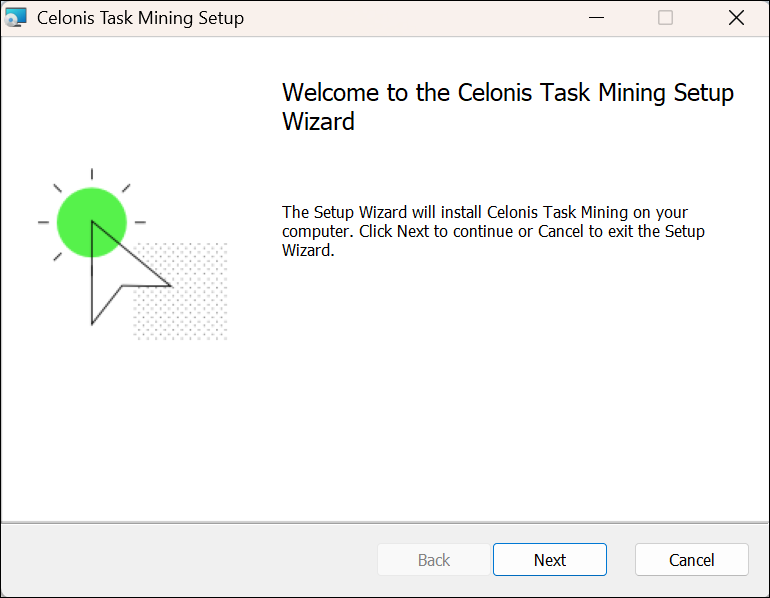
Step through the wizard, referring to the Task Mining software installation settings as necessary.
Select Finish when the Completed the Celonis Task Mining Setup Wizard screen appears.
In the Task Mining invitation (see step 1), select Connect Client to team.
Confirm your selection.
The Celonis Task Mining Client software opens.
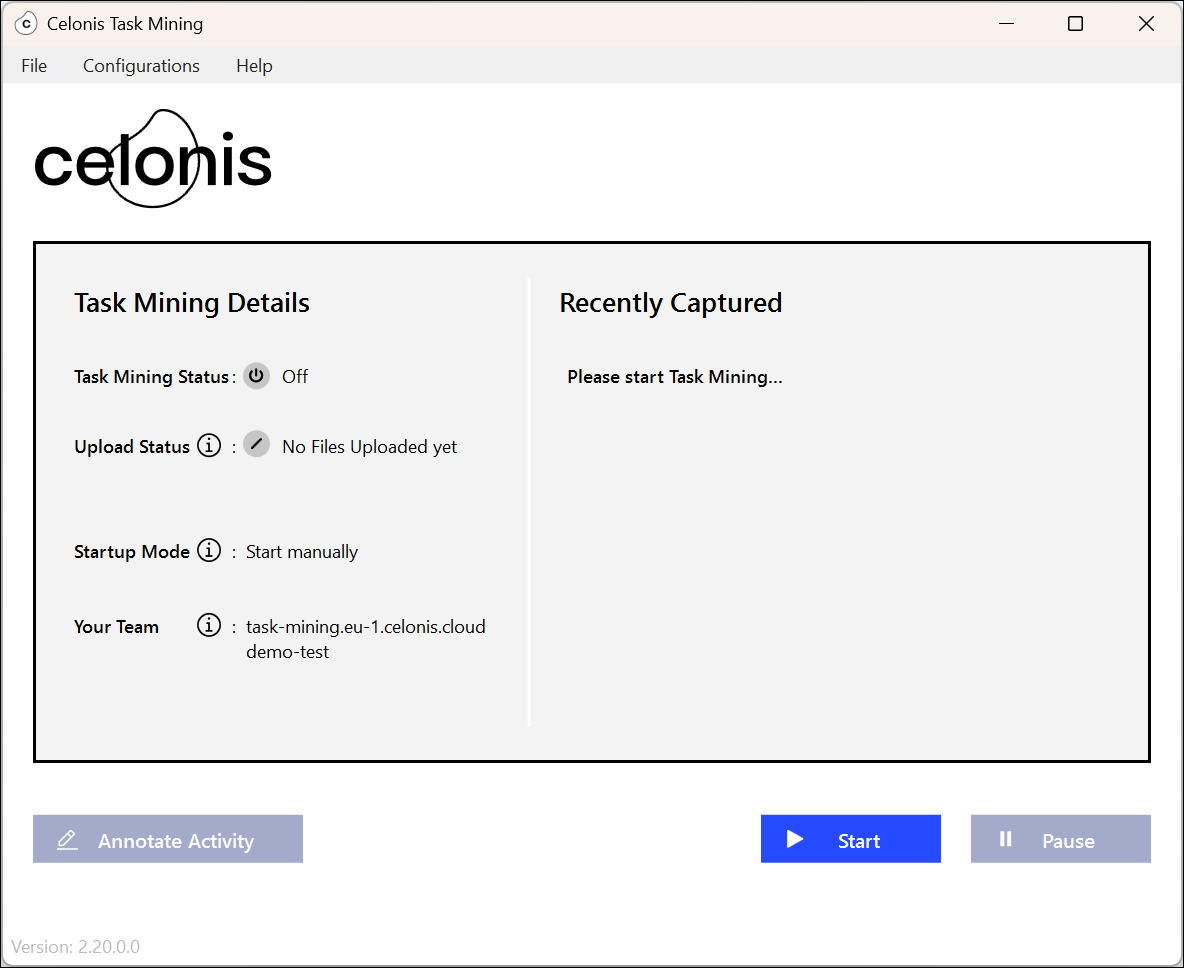
For more information, see Using the Task Mining Client software.
Important
Once you've installed the Task Mining Client software, you'll need to connect to a Task Mining project. You'll be prompted for a project-specific activation link. This link is created when the Task Mining project is set up and the person who set up the Task Mining project you want to connect to will be able to send you the link. For more information, see Testing a Task Mining project.
Check the installation prerequisites.
Download the Task Mining Client software installation zip file.
The Task Mining Client installation zip file downloads to your machine.
Navigate to your Downloads folder and extract all files from the Task Mining Client installation zip file.
Double-click the installer file.
The Celonis Task Mining Setup Wizard appears.
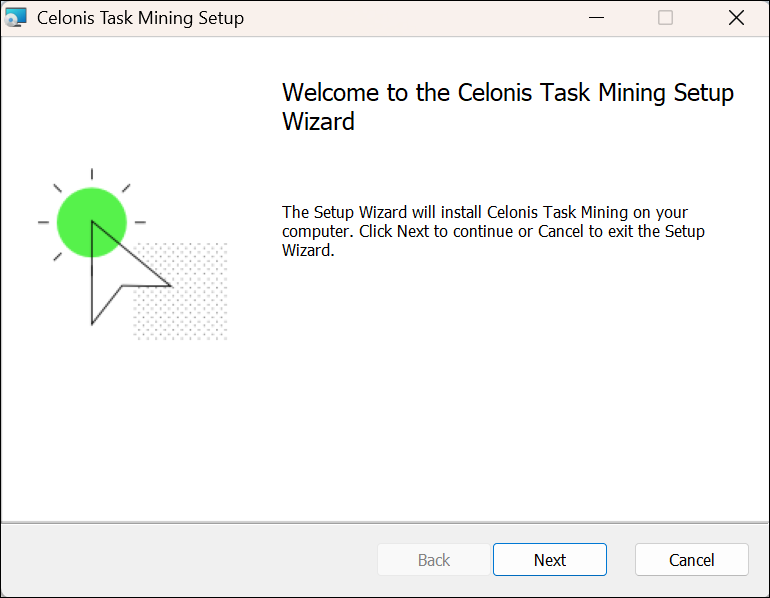
Step through the wizard, referring to the Task Mining software installation settings as necessary.
Select Finish when the Completed the Celonis Task Mining Setup Wizard screen appears.
When completed, select Finish.
Go to Apps > Celonis Task Mining.
Note
You must have admin rights to install the Task Mining Client software from the command line. A system proxy is used by default. If a different setting is required for individual machines, you must configure this for each machine individually. From 2.3.0.
Check the installation prerequisites.
Extract all files from the Task Mining Client install zip file.
Open your command prompt with Run as administrator.
Change your command line directory to point to where the files were extracted to in step 2.
Copy and paste the Task Mining command line syntax to your command line.
Modify the command line syntax according to your use case, using the Task Mining command line parameters.
Tip
You may also find the Task Mining command line examples helpful.
Run your command.
The Task Mining Client software is installed.
msiexec.exe /qb /[i|x] CelonisTaskMining.Installer-<version>.msi
[ACTIVATIONLINKURLPROPERTY=<activation_link_url>]
[CHROMEEXTENSIONPROPERTY={0|1}] [EDGEEXTENSIONPROPERTY={0|1}] [CUSTOMEXTENSIONPROPERTY={0|1}]
[CUSTOMEXTENSIONIDS=<custom_extension_id>] [CHROMEUPDATEURL=<update_url>] [EDGEUPDATEURL=<update_url>]
[SECUREGATEWAYSERVERPROPERTY=<secure_gateway_server_url>]
[CLIENTCERTIFICATESUBJECTPROPERTY=<client_certificate_subject>]
[SPNPROPERTY=<service_principal_name_identifier>]
[TIMEOUTPROPERTY=<connection_timeout>] [EXTENSIONWEBSOCKETPORTPROPERTY=<extension_websocket_port>]Note
Standard Microsoft Windows commands apply. See the Microsoft Windows documentation for more information.
Installation | Example command |
|---|---|
Installs the Task Mining Client software using a secure gateway configuration. Connects the Task Mining Client software to an organization's secure gateway server and uses the API endpoints to connect to the Celonis Platform. For more information, see Running the Task Mining Client software over a secure gateway server. |
|
Installs the Task Mining Client software and enables use of the Task Mining Gateway. For more information, see Running the Task Mining Client software over the Task Mining Gateway. Important Use of the Task Mining Gateway is currently limited to specific customers who use a hybrid environment. For more information, contact Support. |
|
Installs the Task Mining Client software with an activation link. |
|
Installs the Task Mining Client software without browser extensions. |
|
Installs the Task Mining Client software with a Chrome extension from a different store. |
|
Installs the Task Mining Client software and enables the capture of Task Mining data from a browser extension with ID For more information, see Installing Task Mining browser extensions (optional). |
Note Do not include a space between the comma and values if using a comma-separated list of IDs. |
Installs the Task Mining Client software and enables the capture of Task Mining data from a browser extension with ID For more information, see Installing self-hosted browser extensions. |
Note Do not include a space between the comma and values if using a comma-separated list of IDs. |
Uninstalls the Task Mining Client software. |
|
Note
You can also configure the secure gateway service settings when you install the Task Mining Client software using the installation package. Both of these installation methods require admin rights. For more information, see Task Mining Client software install settings.
Create a registry key at
Computer\HKEY_LOCAL_MACHINE\SOFTWARE\Celonis\TaskMining.Create a registry string value at the location in step 1 with the name
secure_gateway_server.Assign the URL of the secure gateway server to
secure_gateway_server, for example,mysecuregatewayserver.com/company.Note
You can configure multiple secure gateways by appending additional gateways using a semicolon delimiter, for example
secure_gateway_server=server1.com;server2.com;mysecuregatewayserver.com/companyCreate a registry string value in the location in step 1 with the name
client_certificate_subject.Install the client certificate that will be used to authenticate the secure gateway server in
Current User/Personal store.Assign the subject of the client certificate to
client_certificate_subject, for exampleMy Certificate.The configuration is complete.
Tip
You can roll back the configuration (if necessary) by removing the registry values created in steps 2 and 4.
Important
Use of the Task Mining Gateway is currently limited to specific customers who use a hybrid environment. For more information, contact Support.
Tip
You can roll back the configuration (if necessary) by removing the registry values created in steps 2, 4 and 7.
Create a registry key at
Computer\HKEY_LOCAL_MACHINE\SOFTWARE\Celonis\TaskMining.Create a registry string value at the location in step 1 with the name
secure_gateway_server.Assign the URL of the secure gateway server to
secure_gateway_server, for example,mysecuregatewayserver.com/company.Note
You can configure multiple secure gateways by appending additional gateways using a semicolon delimiter, for example
secure_gateway_server=server1.com;server2.com;mysecuregatewayserver.com/companyCreate a registry string value in the location in step 1 with the name
client_certificate_subjectInstall the client certificate that will be used to authenticate the secure gateway server in
Current User/Personal store.Assign the subject of the client certificate to
client_certificate_subject, for exampleMy Certificate.Create a registry string value at the location in step 1 with the name
service_principal_name.Assign the unique identifier of the secure gateway service instance to
service_principal_name.The configuration is complete.
Note
Standard Microsoft Windows commands apply. See the Microsoft Windows documentation for more information.
Parameter | Description | Possible values | Deafult value at install | From version |
|---|---|---|---|---|
| Specifies there is a basic user interface during the installation process. | -- | -- | 2.3.0 |
| Specifies normal installation. | -- | -- | 2.3.0 |
| Uninstalls the package. | -- | -- | 2.4.0 |
| Assigns the activation link URL. Vew the activation link URL from Users & Invite > Invite Users. | URL with this format:
| -- | 2.3.0 |
| Enables or disables installation of the Chrome extension. |
|
| 2.3.0 |
| Changes the update URL location for installing and updating the Chrome extension to an alternative repository. For information about using | -- |
| 2.4.0 |
| Assigns the client certificate subject name. The certificate must be installed in the Windows certificate store under | -- |
| 2.3.0 |
| Assigns the custom Chrome extension ID value (separate multiple values with commas). For information about using | -- |
| 2.7.8 |
| Specifies whether a custom Chrome extension ID is used. This is required for self-hosting of the Task Mining browser extensions. | -- | -- | 2.7.8 |
| Enables or disables installation of the Microsoft Edge extension. |
|
| 2.3.0. |
| Changes the update URL location for installing and updating the Microsoft Edge extension to an alternative repository. | -- |
| 2.4.0 |
| Specifies a custom web socket port for the Chrome extension. | -- |
| 2.12.0 |
| Assigns the secure gateway URLs if the Task Mining Client software is used in a secure environment. Multiple URLs must be separated by a semicolon (;). | -- |
| 2.3.0 |
| Assigns the Service Principal Name (SPN) of the gateway service to enable authentication with the on-premise Task Mining Gateway. Separate multiple SPNs with a semicolon (;). Secure gateway URLs and their corresponding SPN should be defined in the same order. Important Use of the Task Mining Gateway is currently limited to specific customers who use a hybrid environment. For more information, contact Support. | -- |
| 2.5.0 |
| Defines the timeout in seconds for HTTP connections to the Task Mining Gateway. Important Use of the Task Mining Gateway is currently limited to specific customers who use a hybrid environment. For more information, contact Support. For more information, see Installing the Task Mining Gateway. | Any positive integer value. |
| 2.5.0 |
| Changes the default location of the working directory. The Task Mining Client software requires read and write permissions for this directory. | -- |
| 2.16.0 |
VDI install option | Description | Use case |
|---|---|---|
Install the Task Mining Client software inside a VDI. | The Task Mining Client software captures data as if it were installed and running directly on the machine. | Full Task Mining data capture. |
Install the Task Mining Client software outside a VDI. | The Task Mining Client software is installed on a user's machine and captures Task Mining data from a remote desktop without being installed in the VDI. Screenshots (if enabled) can be captured in this setup, but data from within the VDI, such as which apps are used, is not available. The Task Mining Client software must be connected to the VDI using:
| Limited capture. Used to determine whether the Task Mining Client software is running. |
Consideration | Description | Recommendation |
|---|---|---|
Non-Task Mining software users in the Production environment. | Production environment includes users who won’t be using the Task Mining software. | Create a VDI for the subset of Task Mining software users. Note This also provides a simple fallback mechanism if unforeseen issues arise and you need to roll back users. Using a VDI environment for a smaller number of users can also speed up configuration changes and deployment of new Task Mining software and SAP GUI versions. |
Multi-user sessions are required. | While multiple users can connect to the same Windows instance in parallel, the Task Mining browser extensions can’t be used in parallel for multi-user sessions. | Use a VDI for multi-user sessions only if the capture of Task Mining data from the Chrome browser extensions is not required. |
Update options | Use case | More information |
|---|---|---|
Uninstall the Task Mining Client software and reinstall a different version. | Installation of any version of the Task Mining Client software. | Updating the Task Mining Client software (uninstall/reinstall) |
Install a newer version of the Task Mining Client software ‘on top’ of the current Task Mining Client software. | Installation of a newer version of the Task Mining Client software. | Updating the Task Mining Client software (install a newer version) |
Uninstall the Task Mining Client software either:
Using Windows >Apps > Installed apps >Uninstall; or
From the command line.
Identify the Task Mining Client software version you want to install using the Task Mining installation file release notes.
Identify the Task Mining Client software version you want to install using the Task Mining installation file release notes.
We notify users of new Task Mining Client software versions in both the Task Mining installation file release notes and in our wider product release notes.
Note
You may not see all these settings and options during installation. The settings and options displayed will depend on your selections in the Task Mining Configuration Setup Wizard.
Setting | Options | Description | Default option | Recommended options |
|---|---|---|---|---|
Installation Scope |
| Defines whether the software is installed for all users of the machine or just for the user who installs it. | Install for all users of this computer | Depends on your use case but if you don’t have admin rights for your machine, use Install just for me. |
Celonis Task Mining Extensions |
| Defines whether browser metadata is captured from Google Chrome and/or Microsoft Edge. | Both selected. | Both selected. Note If you deselect these here, you can install the browser extensions later if required. For more information, see Installing the Task Mining browser extensions (optional). |
Celonis Task Mining Extensions | Enterprise policy or Developer mode installed extension (advanced). FROM 2.7.9. | Installs the Task Mining Client software with an assigned extension ID and installs the Chrome extension automatically from your self-hosted store. | Not selected. | Depends on your use case. For more information, see Installing self-hosted browser extensions (from 2.7.8). |
Secure Gateway Configuration | Use Secure Gateway Server (optional). FROM 2.2.2 | Connects the Task Mining Client to an organization's secure gateway server and uses the API endpoints to connect to the Celonis Platform. | Not selected. | Depends on your use case. Note If selected, you’ll be prompted to enter information for:
For more information, see Task Mining command line parameters. |
Secure Gateway Configuration | On-Premise server (optional). | Enables use of the Task Mining Gateway which is an on-premise secure gateway and integration service for Task Mining | Not selected. | Important Use of the Task Mining Gateway is currently limited to specific customers who use a hybrid environment. For more information, contact Support. |
Description | Version | File | More information |
|---|---|---|---|
Task Mining Client software install file. | 2.21.1 (2026-04-28) | Installing the Task Mining Client software (install package) | |
Task Mining Configuration Editor install file. | 2.21.1 (2026-04-28) | ||
Browser extension (use for Task Mining Client software from 2.19). | 2.0.1 (2025-04-24) | Celonis Task Mining Chrome Browser Extension for version 2.0.1 | Installing browser extensions from Chrome Web Store (optional) |
Browser extension (use for Task Mining Client software before 2.19). | 1.0.2 (2023-11-25) | Celonis Task Mining Chrome Browser Extension for version 1.0.2 (legacy) | Installing browser extensions from Chrome Web Store (optional) |
Self-hosted browser extension (use for Task Mining Client software from 2.19). | 2.0.0 (2025-04-29) | ||
Self-hosted browser extension (use for Task Mining Client software before 2.19). | 1.0.2 | For more information, contact Support. |
2.21.1 | 2026-04-28 | Improvements
|
2.21.0 | 2026-02-23 | Improvements General improvements. This feature is currently available as a Private Preview only During a Private Preview, only customers who have agreed to our Private Preview usage agreements can access this feature. Additionally, the features documented here are subject to change and / or cancellation, so they may not be available to all users in future. For more information about our Private Preview releases, including the level of Support offered with them, see: Feature release types. Remote suspension of Task Mining data capture added for Private Preview customers only. |
2.20.1 | 2025-12-17 | Fixes
|
2.20.0 | 2025-07-31 | Improvements
Important We've also changed some of the endpoints used by the Task Mining Client application. For more information, see API endpoints for Task Mining. |
2.19.0 | 2025-05-30 | Improvements Improved support for data gathering via the Chrome/Edge browser extensions to support multiple users per machine. Important This is a breaking change as we've released a new version 2.0.0 of the Task Mining Browser Extension for both Chrome and Edge. For more information, see Installing the Task Mining browser extensions (optional). |
2.18.2 | 2025-05-05 | Fixes
|
2.18.1 | 2025-03-06 | Fixes
|
2.18.0 | 2024-11-27 | Features
Improvements
Fixes
Note You must update any configurations that currently exclude SessionId. See Task Mining Configuration Editor settings. |
2.17.1 | 2024-06-06 | Fixes
|
2.17.0 | 2024-04-16 | Features
Improvements
Fixes
|
2.15.2 | 2024-03-07 | Improvements
|
2.15.1 | 2024-02-12 | Fixes
|
2.15.0 | 2024-02-08 | Improvements:
Fixes
|
2.14.0 | 2023-12-07 | Features
Improvements
Fixes
|
2.13.0 | 2023-08-31 | Features Configure regular expressions in the Task Mining Desktop Application for redacting personally identifiable information (PII), such as credit card numbers, email addresses, and other sensitive content (see Data Redaction).
Fixes
|
2.12.1 | 2023-08-24 | We've fixed an issue that prevented the application from retrieving the system proxy settings when a PAC script was configured. |
2.12.0 | 2023-08-01 | Features
Improvements
Fixes
|
2.11.0 | 2023-05-25 | Improvements
|
2.10.0 | 2023-03-15 | Improvements
Fixes
|
2.9.2 | 2023-01-03 | Features
Improvements
Fixes
|
2.8.1 | 2022-10-30 | Features
Improvements
Fixes
Note With the introduction of the Celonis Platform Task Mining service in version 2.2.2, how you set up and configure Task Mining has changed. |
2.7.9 | 2022-08-17 | Features
Improvements
Fixes
Deprecated
Note With the introduction of the Celonis Platform Task Mining service in version 2.2.2, how you set up and configure Task Mining has changed. |
2.6.1 | 2021-12-27 | Fixes Fixed a problem of corrupted string values when uploading multiple files in parallel. Note With the introduction of the Celonis Platform Task Mining service in version 2.2.2, how you set up and configure Task Mining has changed. |
2.6.0 | 2021-11-19 | Features
Fixes
Note With the introduction of the Celonis Platform Task Mining service in version 2.2.2, how you set up and configure Task Mining has changed. |
2.5.2 | 2021-09-30 | Fixes
Note With the introduction of the Celonis Platform Task Mining service in version 2.2.2, how you set up and configure Task Mining has changed. |
2.5.1 | 2021-09-28 | Fixes
Note With the introduction of the Celonis Platform Task Mining service in version 2.2.2, how you set up and configure Task Mining has changed. |
2.5.0 | 2021-09-22 | Features
Fixes/Improvements
Note With the introduction of the Celonis Platform Task Mining service in version 2.2.2, how you set up and configure Task Mining has changed. |
2.4.1 | 2021-07-28 | Features
Fixes/Improvements
Note With the introduction of the Celonis Platform Task Mining service in version 2.2.2, how you set up and configure Task Mining has changed. |
2.3.0 | 2021-04-20 | Features
Fixes/Improvements
Note With the introduction of the Celonis Platform Task Mining service in version 2.2.2, how you set up and configure Task Mining has changed. |
2.2.2 | 2021-02-25 | Features
Fixes
Note With the introduction of the Celonis Platform Task Mining service in version 2.2.2, how you set up and configure Task Mining has changed. |
2.0.7 | 2020-12-10 | Fixes
Note Update from version 2.0.4 - 2.0.6: No breaking changes. Update from older versions (1.X): See release notes for version 2.0.4. |
2.0.6 | 2020-12-07 | Fixes
Note Update from version 2.0.4 - 2.0.5: No breaking changes. Update from older versions (1.X): See release notes for version 2.0.4. |
2.0.5 | 2020-11-20 | Fixes
Note Update from version 2.0.4: No breaking changes Update from older versions (1.X): See release notes for version 2.0.4 |
2.0.4 | 2020-11-17 | Features
Fixes
Note Incompatible changes in Celonis Platform data schema:
|
1.2.7 | 2020-09-10 | Features
Fixes
Deprecated/removed:
Note Incompatible changes in Celonis Platform data schema:
Change of system requirements:
|
1.2.1 | 2020-07-02 | Features
Fixes
Note Incompatible changes in Celonis Platform data schema:
|
1.1.7 | 2020-06-10 | Features:
Fixes/improvements:
|
Version | Date | Notes |
|---|
Release notes browser extension
Version | Date | Notes |
1.0.1 | 2023-01-27 | Fixes
|
1.0 | 2022-11-24 | Fixes/Improvements
|
0.8 and before | - | No separate release notes. Release notes have been part of the Client & Configuration Editor release notes above. |