Creating a Process Adherence Manager model
To start analyzing processes with Process Adherence Manager (PAM), you need to create a model to use as a baseline. You can create this model using Studio, import an existing model from Process Designer or upload an BPMN model from a different system into PAM.
Before you begin, ensure you have completed the following steps or meet the requirements listed below:
If importing a model from Process Designer: Make sure the Process Adherence Manager integration with Celonis Process Management is enabled
Make note of the following limitations for BPMN files:
You cannot edit imported BPMN models in the Process Adherence Manager Model Editor although you can remove event logs.
You can only select one event log for your imported BPMN model.
BPMN models that contain more than 16 tasks/events in parallel may be rejected due to state space limitations.
BPMN file prerequisites
Your BPMN file must:
Be less than 5MB in size.
Include at least one task or event, with each task or event having a unique name.
Have a unique start event and a unique end event.
Have all flow nodes accessible from the start event in the direction indicated by the flow arrows.
Have its end event accessible from every flow node in the direction indicated by the flow arrows.
Include supported BPMN elements only.
To create a PAM model, follow these steps:
In the Celonis Platform, create a package containing a knowledge model in your Studio space.
Select Add asset > Process Adherence Manager.
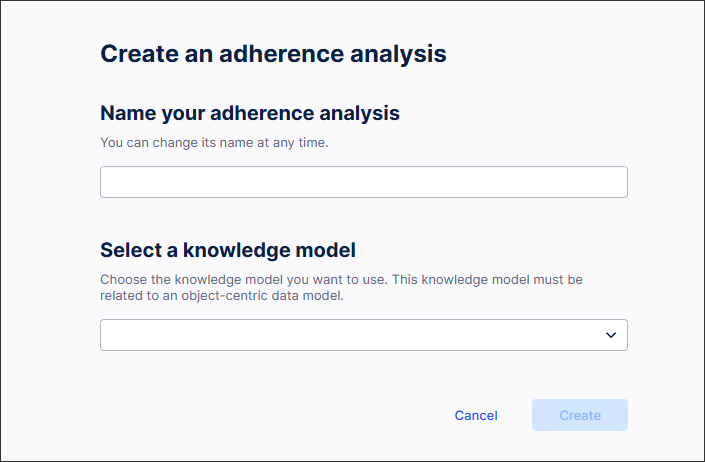
Enter a name for your adherence analysis.
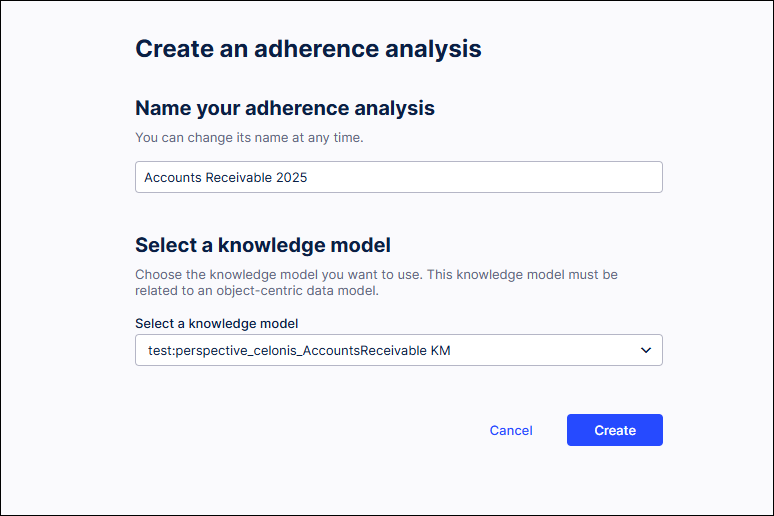
Select a knowledge model from the dropdown list.
Note
You can change or update this knowledge model later if necessary. For more information, see Viewing and changing knowledge models in PAM.
Select Create.
The Target Model Editor screen appears.
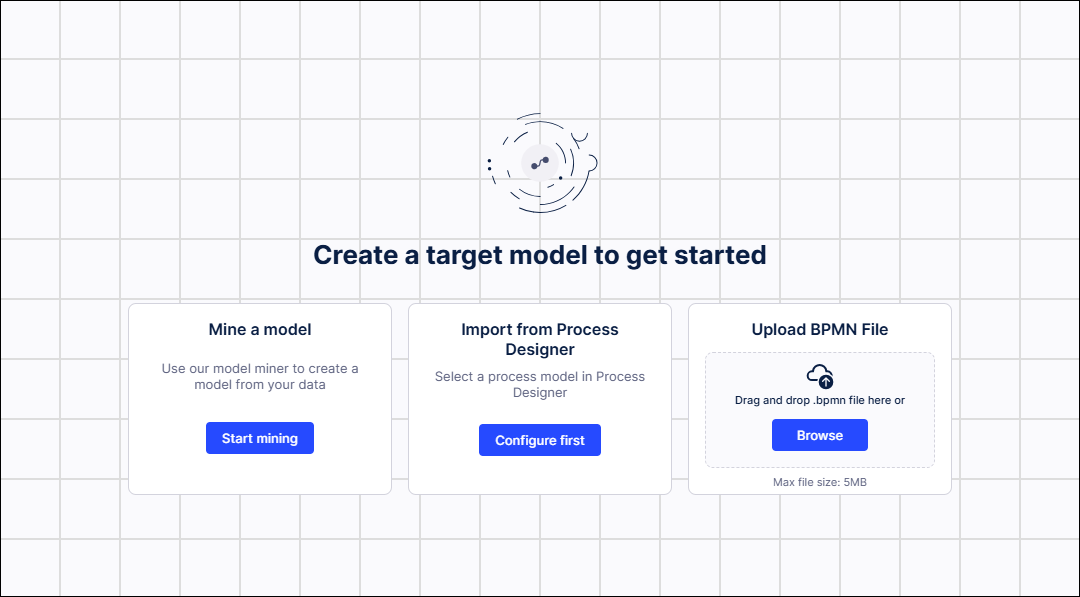
If you want:
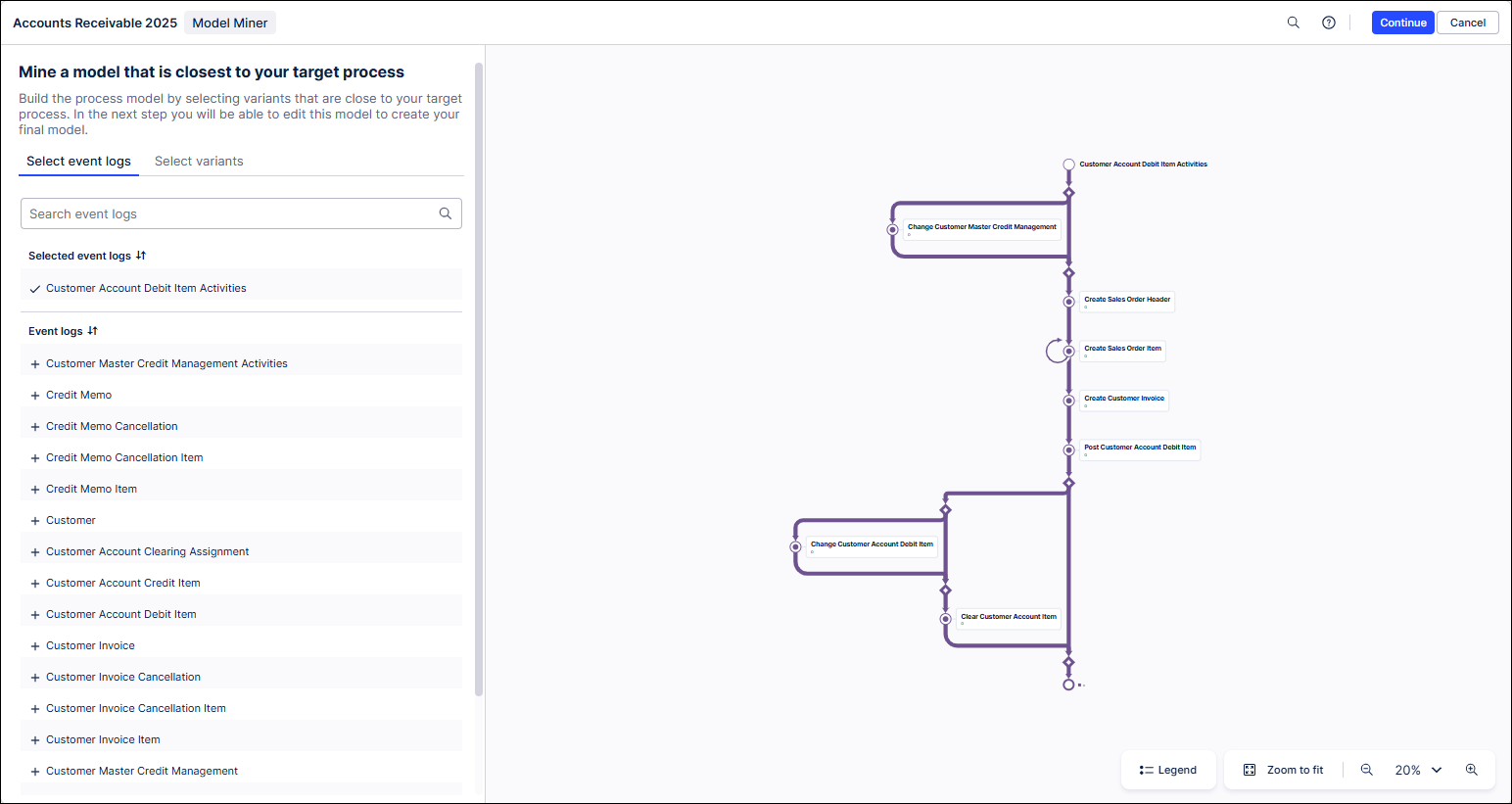
Process Adherence Manager to create your baseline model, select Start mining.
Your baseline model is created and opens in the Model Miner screen.
To import an process model from Process Designer, see Importing a model from Process Designer.
To upload a BPMN model, see Uploading a BPMN file.
Important
Before you can import a Process Designer model into PAM or export a model from PAM into Process Designer, Enable integration with Process Adherence Manager must be turned on by an admin in the Celonis Platform Admin & Settings. For more information, see Enabling access to Celonis Process Management.
If you have an existing process model already created in Process Designer, you can import it for use in PAM. Note that you cannot edit a Process Designer model in PAM, only view it.
To import a BPMN model, follow these steps:
In the Target Model Editor, select Import from Process Designer.
The Import from Process Designer: Step 1: Select a process model screen appears.
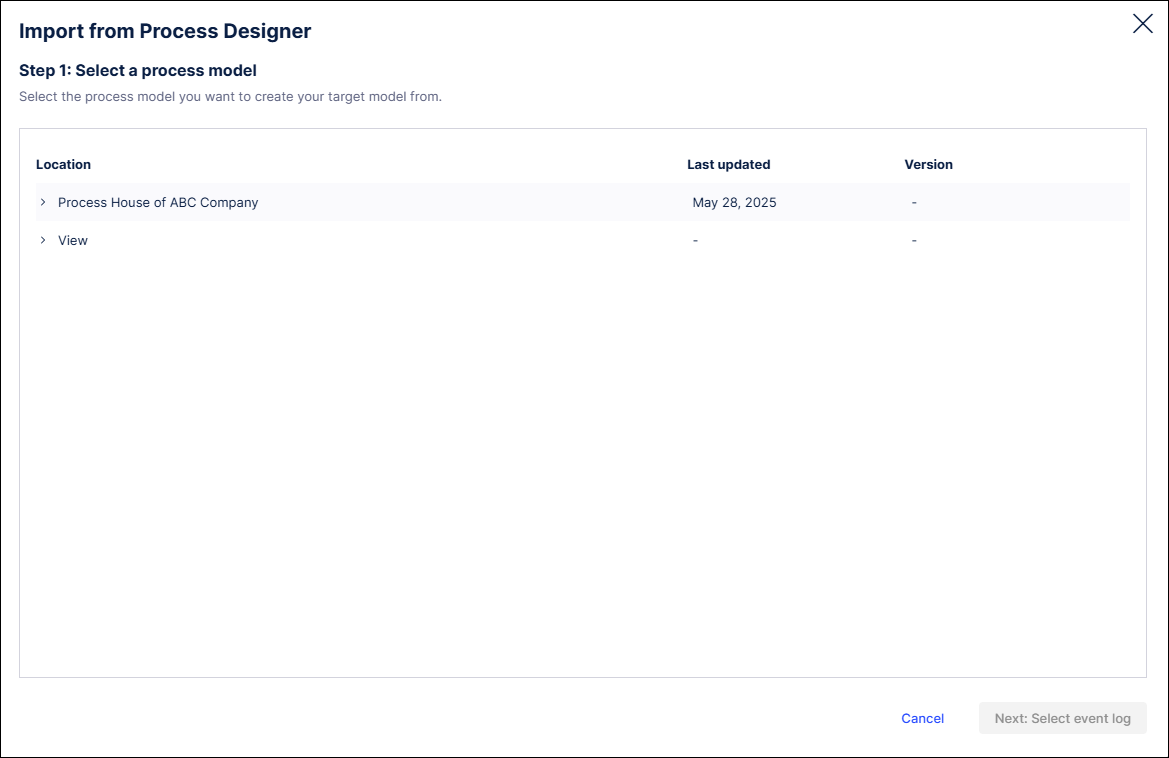
Navigate to select the Process Designer model you want to import to PAM.
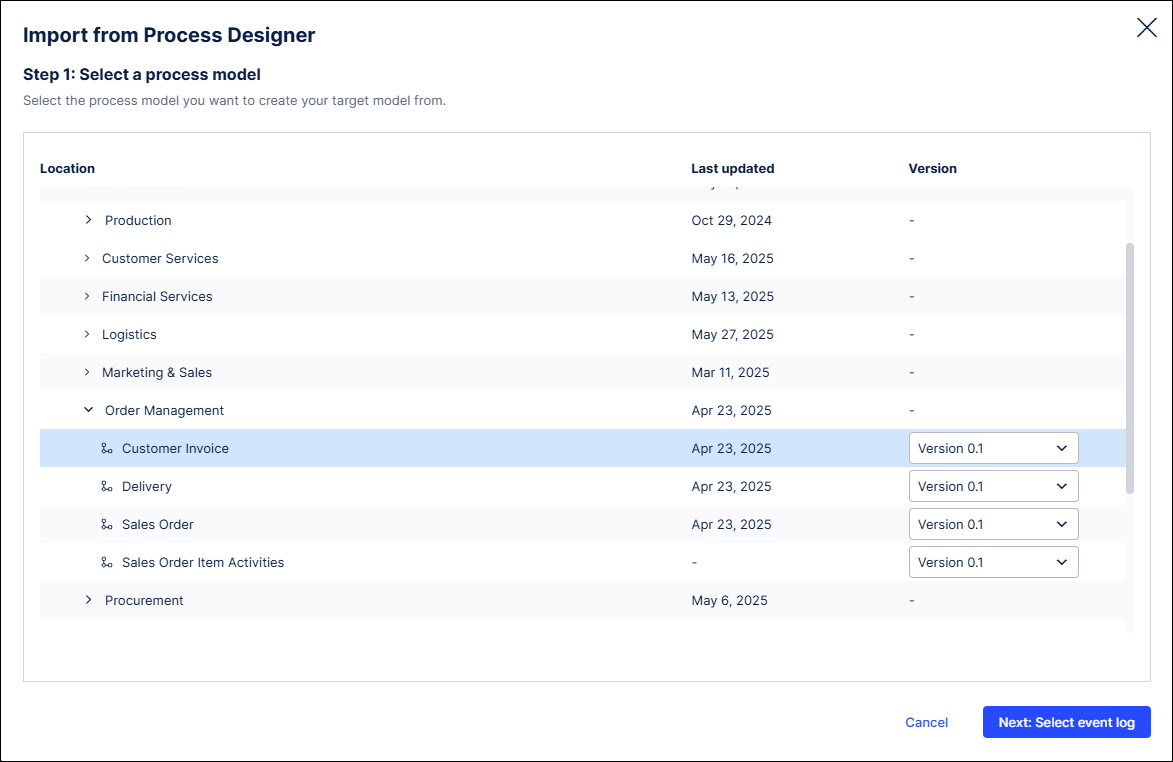
Note
Where multiple versions of the process exist, select the version you want from the version dropdown. For information about what happens if the CPM model is updated after you've imported it to PAM, see Working with target models and CPM.
Select Next: Select event log.
The Import Process Model: Step 1: Select an event log screen appears.
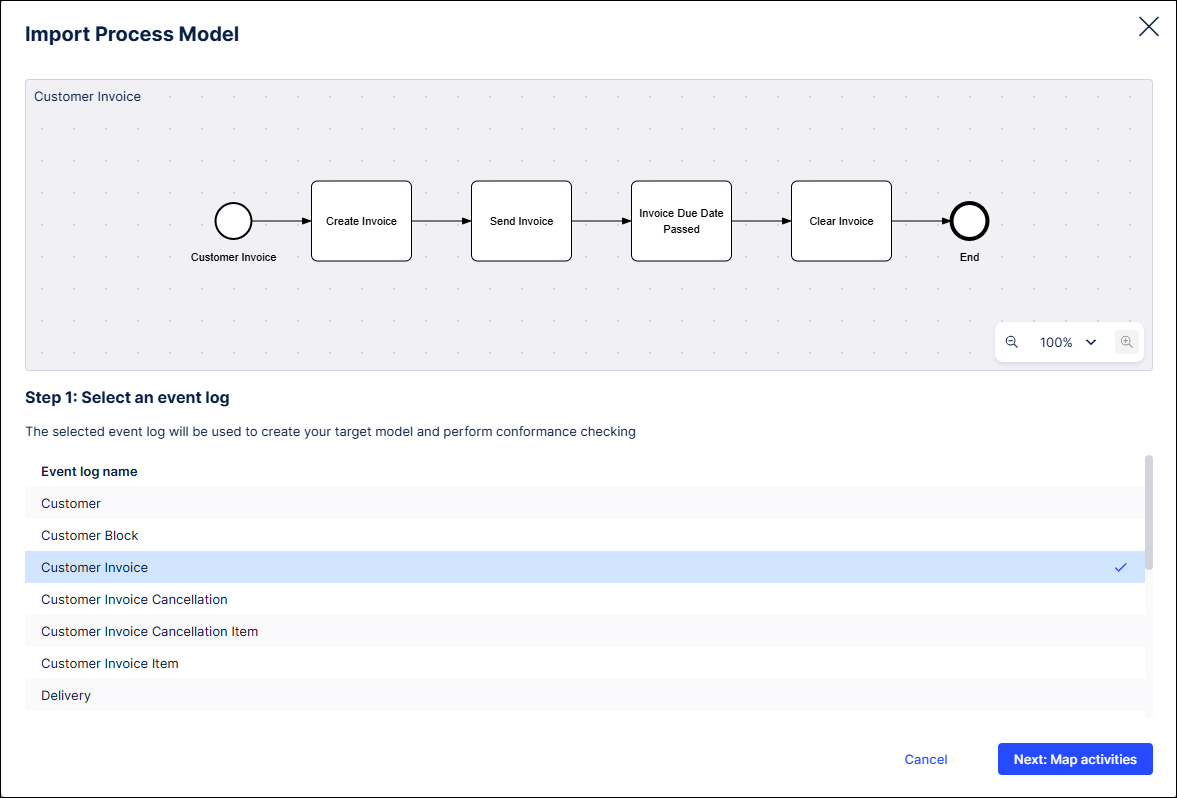
Select an event log.
This will be used to create your model.
Select Next: Map activities.
The Import Process Model: Step 2: Map activities screen appears.
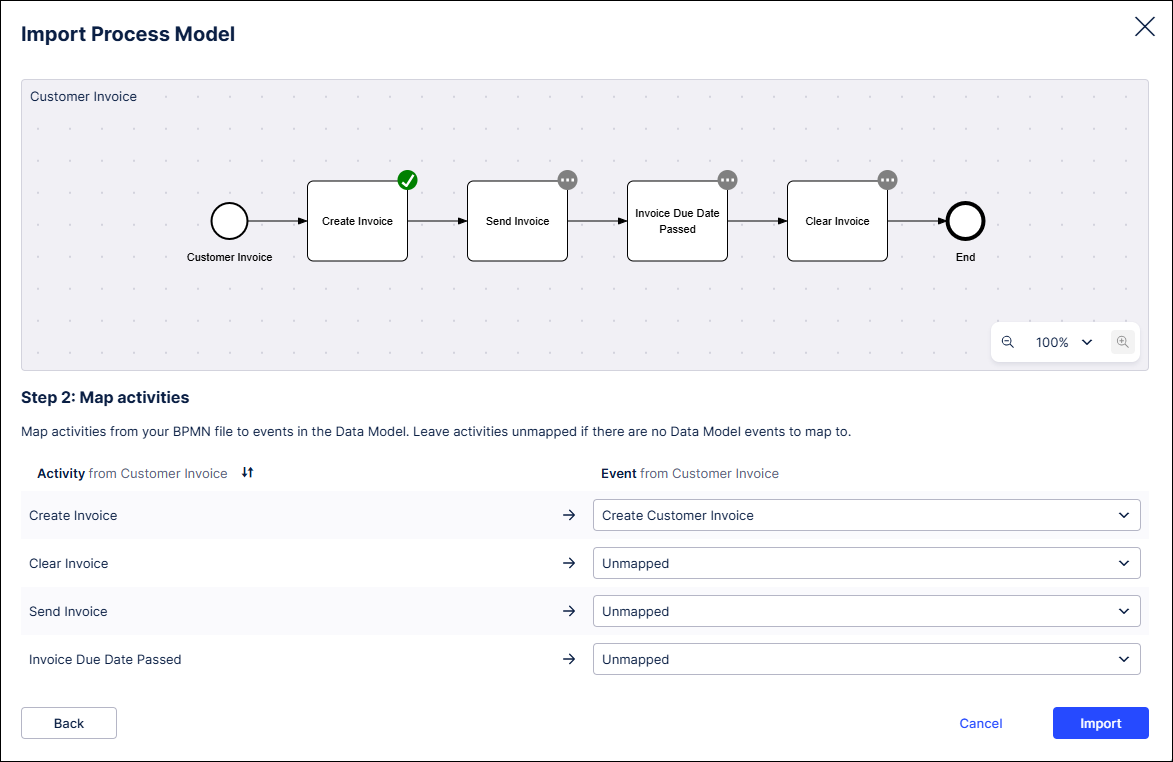
Map each activity in your process model to an event in the event log.
Note
If some of your activities don't map to events, leave them unmapped.
Select Import.
Your Process Designer model opens in the Target Model Editor.
Select Save and Continue.
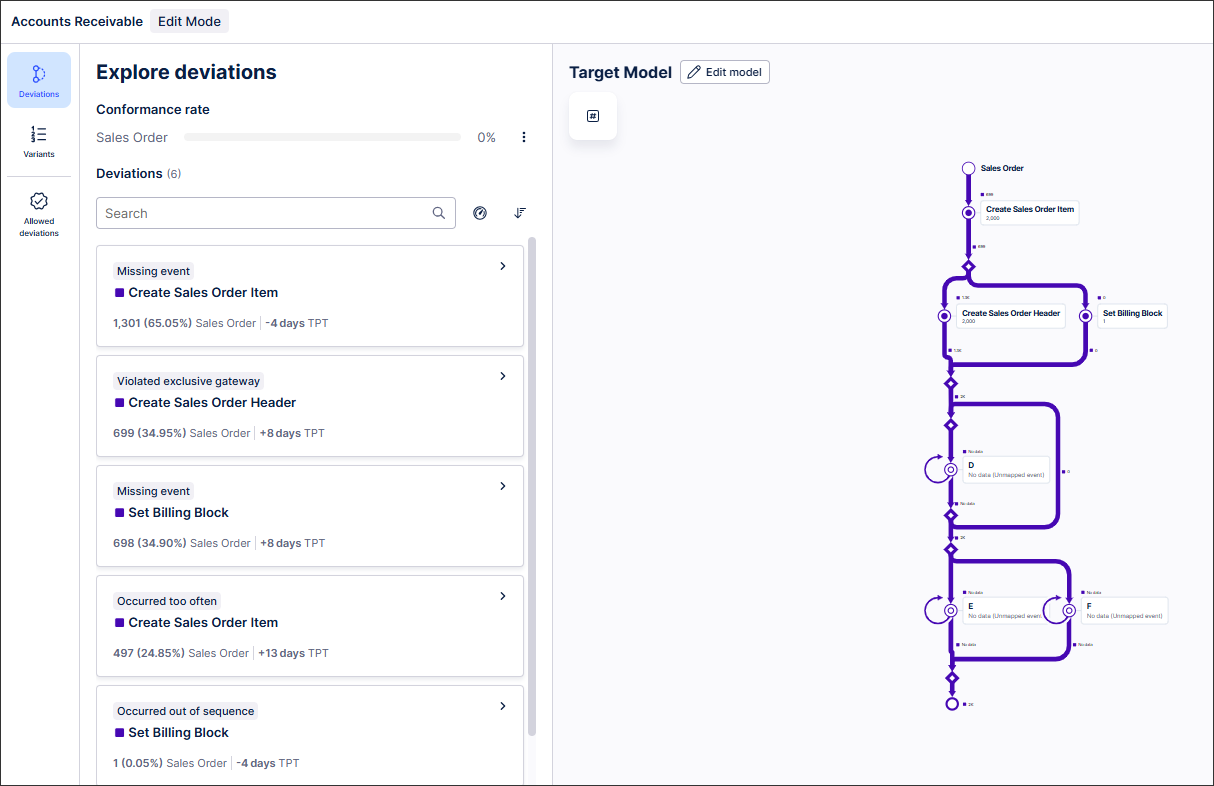
Your BPMN model opens in the Explore deviations screen.
To import a BPMN model, follow these steps:
Check your BPMN file meets the requirements.
Check your BPMN file against the BPMN file limitations.
In the Target Model Editor, drag and drop your BPMN file to Import BMPN File or browse to select your BPMN file.
The Import BPMN File: Step 1 screen appears.
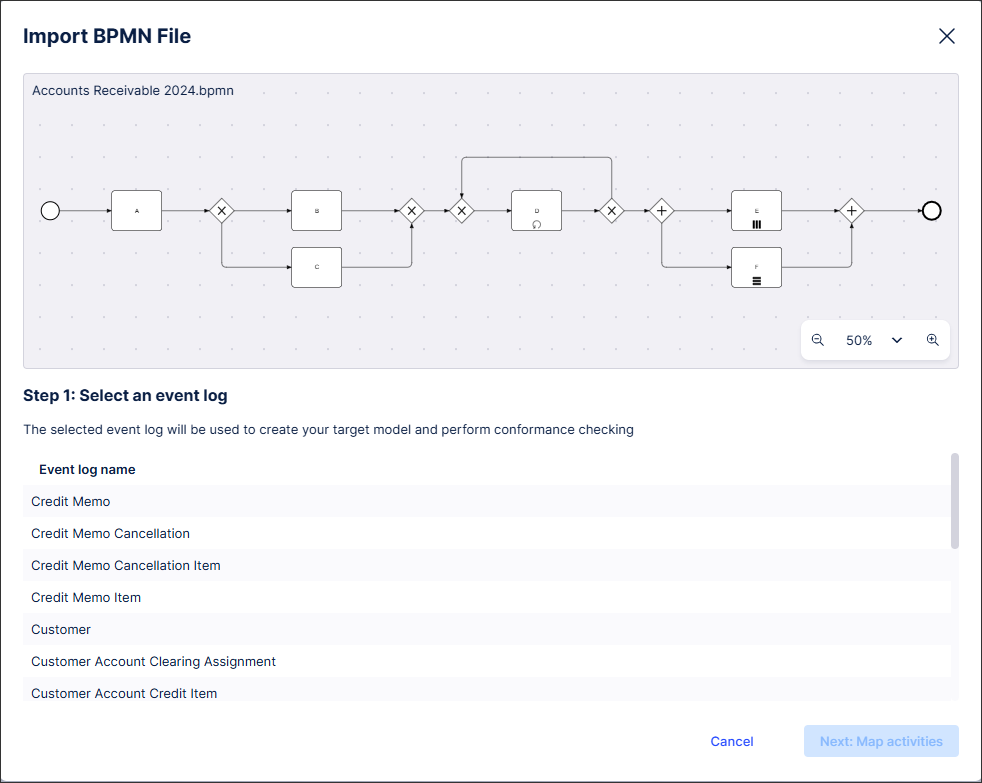
Select the event log that contains the data for your imported BPMN model.
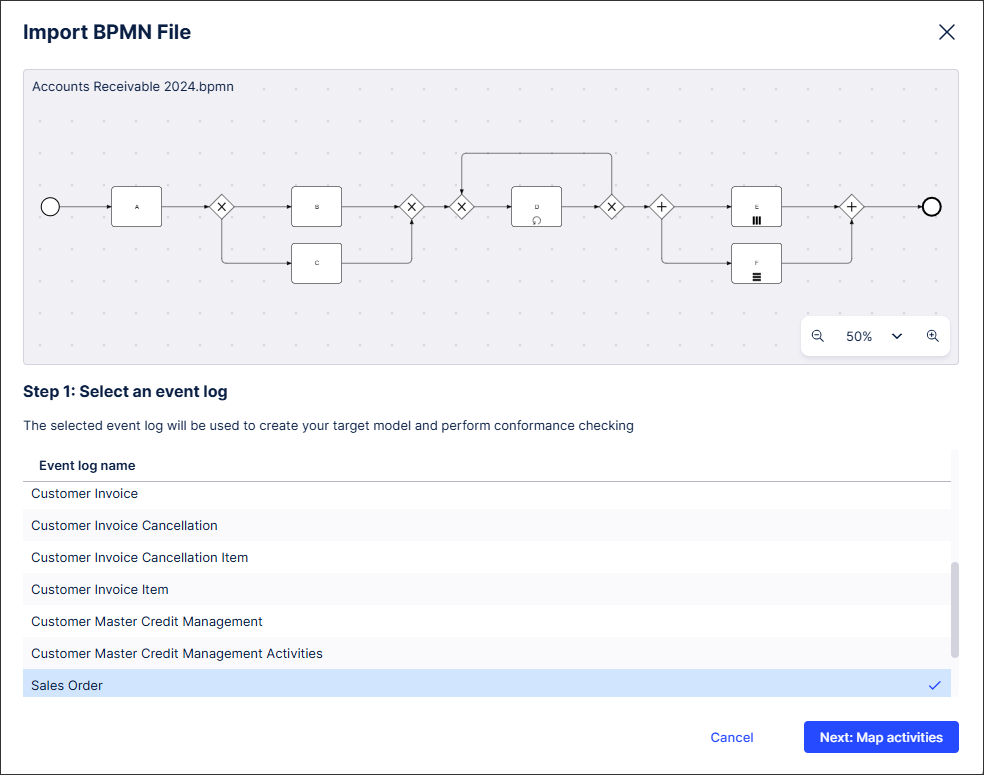
Click Next: Map activities.
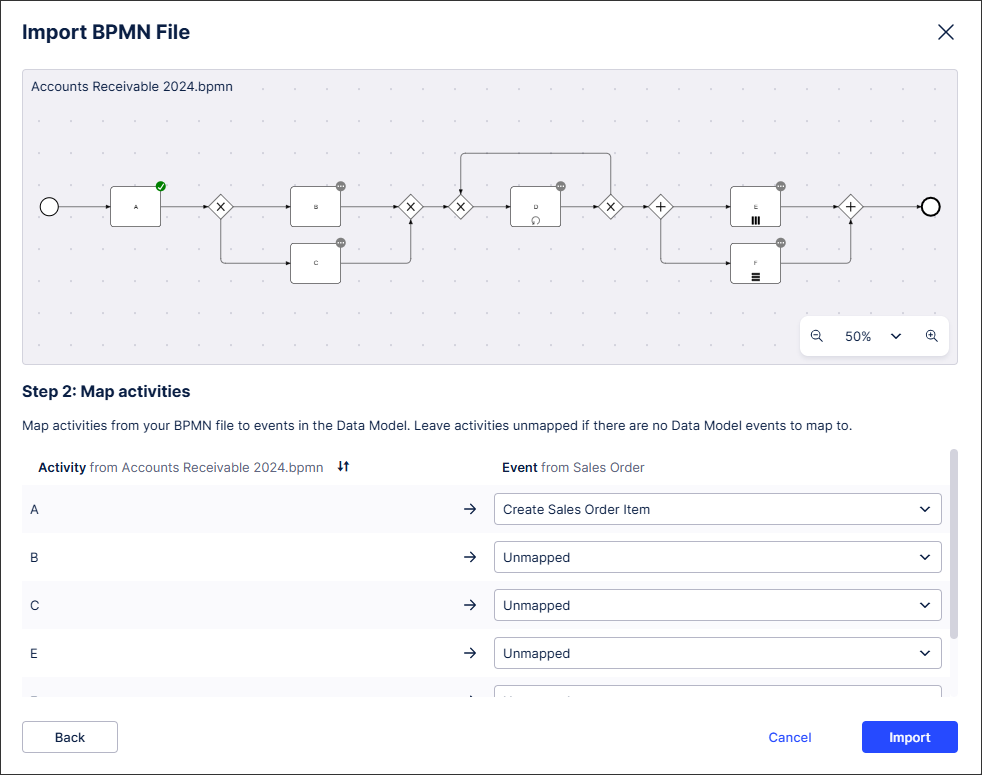
The Import BPMN File: Step 2 screen appears.
Map each activity in your BPMN file to an event in the selected event log.
Note
If some of your activities don't map to events, leave them unmapped.
Click Import.
Your BPMN model opens in the Target Model Editor.
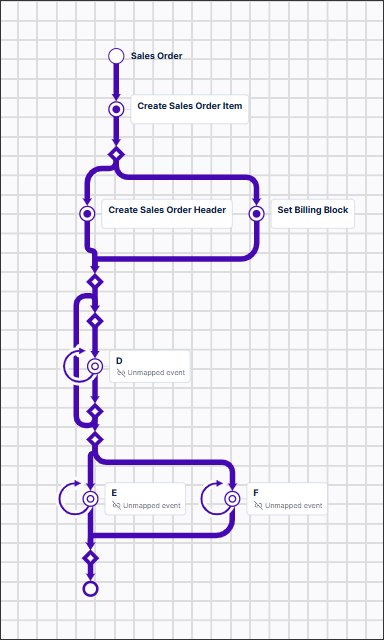
Select Save and Continue.
Your BPMN model opens in the Explore deviations screen.
Note
After checking your BPMN file for conformance and analyzing any deviations, you can export it from Process Adherence Manager so you can use it in other systems. For more information, see Exporting a BPMN model.