Exploring deviations in Process Adherence Manager
The deviation explorer is an analysis component in Process Adherence Manager that allows you to investigate where actual process executions do not follow the defined target process.
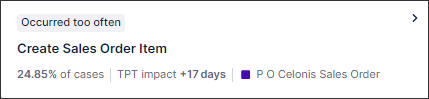
In this example, the Process Adherence Manager is used to explore deviations in a sales order process. The Create Sales Order Item event in the PO Celonis Sales Order event log occurred too often for 24.85% of cases and had an impact of an additional 17 days on throughput time:
 |
From this data, you can see that:
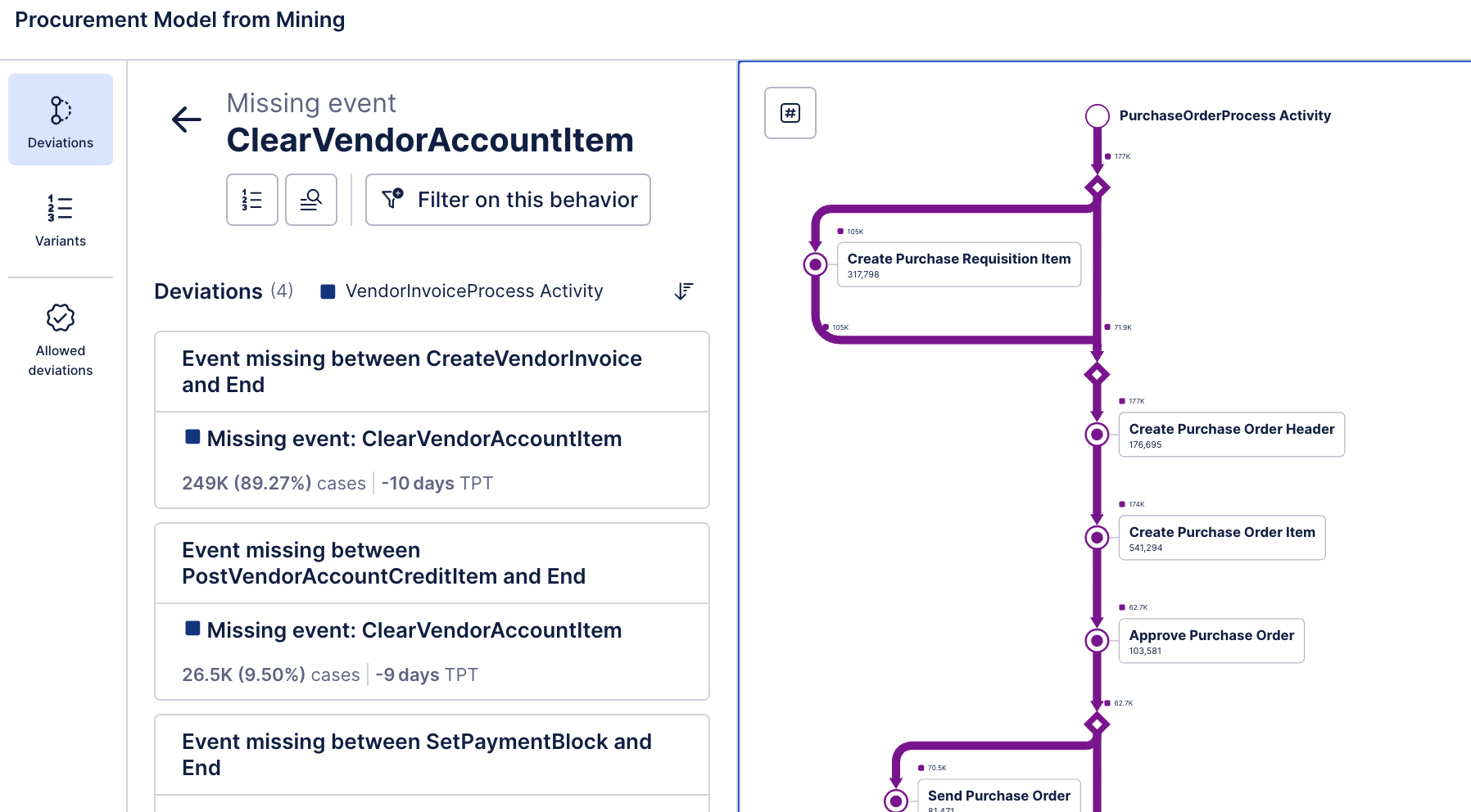
In the first deviation, the Create Sales Order Item event occurred repeatedly after the Create Sales Order Header event in 487 event logs, adding an extra five hours of throughput time.
In the second deviation, the Create Sales Order Item event occurred repeatedly after itself (in a loop) across 10 event logs, adding 849 days to the throughput time.
 |
Before you begin, ensure you have completed the following steps or meet the requirements listed below:
Create a baseline model in PAM
Create a target model to compare to the baseline model
Be assigned the Analyst role
By exploring your process deviations, you can see:
List of deviations: You’ll see a list of deviations detected when comparing your actual event log(s) against the target process model. These deviations are grouped by category. For more information, see: Understanding deviation categories.
Deviation metrics: For each deviation, you can typically see which event log and event the deviation occurs in, how frequently the deviation occurs (as a percentage or number of cases), and the impact this deviation has on performance KPIs.
Conformance rate: The percentage of your process instances that conform to the target model versus those that deviate. This gives you a quick sense of overall adherence.
Root cause analysis: You can drill into specific deviations to perform root cause analysis — identifying attributes, patterns, or data conditions that are strongly correlated with the deviation. This lets you understand what is driving non-conformance.
Actions on deviations: You can also take actions such as allow-listing deviations (ignoring them in conformance calculations) or switching views to analyze related variants and their end-to-end flows. For more information, see: Allowlisting deviations in Process Adherence Manager
To explore deviations from the target process in Process Adherence Manager follow these steps:
Open your target model.
Select the deviations tile. The Explore deviations screen opens. Any filters you applied when creating your target model are displayed. You can remove or edit them here or add new filters.
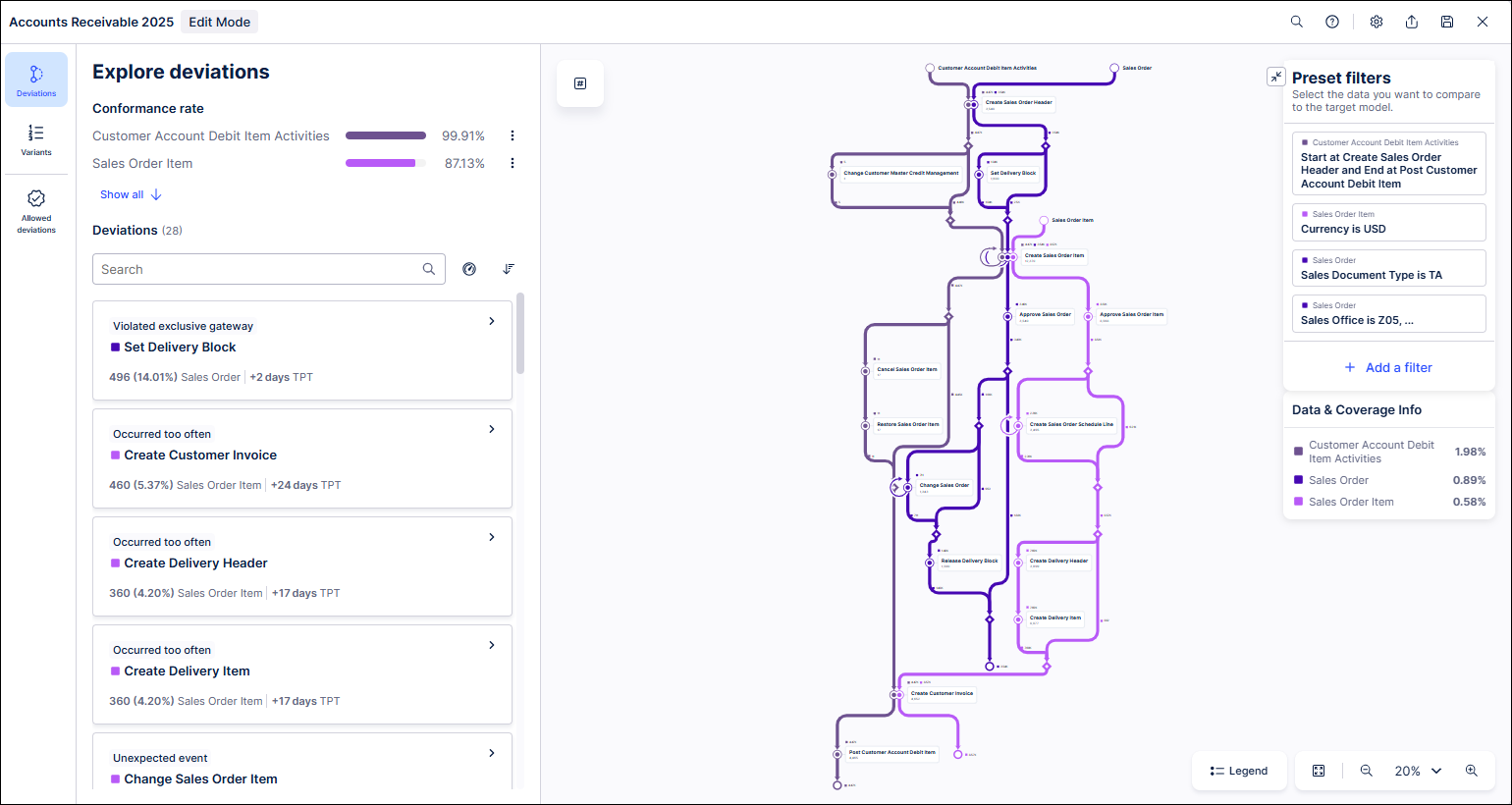
In Deviations, deviations display for all event logs, with each deviation including the:
Deviation category. Event log and event where the deviation occurs.
Percentage of cases across all event logs (weighted average) the deviation occurs in.
Impact on the throughput time caused by the deviation.
Select any deviation to view more details about that deviation.The dashed line shows where the deviation occurs. Here, the deviation is a missing event.
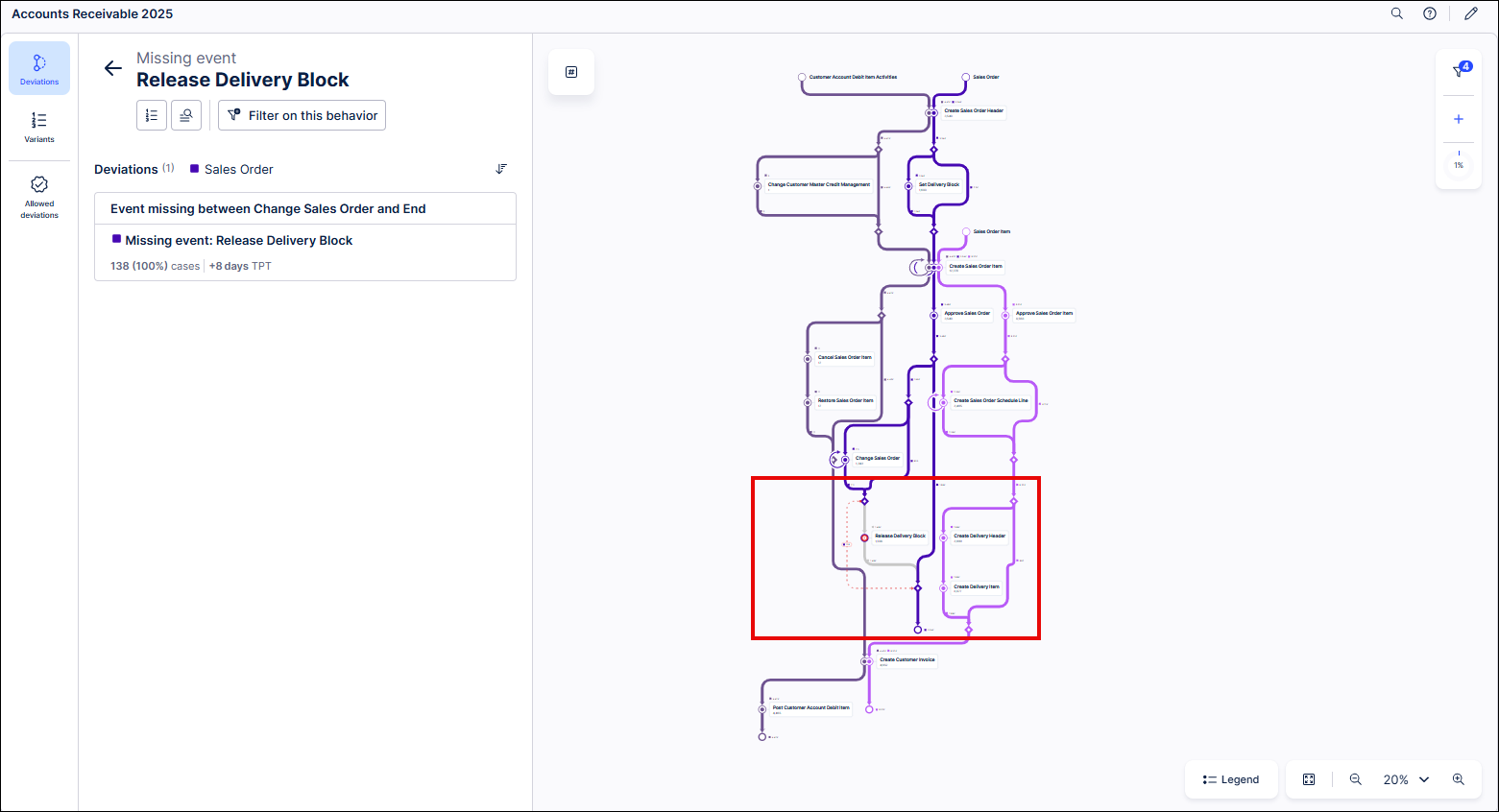
Select the magnifying glass icon to analyze the root causes of the deviation .A table that displays detailed information about the selected deviation appears. You may need to select Refresh data to ensure all data is displayed.
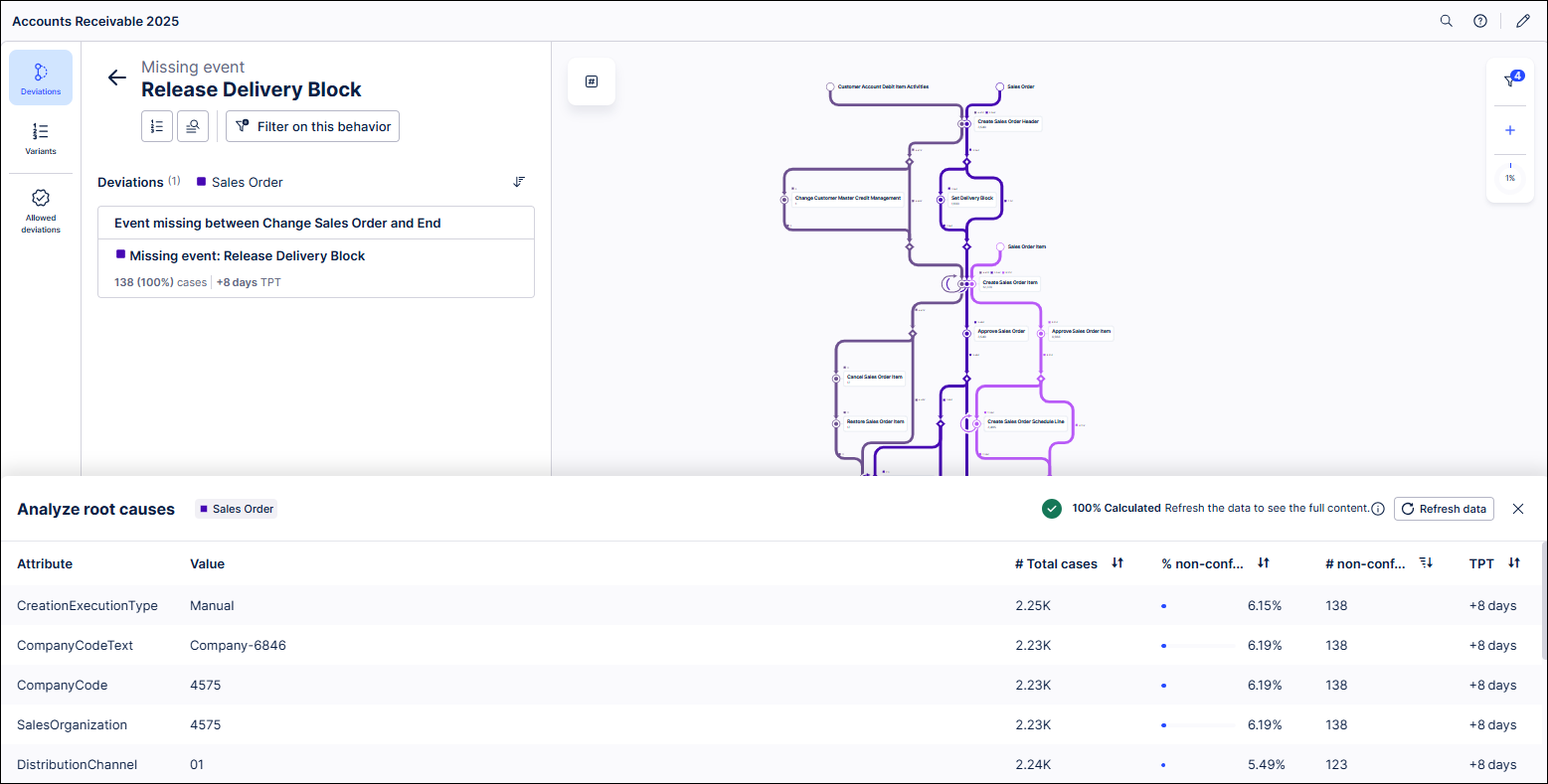
Explore the variants associated with specific deviations and perform an end-to-end analysis.
Note
Only users with at least the Analyst role can create allowlists in PAM
You can allowlist specific deviations from Explore deviations. Once allowlisted, these deviations will move to the allowlist and will no longer appear in Explore deviations. Allowlisted deviations don’t affect Conformance rate.
To allowlist deviations, follow these steps:
In Explore deviations, select the deviation you want to allowlist.
Select the checkmark. Your deviation is moved to your allowlist.
Select the allowlist icon at any time to see your allowlist. You can also remove any entries from your allowlist here.
When exploring deviations in Process Adherence Manager, the following categories are frequently used:
Deviation category | Description |
|---|---|
Missing event | An event that is required in the target model but does not occur. |
Occurred too often | An event that should only happen once in the target model but occurs multiple times. This could be because of a loop or duplicates. |
Occurred out of sequence | An event that was required in the target model but occurs in the wrong place in the process flow. |
Unexpected event | An event occurred that is included in the data model but not included in the target model. Tip Unexpected event deviations are included in your target model by default. You can hide all unexpected event deviations in Edit mode by selecting Settings and using the Unexpected event deviations toggle. |
Violated condition | A condition added from the Knowledge Model's condition list has not been met. For more information, see Adding conditions to a baseline model. |
Violated exclusive gateway | Two possible events occur at a point in the process where only one event should occur. One or more events that should occur sequentially do not occur at all. |