Relabeling events in the Knowledge Model
In object-centric data models, a single table often captures a wide variety of change events. Relabeling these events within your Knowledge Model (KM) allows you to isolate and differentiate those changes using specific event attributes. This approach keeps your data transformation logic highly scalable, eliminating the need to duplicate complex SQL statements for every minor change variation.
Relabel events in your Knowledge Model (KM) to differentiate a central change event using its specific attributes.
Scale data transformation logic without writing manual SQL duplication for multiple change types.
Create cleaner process variants in your downstream analytics.
For more information about object-centric event logs, see: Event logs (object-centric).
To relabel events in the Knowledge Model (KM):
Click Studio and then open the package containing the KM you want to create the event log in.
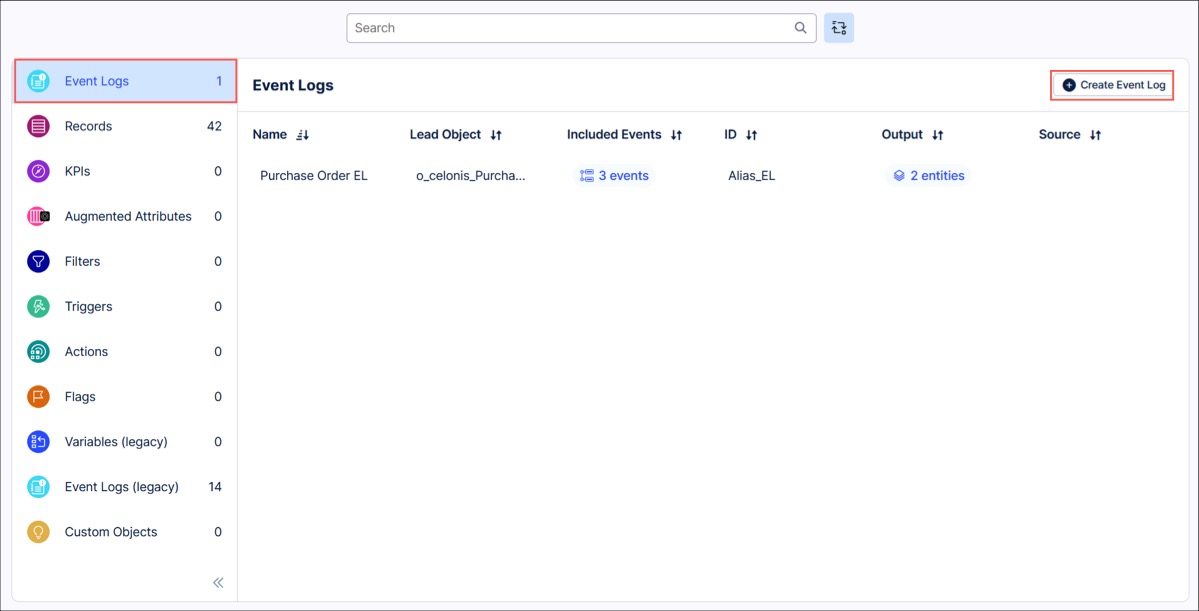
Select the KM asset and then click Event Logs.
Click Create Event Log, add a display name, and optionally a description.
The system automatically generates an ID based on the display name for use in PQL statements. Modify this ID manually if your configuration requires a custom identifier.
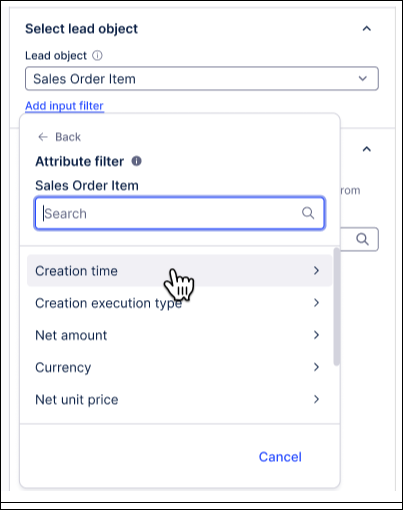
Select the lead object for the event log. The dropdown displays the objects available in your perspective.
Select the events that are relevant for the process you are tracing. The dropdown lists all the events in your perspective.
Configure dynamic events by appending event type attributes:
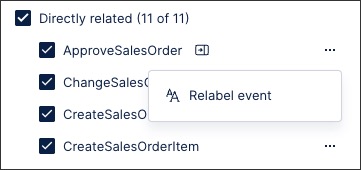
Click the three dots by the name of an event type, and select Relabel event.
Click Add attribute, and select an attribute from the list.
The preview updates immediately to include the new attribute in the Activity Details column. Add multiple attributes across multiple events as required by your process scope.
Tip
Prone to Errors: Do not use numerical attributes. Numerical attributes generate a high volume of unique event variations, which decreases data model loading performance.
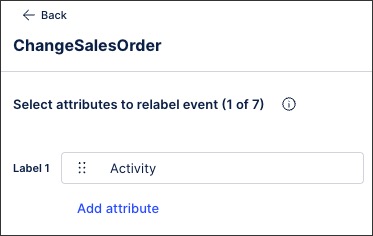
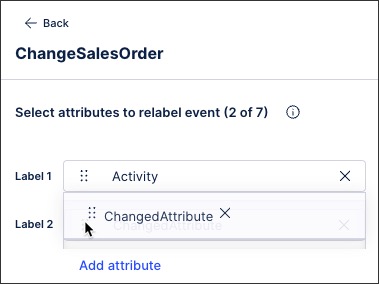
Drag and drop attributes to arrange them. Celonis concatenates the attributes in your specified order.
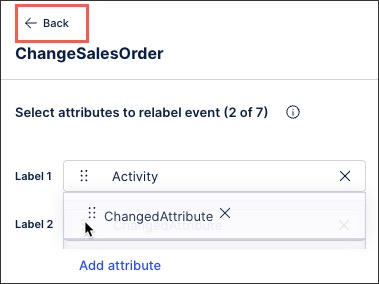
After adding the attributes, click Back.
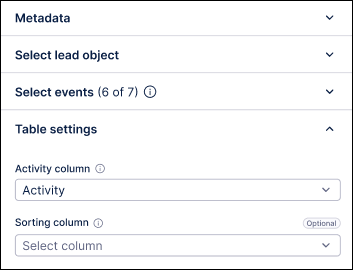
Choose your event log table settings, including:
Activity column: Select the activity column to visualize in the Process Explorer. The system defaults to 'Activity'.
Sorting column (optional): Configure a sorting column if your dataset includes activities with identical timestamps. Missing sorting configurations for identical timestamps cause inaccurate process graphs based on arbitrary implementation details.
Verify the event log configuration using the generated table and graph previews.
The system samples your data to display these previews.
Click Save.