Creating Process Orchestration conditional run
For every step of your digital process, you can add a condition that would be used by the process context to decide whether the particular step should be processed or not. You can use existing events or custom JSON logic to determine if a step should be run or skipped.
Adding conditions to Process Orchestration steps
In your Process Orchestration, edit one of the existing steps or add a new one.
Select Create conditions.
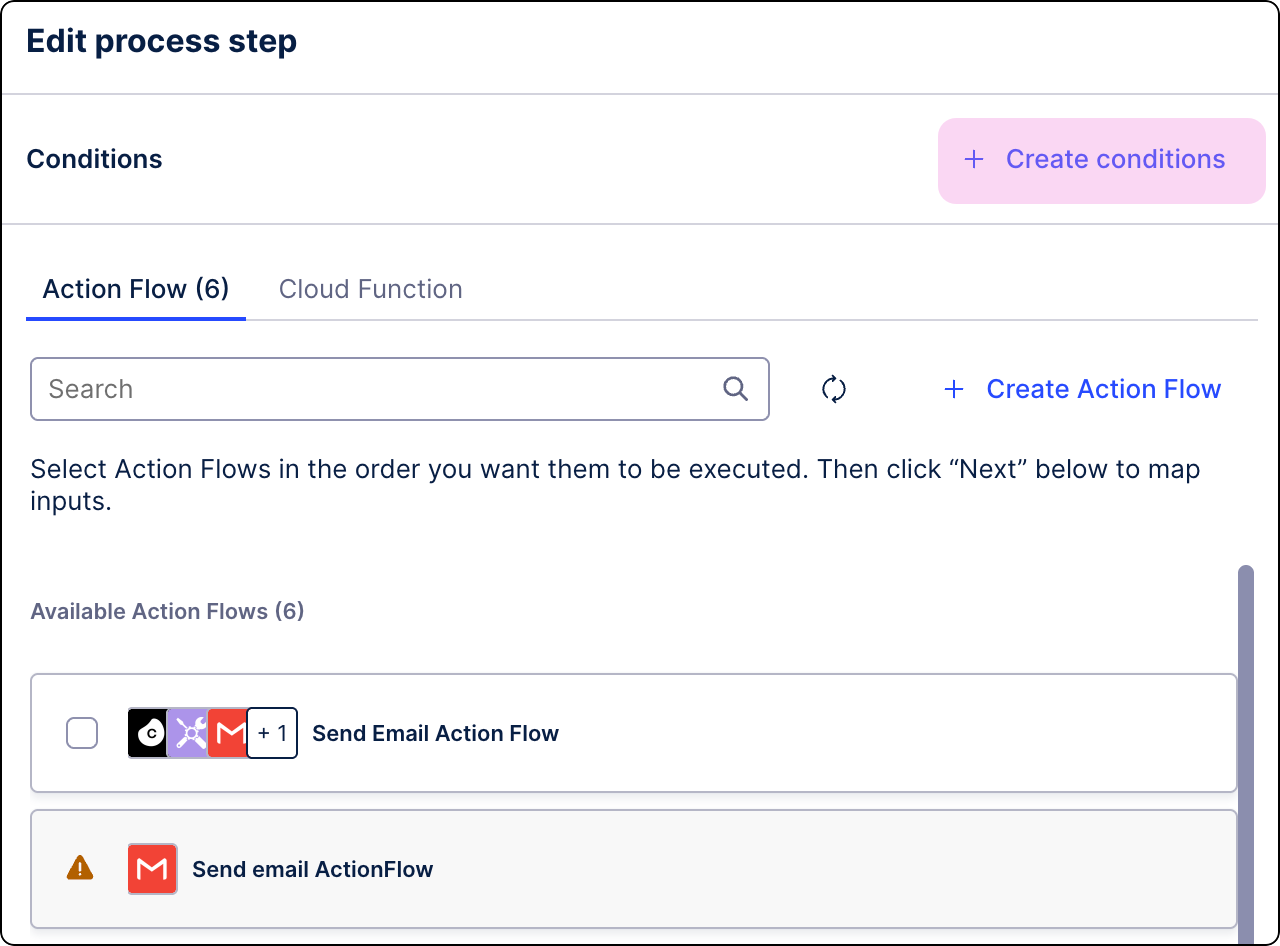
Select the condition you want to set for your step:
Event filter -select one or more events that will start your process step. If none occur, the step is skipped.
Rule - create a condition using a JSON logic expression. See Rules for step conditions.
Click Submit.
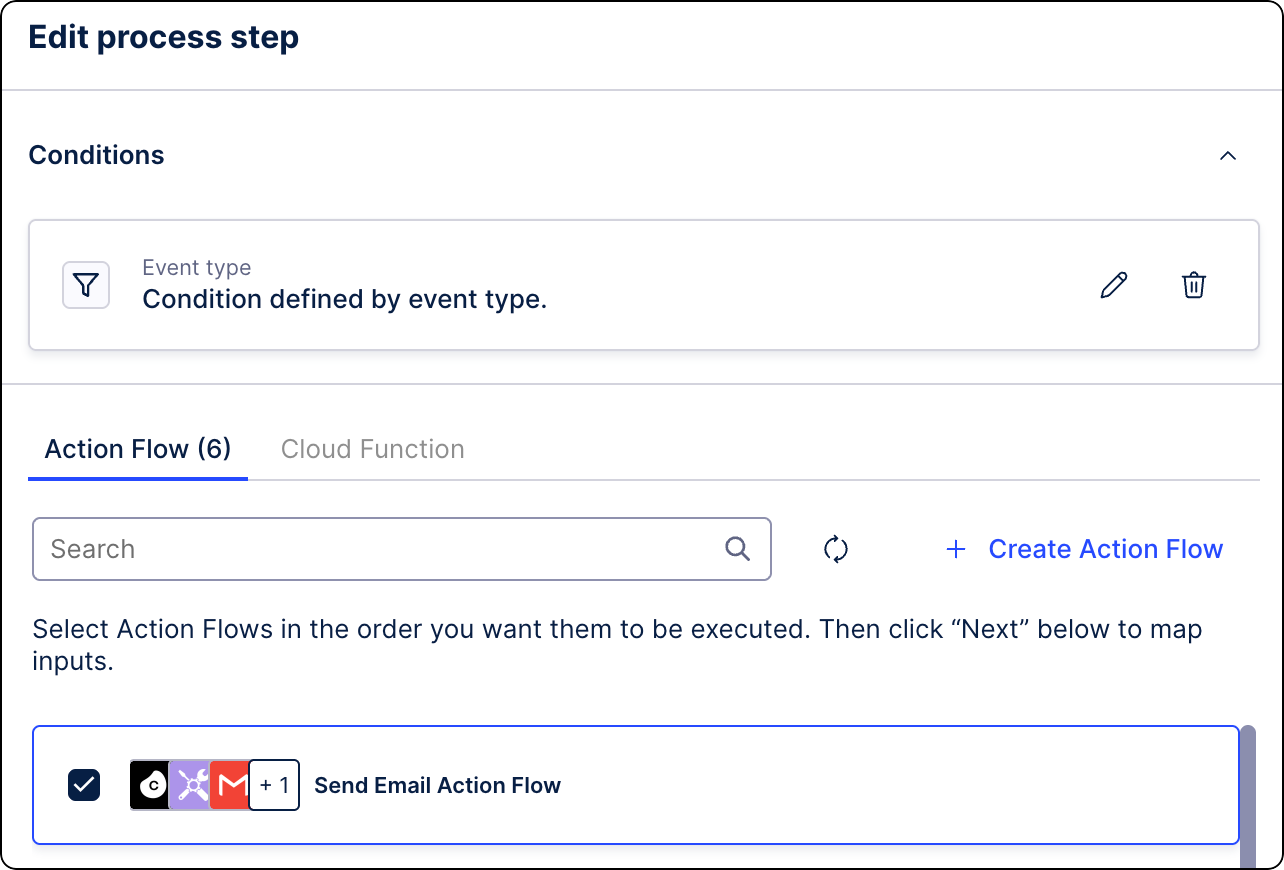
The condition is added to the process step.
To create step conditions rules, use the JSON logic expression language and extend it with custom operators. The JSON logic expressions are a direct expression placed in the field.
Customer operators:
context- this is used to access a dynamic value inside the process context in a way similar to thevaroperator. If access to a dotted key is needed, the dotted key should be quoted with backquotes ( ` ).Logic{"context": "`key.with.dots`.boolean"}Process Context{"key.with.dots": {"boolean": true}}Resultstrue
Extended behavior:
var- Inside a digital process, the data means the context with the parent key. For example, if the process context is:{"event": {"key": "value"}}Then, the data for the JSON logic expression would be:
{"context": {"event": {"key": "value"}}}Dotted keys must be backquoted to work.
Logic{"var": "context.`key.with.dots`.boolean"}Process Context{"key.with.dots": {"boolean": true}}Resulttrue