Sharing data between Celonis Platform teams
This feature is currently available as a Private Preview only
During a Private Preview, only customers who have agreed to our Private Preview usage agreements can access this feature. Additionally, the features documented here are subject to change and / or cancellation, so they may not be available to all users in future.
For more information about our Private Preview releases, including the level of Support offered with them, see: Feature release types.
You can share data between Celonis Platform teams, increasing your collaboration opportunities and ensuring data consistency across your organization. This feature exclusively supports the Celocore architecture and will not function on the legacy Vertica pipeline.
In the Celonis Platform, teams are typically organized by department (e.g., Finance, Supply Chain) or location. Sharing data and assets between these teams is a common practice to break down silos and create a unified view of the business.
You may want to share data between teams in the following scenarios:
Promoting verified content across environments: You might have a dedicated "Sandbox" or "Dev" team where analysts build and test Data Models, Analyses, and Action Flows. Once verified, these assets are shared or copied to a "Production" team for end-user consumption.
Multi-system or global roll outs: If your organization uses multiple Celonis Platform teams for different regional units (such as EMEA or NA), you may want to share highly effective process dashboards between them.
Cross-functional process analysis: Particularly useful with object-centric data models, where data spans multiple departments. This helps create a single source of truth, where teams work from the same underlying data.
In the Celonis Platform, you have a number of options for sharing data, configurations, and assets between teams. The option you should use depends on your use case:
Sharing data between data pools: You can share data between data pools within the same Celonis Platform team by sharing their data connections and then importing them into the target data pool. See: Sharing data between data pools.
Sharing data between teams: You can share data between Celonis Platform teams, increasing your collaboration opportunities and ensuring data consistency across your organization. See: Sharing data between Celonis Platform teams.
Copying assets between teams: As a team admin, you can bulk copy Studio packages and your data pools configuration between your teams. This option doesn't allow you to copy the data itself from your data pools. See: Team-to-team copy.
Before you begin, ensure you have completed the following steps or meet the requirements listed below:
Verify system architecture: Ensure both your source and target environments have been migrated to the Celocore architecture. This feature will not function on the legacy pipeline with Vertica.
Data pools: Both the source data pool (the pool within the team sharing the data) and the target data pool (the pool within the team receiving the data) must exist before sharing data between them.
User permissions: To ensure data governance and security, data can only be shared between teams by users who hold “EDIT” permissions for both
To share data between teams:
From the source data pool, click Data Connections.
For the data connection you want to share, click Options - Share Data with Other Data Pools.
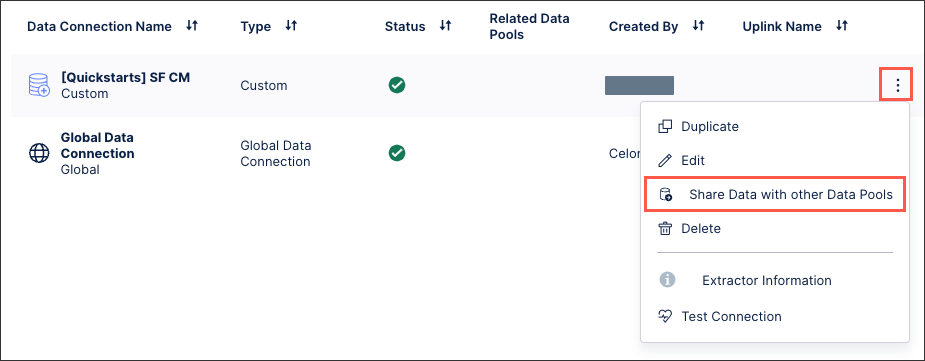
Select the data pool(s) you want to share your data connection with.
Select the tables you want to share with the selected data pools. If multiple data pools are selected, you can choose whether to use the same configuration for all target data pools or manually select the configuration for each.
Same configuration for all target data pools: Best used for sharing the same data tables across one or more data pools.
Manually select configuration per data pool: Best used for sharing different data tables with different data pools.
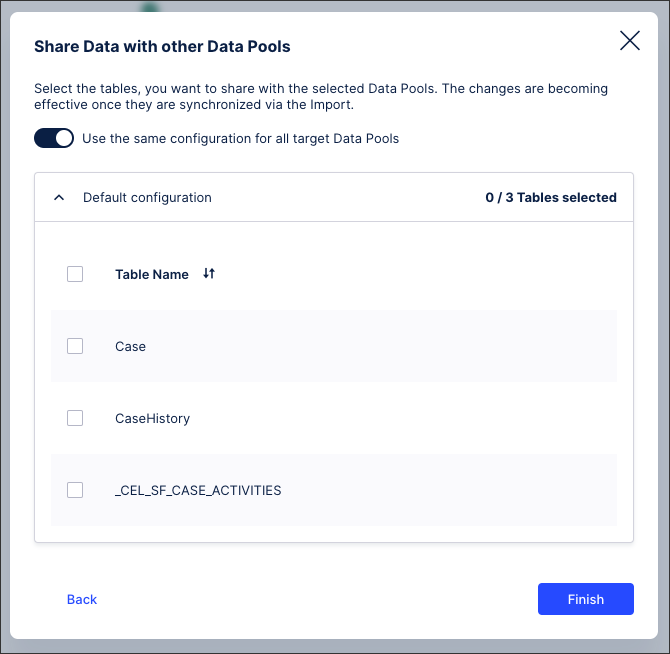
Click Finish.
The data connection is shared with the selected data pools and is ready to be imported.
Open the target data pool and click Data Connections.
Click + Add Data Connection and select Import Data from another Data Pool.
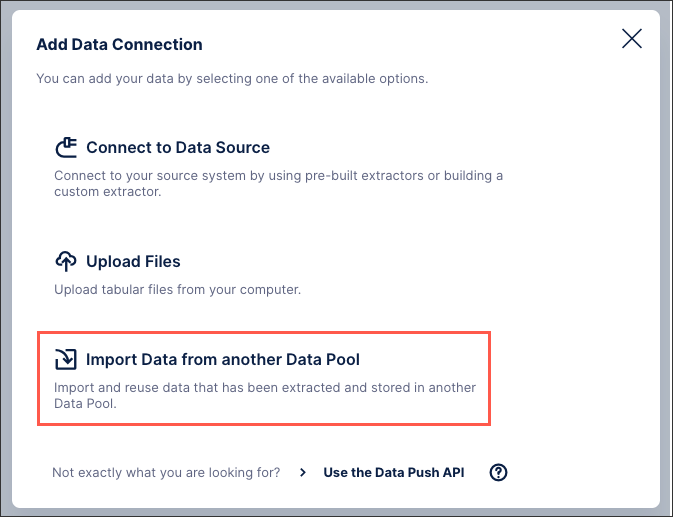
Select the data connection you want to import.
Choose the tables you want to synchronize between the data pools.
This is a one time synchronization with the existing table configuration, with any subsequent changes needing to be manually synchronized to be applied.
Click Finish.
This action creates a new data connection, marked as an "Imported connection," and generates the corresponding views in the pool provider. You can verify this by creating a data job with the new data connection and a transformation.
Manually synchronizing data connections
If new rows are added to the tables and views of the exported data connection, the data will be available automatically in the imported data pools, e.g. when executing a data job with those tables. However, if the structure of the tables change or tables are added/removed, the data connection needs to be synchronized.
To manually synchronize your imported data connections from your data pool diagram:
Click Data Connections.
For the data connection you want to share, click Options - Synchronize.
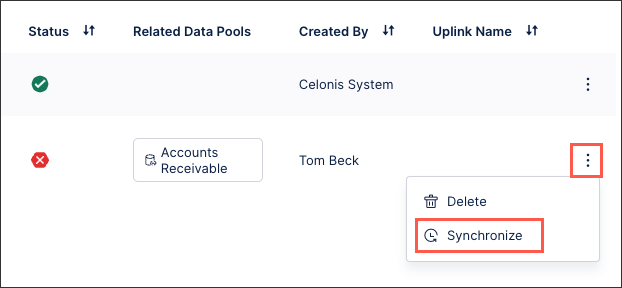
Select the data connection tables you want to synchronize.
Click Synchronize.
The new versions of the tables are now imported and available in your current data pool.
When using team-to-team copy on pools containing shared data connections, you must manually re-establish the connections. You can identify these by looking for "FIX ME" in the connection name.
Important
Source data pool and Target data pool should not have the same name to prevent a loop of sharing if the target pool is later used in a copy back to the source.
To manage this:
Configure the team-to-team copy from the source team to the target team (e.g., Team 2 to Team 1) with dependencies managed.
See: Team-to-team copy
Verify that a new pool is created in the target team containing the content from the source, including the shared connection labeled "FIX ME".
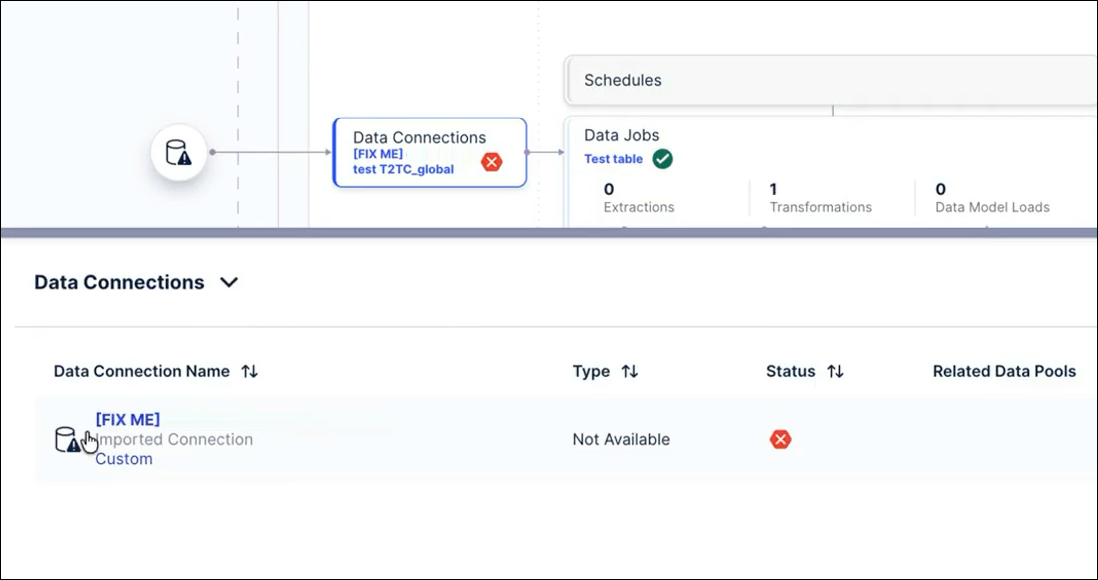
Check the connection name to identify the original Source Pool and connection name from the source team.
In the source team, share the connection to the new data pool that was copied over.
Return to the target team, open the copied pool, and click Edit on the imported connection.
Select the Source pool and its connection from the selection list to finish re-establishing the connection.
This process can be repeated when more than two teams are involved (e.g., Team 1 to Team 2, then shared to Team 3).
To take advantage of data sharing between teams, your data pools must be running on the ETL Engine (Celocore). Because data sharing isn't supported on the legacy Vertica pipeline, you must migrate your data pools to the new architecture first.
For the steps to migrate your target data pools to the ETL Engine, see: Migrating from Vertica to the ETL Engine.