Configuring Skill filters
Filters allow you to control the flow of a Skill by ensuring only data that meets specific criteria moves forward to the next action.
Filters behave in the following ways:
Router vs. Filter: While a Filter simply stops the execution if conditions aren't met, a Router allows you to create multiple paths (branches) based on different filter criteria.
Case Sensitivity: When filtering string variables (like vendor names or status codes), be mindful of case sensitivity, as "Incomplete" and "incomplete" may be treated differently depending on the source system.
Execution Visibility: You can monitor which items were filtered out by checking the Execution Page. This is helpful for troubleshooting why certain actions didn't trigger as expected.
Before you configure your Skill filter, you need:
An active Skill within the Action Engine module.
Defined variables (either passed from a Data Trigger or a previous Action step).
To configure Skill filters:
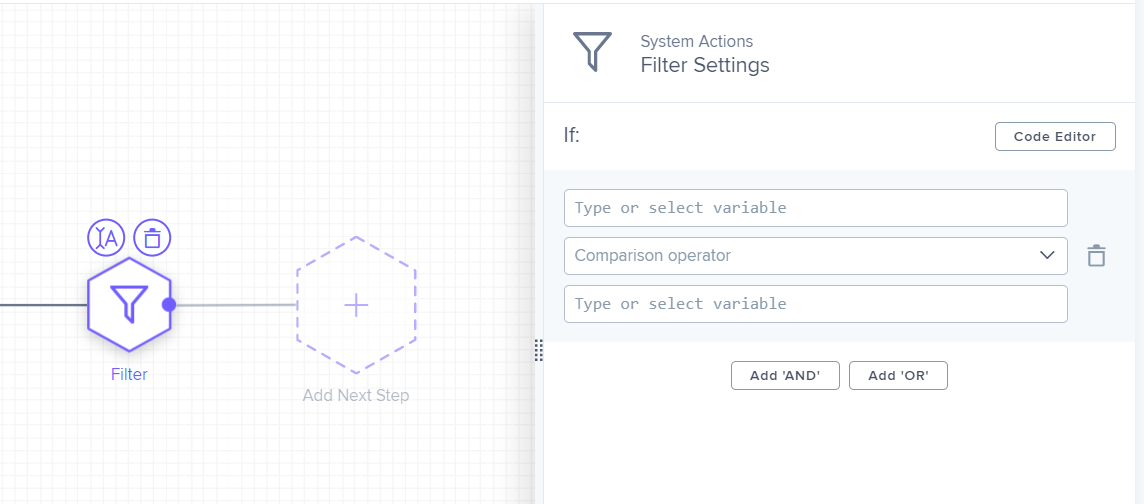
Select the Filter Step: In the Skill builder canvas, click on the Filter icon or the + button to insert a new Filter between steps.
Define the Input Variable: In the Type or select variable field, choose the variable you want to evaluate.
Tip
These are often variables passed directly from the Action Engine to the Skill.
Choose a Comparison Operator: Select the logic for your filter from the dropdown menu. Common operators include:
Equal to/Not equal toGreater than/Less thanContains/Does not contain
Set the Comparison Value: In the second Type or select variable field, define what the input variable should be compared against. You can manually type a static value or select another dynamic variable.
Apply Multi-Condition Logic (Optional): To create more complex filtering rules, use the following buttons:
Add 'AND': Use this if all conditions must be met for the Skill to continue.
Add 'OR': Use this if the Skill should continue if at least one of the conditions is met.
Save and Validate: Click Save. The platform will perform a validation check to ensure your variables and operators are configured correctly.
 |