Session timeout settings
You can require your users to re-authenticate or log back in to your Celonis Platform after a specified period of time by setting idle and forced timeout limits.
Idle - When a user’s account appears idle for a period of time (meaning no event details are logged for that user), the user must re-authenticate or log back in the next time they are active.
Forced - Regardless of activity, the user must re-authenticate or log back in after this time to continue using the Celonis Platform .
To set custom session timeout limits:
Click Admin & Settings - Settings.
Scroll down to the Session Timeout Settings section.
Enable Use custom timeout settings.
Configure both the idle and forced timeout settings.
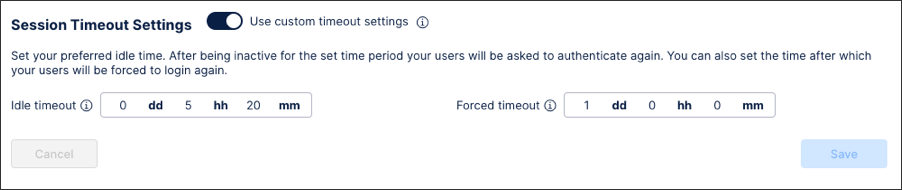
In this example, the users must sign back in if they are idle for more than five hours and 20 minutes and / or every day.
Click Save.