Object Link
The Production Planning Data Model and Starter Kit leverage Object Link for the Network Explorer component to show a network graph of Work Centers, the Operations that occur at them, and the connections between them.
A general guide for Object Link can be found here.
Navigate to the “Object Links” tab in the Data Models section of Data Integration, and create a “New Object Link.”

Select type “Objects” and “Mapping Table” configuration
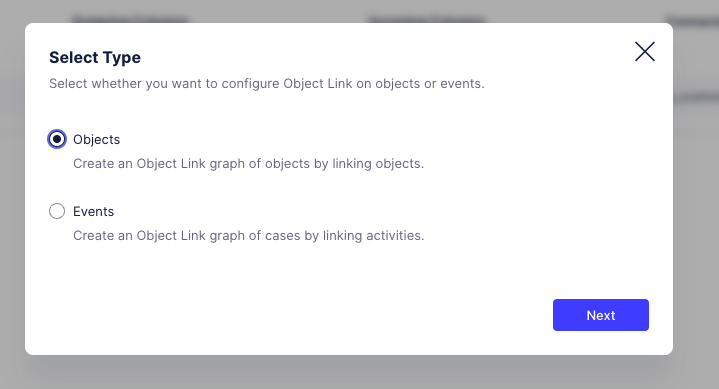
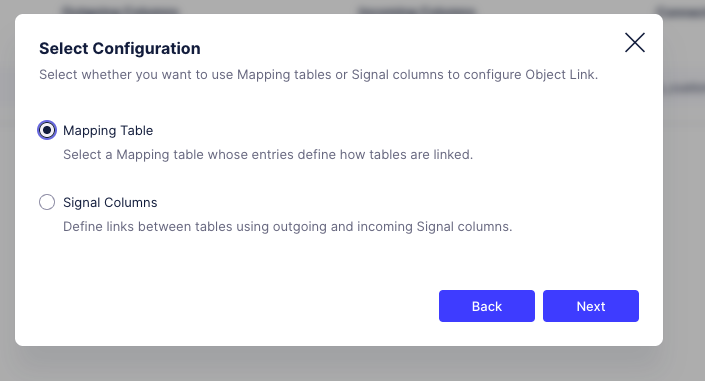
Select “o_custom_RelationshipOperations” as your mapping table, with Operation1 and Operation2 as your incoming and outgoing columns, respectively.
Select “o_custom_Operations” as the “Connected Table” with column “ID,” and save your configuration. You can now load the Data Model.
Troubleshooting: Pay attention to the data model load warnings. The following warnings indicate issues in the Object Link configuration that serves the network in the app and should be addressed accordingly :
Object Link configuration does not contain any links.
Background: The join between the source and target columns of both of the RelationshipOperations tables does not find a match in the ID column of the Operations object. Check the respective transformations for the Relationship_ objects.
Object Link mapping table [TABLE] does not add links to the Object Link graph.
Background: The join between the source and target columns of one of the RelationshipOperations tables does not find a match in the ID column of the Operations object. Check the respective transformation for the RelationshipOperations object.
Object Link: There are links to different rows possible for table [TABLE]. Please make sure you have unique identifiers for all rows in your connected tables:
Background: The join between the source and target columns of the RelationshipOperations tables with the Operations is not configured on the ID column. Double check that you’ve configured the ID column as foreign key in the Object Links tab in the data integration UI.